
Editing a Design Intent in Layout XL
To edit a design intent in Layout XL,
-
Open the Edit Design Intent form from the Navigator or the canvas.
A submenu is displayed if there are multiple design intents available for the selected objects. -
Choose the design intent to be edited.
The form is divided into three parts: only the lower section is completed in Layout XL.
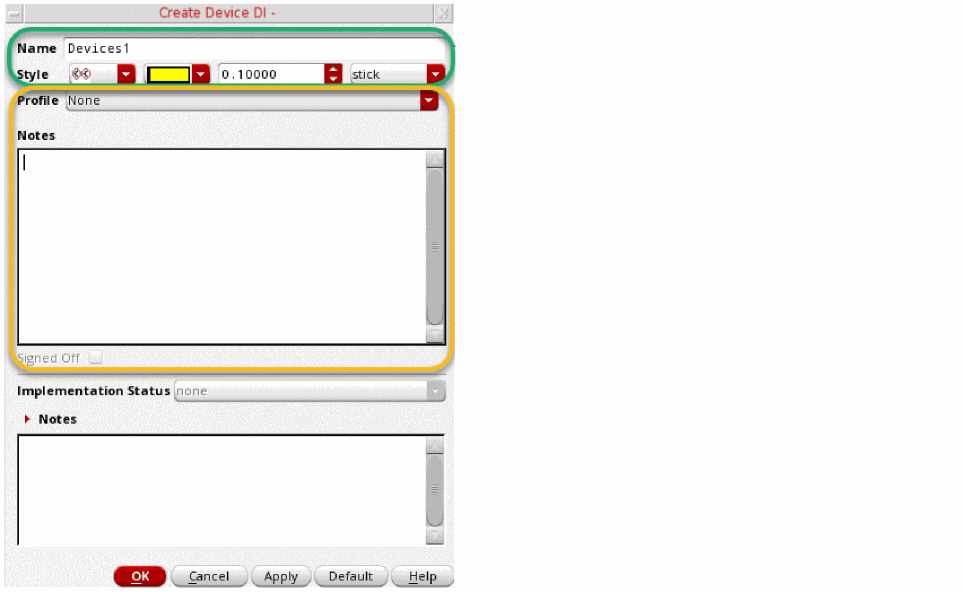
- Review any Notes in the middle section of the form. The information provided can be used as the basis for the layout designer to implement the design intent.
- In the lower section, provide any additional Notes to query or update the schematic designer regarding the implementation of the design intent
- Update the Implementation Status as required on the lower section of the form.
- Select OK.
- In Schematics XL, the Sync button on the Design Intent toolbar is enabled and the affected objects are immediately displayed with a sync icon as a prompt to Sync Design Intent.
Related Topics
Schematic and Layout View Synchronization
Return to top