
Design Intents in the Constraint Manager
Design Intent allows schematic designers to capture their design goals in Schematics XL without actually creating constraints. The design intent is transferred to Layout XL, where the layout designer is responsible for physically implementing the design intent in the design. The responsibility for creating constraints moves from Schematics XL to Layout XL.
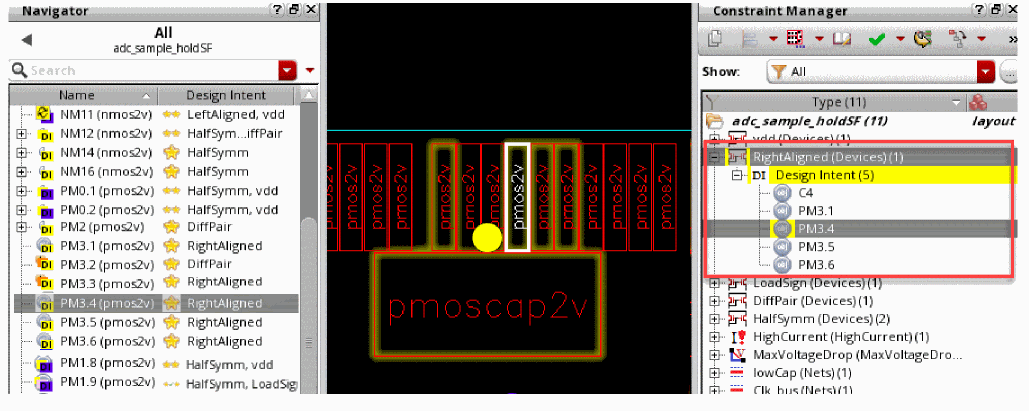
Design intents are grouped together in the Constraints Manager. You can create constraints in the layout view using the Constraint Manager assistant. The constraints created are supported by the various physical design applications.
Selecting a design intent in the Constraint Manager halos the design intent on the canvas across both Layout XL and Schematics XL.
Double-clicking a design intent in the Constraint Manager assistant opens the Edit Design Intent form.
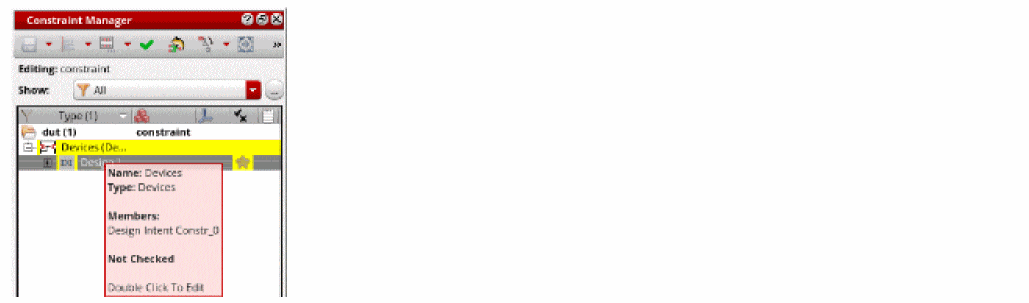
Hovering the pointer over a design intent in the Constraint Manager displays a tooltip as shown in the following figure.
Related Topics
Adding a Physical Constraint to an Existing Design Intent
Return to top