
Filtering Cellviews
You can find cellviews quickly by using filters. You can set filters to display only those cellviews that match a certain pattern or those that belong to a particular library, for example. You can also choose to filter out cellviews that are at the leaf level, have an invalid binding, or do not have an explicit rule.
-
Choose View – Filters.
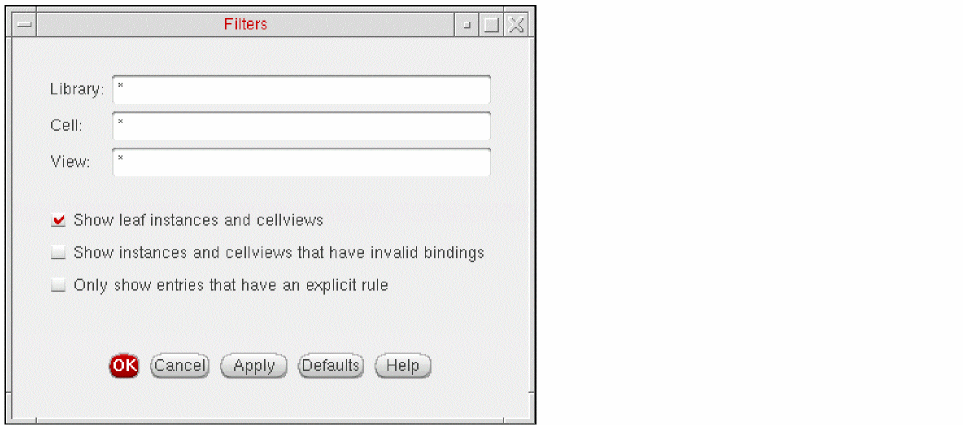
The Filters form appears.
-
In the Library, Cell, and View fields, specify whole words or character strings to narrow your cellview search.
You can use the following wildcards:Character Match Criteria
For example, to find all the libraries that begin withp, in the Library field, typep*.
Pattern matching is case sensitive. You can also specify multiple patterns by separating the patterns with spaces. -
Select the type of data you want to see by selecting one or more of the following options:
-
Show leaf instances and cellviews
Displays even those instances and cellviews that are at the leaf level of the tree, that is, they do not have a hierarchy under them. -
Show instances and cellviews that have invalid bindings
Displays even those instances and cellviews that are unbound or whose binding is invalid. -
Only show entries that have an explicit rule
Displays only the entries for which a view or view list has been set explicity in the View to Use or Inherited View List column respectively, that is, the inherited value has been overriden. Entries with an explicit Bind-to-Open, Source File, or Reference Verilog setting are also displayed when this option is selected.
-
Show leaf instances and cellviews
-
Click Apply.
The status bar displays Filters: ON. -
Click OK.
The Filters form closes and the Hierarchy Editor uses the selected filter criteria until you turn off the filters.
The filter setting returns to the default setting when you start another Hierarchy Editor session. You must save your settings using the File – Save Defaults command to save the filter settings for future sessions.
Related topics
Return to top