
Selecting Objects from an IC Layout
To select the objects to be included in a model:
- Select a model in the Models table.
-
On the layout canvas, select an instance or net that you want to add to the model.
Alternatively, select these in the Navigator assistant. -
(Optional) In case of a hierarchical design, traverse the design.
To descend into an instance, do one of the following:- Expand an instance in the Navigator assistant to view all the instances it contains.
- Right-click an instance on the layout canvas and choose Edit in Place or Descend Edit.
Select nets or instances from any level.
The name of a selected object shows the complete hierarchical path to the selected instance or net where the name of each level is separated by a/. -
Click Add selected instances/nets (
 ) on the Selection tab.
 - Similarly, select more nets or instances to be placed in the same model.
- (Optional) Create a cutting boundary (rectangular or polygonal) around the selected objects. This defines the boundary for an interconnect to be included in the model. The interconnects connecting the selected nets and instances from all layers are included in the model.
-
In the Current Return Path field, choose one of the following current return path types:
- Local Reference: You need to find the correct ground for each port by connecting it to the real ground metal or the plane below it or next to it.
-
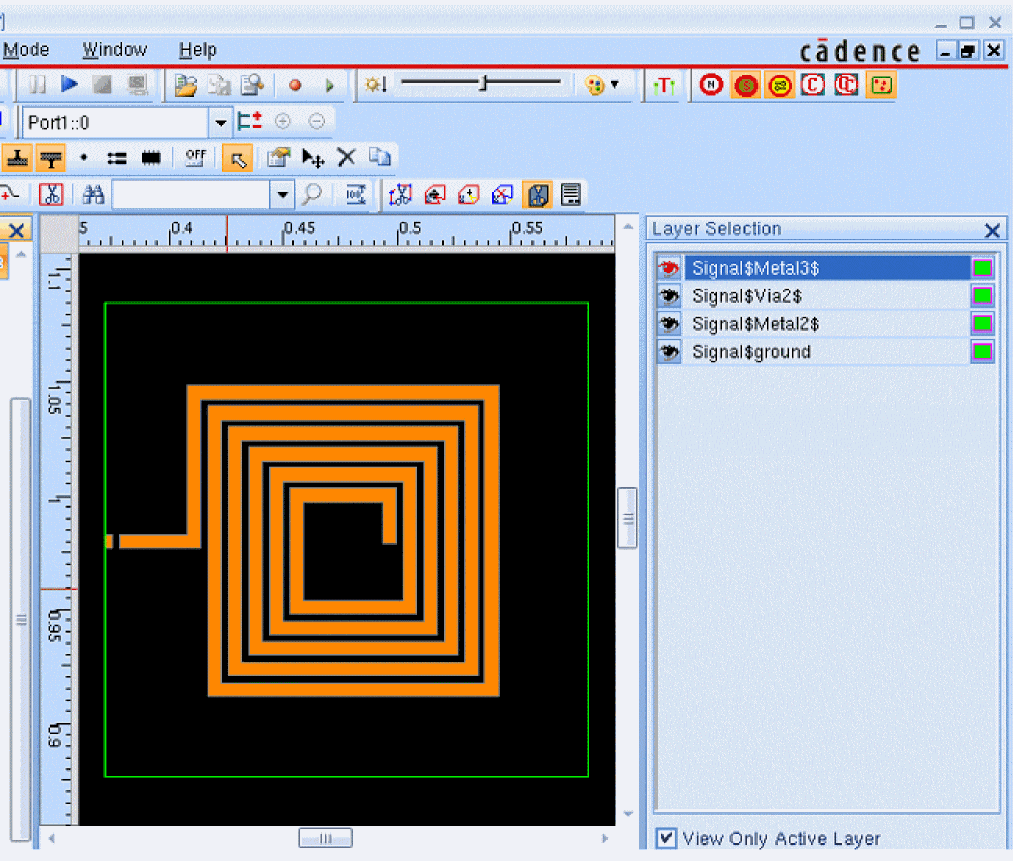
PEC Ground Ring (Perfect Conductor Ground Ring): (Default) The tool creates a ground ring around the selected objects, as shown below, and connects the ports to the ring.
Related Topics
Specifying Die Ground Settings for an IC Layout
LVS Resistors in Electromagnetic Simulations
Return to top