
Launching the Electromagnetic Solver Assistant
To launch the Electromagnetic Solver assistant:
- Launch Virtuoso.
- In the Library Manager, select the required library and cell in the Library and Cell columns.
-
Double-click the name of the layout view.
A package layout is opened in Layout MXL. An IC layout is opened in the application that was used to save it last. If opened in Layout XL, you can choose Launch – Layout MXL to open the layout in Virtuoso Layout MXL. -
Select the
Electromagneticworkspace from the Workspace Configuration drop-down list.
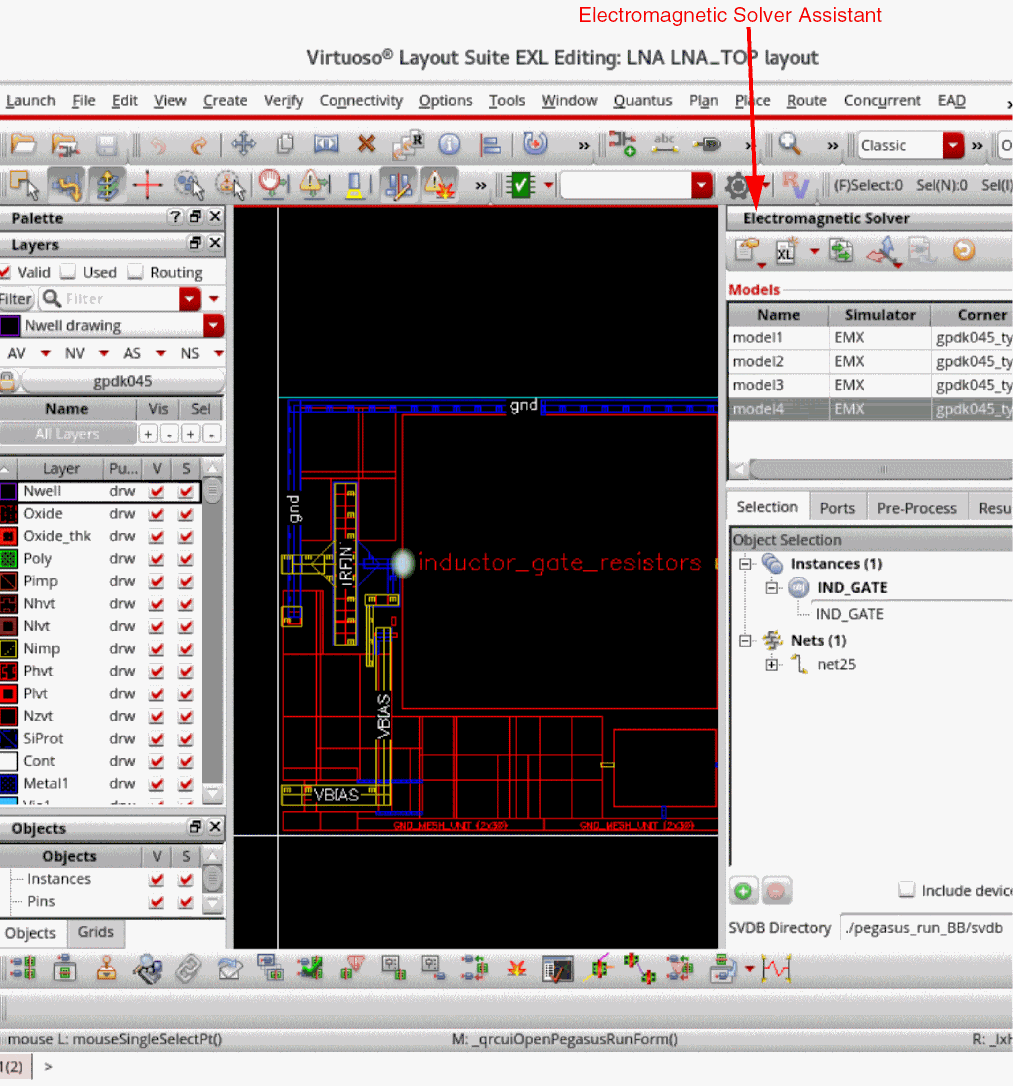
TheElectromagneticworkspace makes the following changes in the Layout MXL environment:- Displays the Electromagnetic Solver assistant to the right of the layout canvas. At this time, the tool searches for the supported solvers in the paths set by the PATH environment variables. If the solvers are found, details are shown in the Electromagnetic Solver assistant. Otherwise, the tool displays an error in the assistant. In the latter case, you need to close the Virtuoso session and set the PATH environment variable or the solver-specific variables, EMX_PATH and CLARITY_PATH, to add the paths to the solvers.
- Opens the Navigator assistant and Property Editor assistant
- Opens the Palette assistant showing the list of layers available in the design
- Expands the Options toolbar to make the Dim icon visible
- Hides the Floorplanning toolbar
The Layout Suite MXL environment window appears as shown below.
Related Topics
The Electromagnetic Solver Assistant GUI
Return to top