
Common Pin Alignment Issues
After aligning pins, the Pin Alignment command in the Align form performs a post-process check to determine any overlaps:
If any overlap exists, then the pin aligner displays a warning message indicating the previous location, layer, term name, and new location.
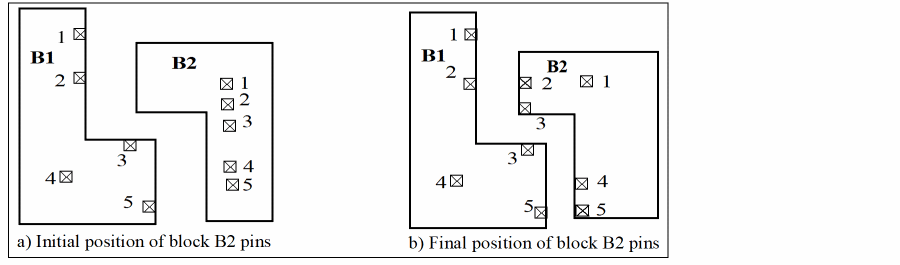
For example, in the figure below, pins 1 to 5 of block B1 are connected to pins 1 to 5 of block B2, respectively. If you select all the pins of block B1 as the reference pins and the block B2 as the target block, the pins of block B2 are moved as shown in the figure marked b. Note that pin 1 of block B2 is not moved at all because no edge is available to get it aligned. Any target pin connected to a reference pin is moved to the first edge of the target block encountered by an imaginary line orthogonal to the reference pin edge.
If none of the imaginary orthogonal lines touch the target block, the pin will not be moved (for example, pin 1 in block B2).
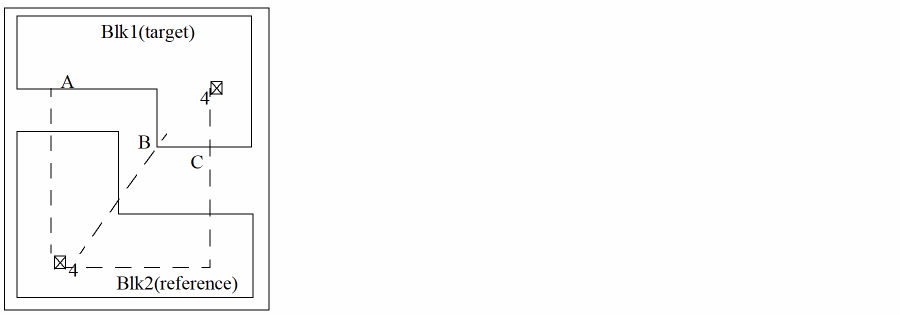
If a reference pin is not on the edge or is on the corner (and has two edges) then out of two orthogonal imaginary lines, the one that hits the target edge point (see example below) is considered and the connected target pin is moved to this point. This may not be the closest point. In this figure, Blk2 is the reference and Blk1 the target. Pin 4 needs to be aligned. If imaginary orthogonal lines are drawn from the reference pin 4 to the target, three possible positions can be identified for pin 4 on the target block. these are marked as A, B and C. The target pin can be moved to any of these positions. Pin aligner chooses position A for the target pin for the best alignment although positions B and C could have helped reduce the net length.
Fixed pins (with status “firm” or “locked”) are not moved by the pin aligner. A message is given in CIW:
*Warning* Can not align pin <name> of instance <name>, as it is a <status> pin
The Pin Alignment command supports multiple reference pins connected to multiple target pins on the same net. It also considers if multiple target pins can be aligned to the same reference pin based on the closest edge criteria.
There are various cases in pin alignment some of which are described as follows. In the figures shown for various cases, the reference and target pins are shown as block pins but they can be top-level pins as well.
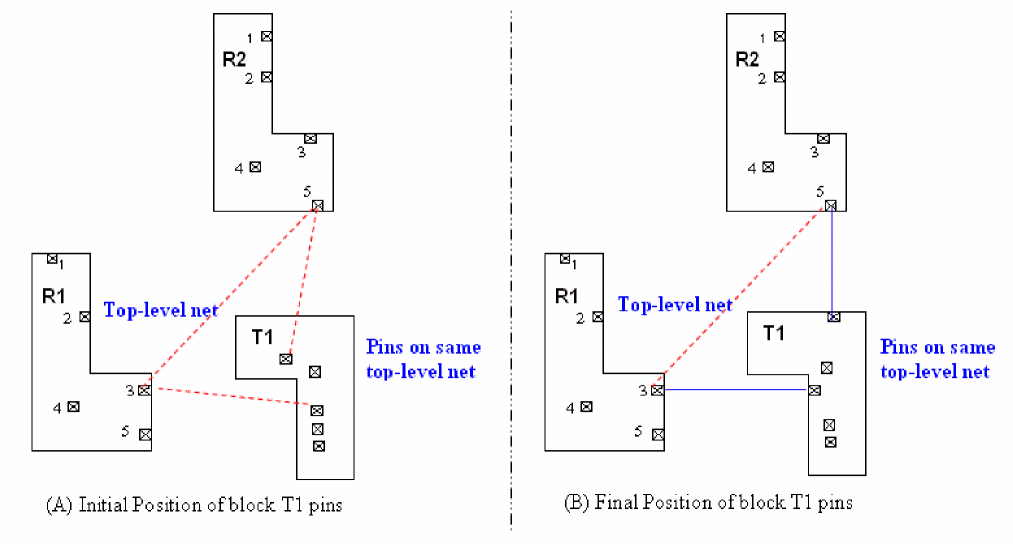
In this case, you select the pins in different blocks as the reference pins, which are connected to multiple pins in the same target block. The target pins are aligned as shown in the following figure.
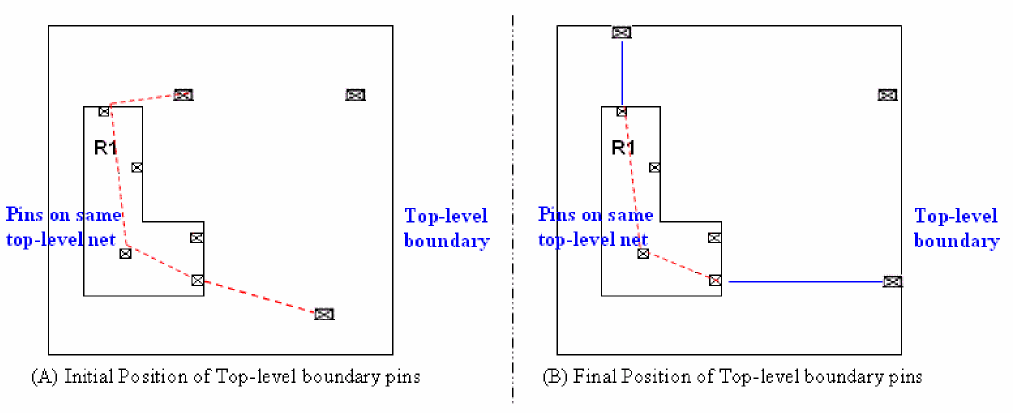
In this case, you select multiple pins in the same block as reference pins, which are connected to multiple top-level pins. The target pins are aligned as shown in the following figure.
In this case, you select multiple pins in the same block as reference pins, which are connected to multiple pins in different target blocks. The target pins are aligned as shown in the following figure.
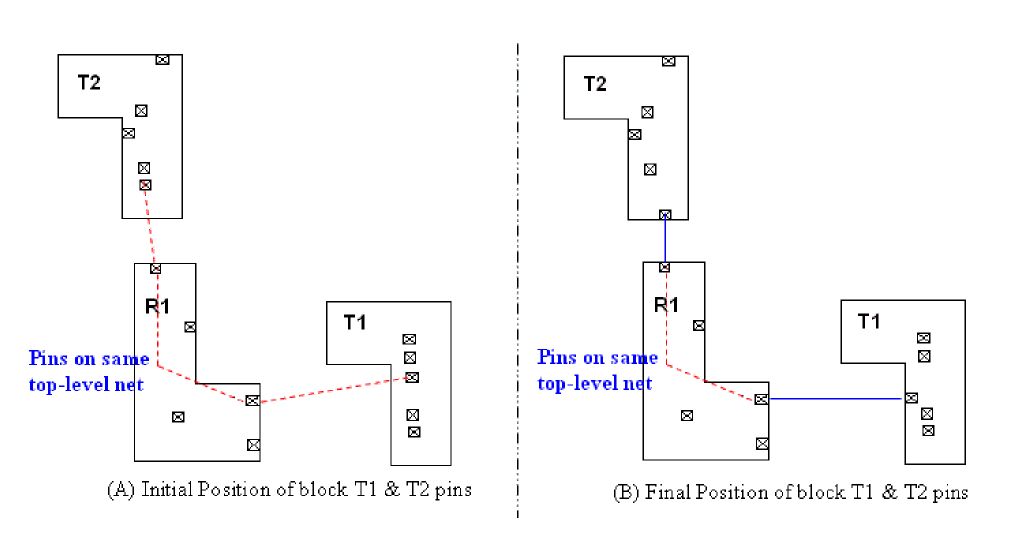
In this case, you select the pins in different blocks as reference pins, which are connected to multiple pins in different target blocks. The target pins are aligned as shown in the following figure.
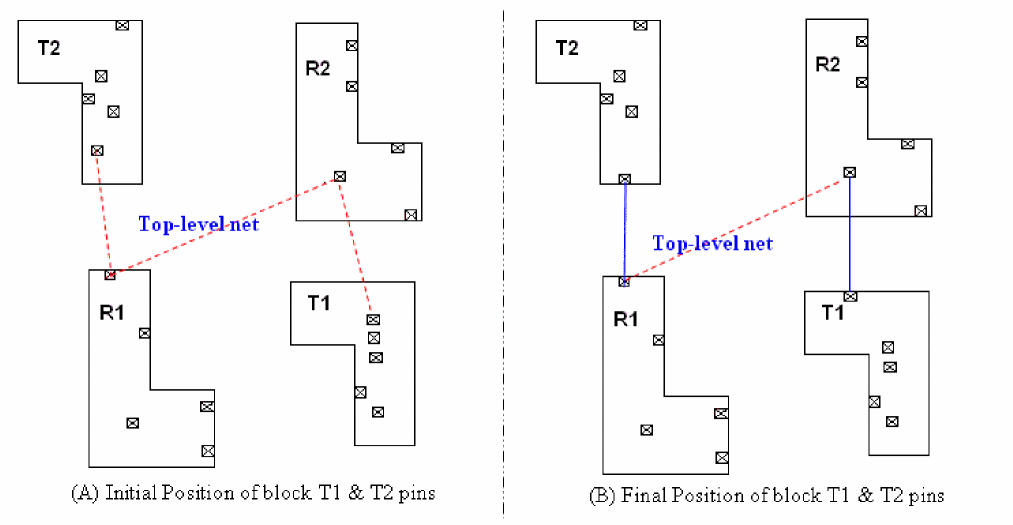
In this case, you select a pin in a reference block, which is connected to multiple pins in the same or different target block(s). The target pins in different block(s) are aligned as shown in the following figure.
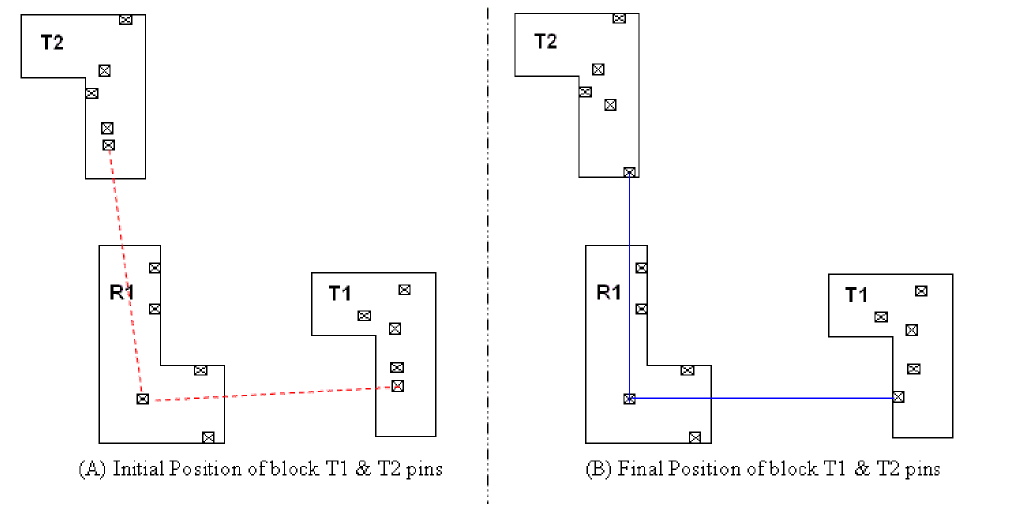
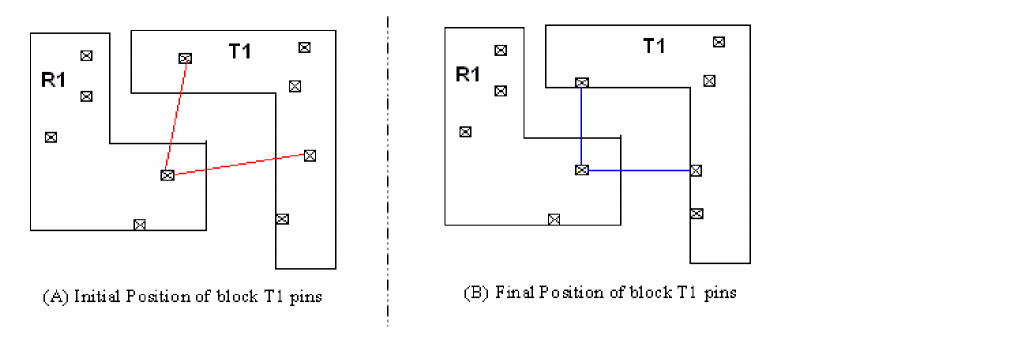
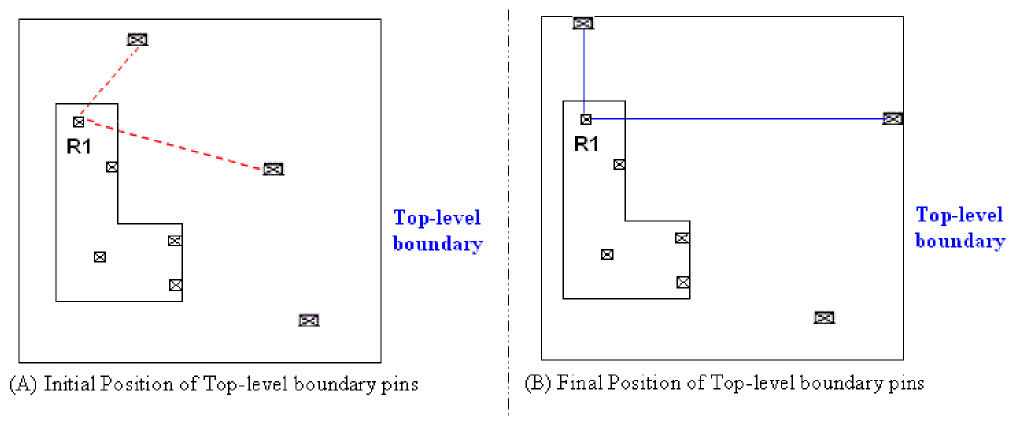
In this case, you select a single pin in the reference block, which is connected to multiple top-level pins in the pr boundary. The pins at the top-level are aligned as shown in the following figure.
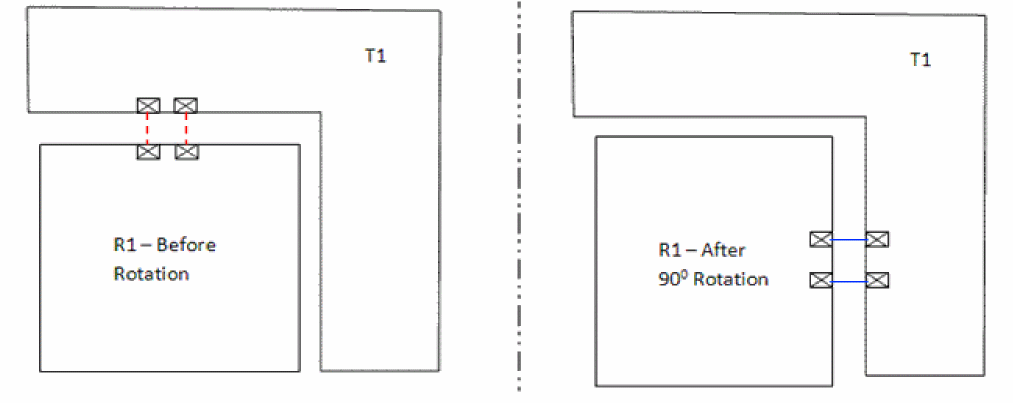
In this case, when the block having reference pins is rotated by 90o, the pin aligner automatically and intelligently aligns the pins in the target block with the pins in the reference block to get the shortest net length.
The pin aligner ignores any selected item that is not a pin, a block or the top level PRBoundary. A message is given in CIW:
*Warning* Pin Alignment is not supported for object of type <type>
If the target block is not a soft block, its pins are not aligned. A message is given in CIW:
*Warning* Can not align pins of instance <name> as it is not a soft block.
If the target soft block does not have a PR boundary, its pins are not aligned. A message is given in CIW:
*Warning* Can not align pins of instance %s as it does not have PRBoundary.
If the block to which the target pin belongs is outside the top-level design boundary, then the pin is aligned but not snapped to the grid. A message is given in CIW:
*Warning* Can not snap pin %s of instance %s as it is outside the design boundary.
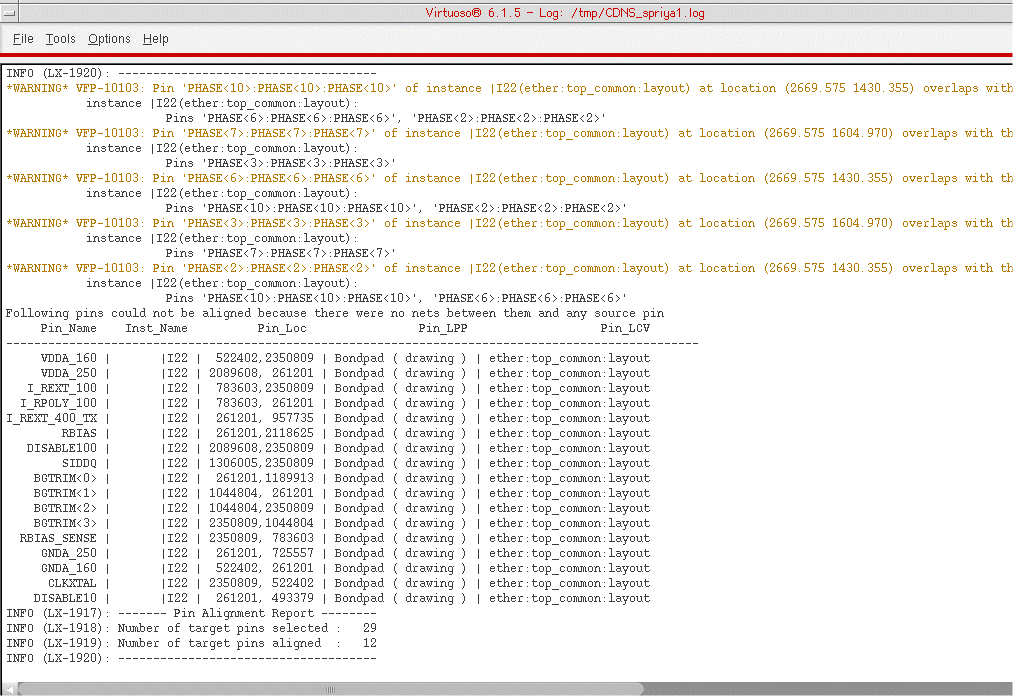
After aligning the pins, a Pin Alignment report is displayed in the CIW. The Pin Alignment report provides a detailed listing of target pins that are not aligned, along with the reason for not aligning them.
Related Topics
Return to top