
Viewing and Changing File Permissions
If you or your group own a library, cell, view, or file, you can change the permissions to control access. These are the same read, write, execute (rwx) permissions you can change from a UNIX command line.
If the software cannot find the item, it generates an error message telling you that the permissions could not be changed. As the owner of an item, you can change the permissions, but you cannot change the ownership.
To view or change the access permissions for an item:
- On the Library Manager form, select the item from the tree or appropriate list box.
-
Choose Edit – Access Permissions.
The Access Permission form appears.The item you chose appears at the top of the form. The specified owner and group for the selected item appear in the corresponding fields.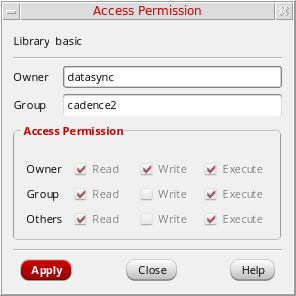
If the item you select is under design management and is either checked in or checked out to someone other than you, you cannot select the Access Permissions command. - Select check boxes for the permission values you want to set.
- Click Apply.
The Library Manager changes the permissions for the selected item.
Related Topics
Return to top