
Creating and Displaying a Combined Library
The Library Manager allows you to group a set of libraries and display them as a combined library.
A combined library is a virtual library made up of other libraries. The data is not physically moved or copied; it is just displayed in consolidated form under the combined library.
This feature helps you manage the display of libraries for your needs by letting you group together libraries for a specific purpose or to reduce the number of libraries displayed in the Library list box. For example, if you use a base set of libraries with some additional libraries for one process and with another set of libraries for another process, you could group the relevant libraries together for each process.
Creating Combined Libraries
Combined libraries are created by setting an ASSIGN statement with a COMBINE attribute in your cds.lib file.
-
Create a new directory for the combined library.
The combined library must be valid and defined before theASSIGNstatement for it to work properly. -
In your
cds.lib, add the following statement:
ASSIGNcombinedLibNameCOMBINElibA...
where combinedLibName is the name of the top-level library and libA and libB are the libraries that comprise the combined library.
The combined library must be valid and have a physical representation, even if it is an empty directory. Any invalid libraries are ignored in libManager. Invalid libraries present in theASSIGNstatement generates a warning message. -
Ensure that a
DEFINEstatement for the new combined library and for all the libraries that are combined appears before theASSIGNstatement incds.lib.
All the libraries specified in the statement must already be defined with the DEFINE statement earlier in the file, otherwise the invalid libraries are ignored by Library Manager.
A library can be placed in more than one combined library.
With the ASSIGN statements, you can build up a hierarchy of libraries.
DEFINE analogLib /home/libs/analogLib
DEFINE sbaLib /home/libs/sbaLib
DEFINE demoLib /home/libs/demoLib
DEFINE newLib /home/libs/newlib
DEFINE testLib /home/libs/testLib
ASSIGN newLib COMBINE analogLib sbaLib
ASSIGN testLib COMBINE newLib demoLib
Display Combined Libraries
In the Library Manager, combined libraries are displayed in the Library list just like any other library.
Combined libraries are displayed in a tree form.
A + icon next to a library name indicates that it is a combined library and has a hierarchy under it. Double-clicking on the library or clicking the + icon displays the libraries it contains. The individual libraries that comprise a combined library are not displayed at the top-level, they are only displayed under the combined library.
Tooltips for combined libraries also indicate that they are combined: the tooltip displays the library name followed by [COMBINED].
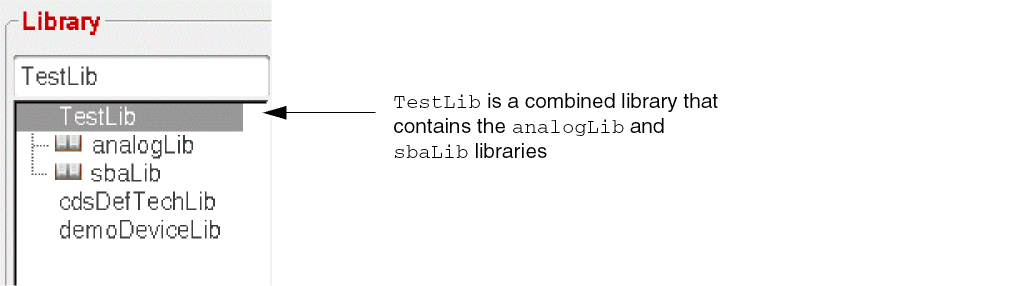
When a combined library is selected in the Library list, the other list boxes display composite data from all the libraries that comprise the combined library.
The Cell list box displays all the cells from all the libraries under the combined library. The tooltip for each cell shows the same library to which it belongs.
Similarly, the Files in Library list box displays library-level files from all the libraries in the combined library. Files that are found in more than one library are listed with the library name displayed in brackets after the file name to differentiate them. Tooltips display the origin of the other files.
When you select a cell in the Cells in Library list box, its views and files are displayed as usual. Tooltips indicate the library and cell information for the view or file.
However, if a cell of the same name is found in two libraries, consolidated data for both cells is displayed when you select the cell. The Views in Cell list box displays the views found in both cells, with the library name in brackets to differentiate them. Similarly, the Files in Cell list box displays cell-level files for both cells, with the library name in brackets. Also, the tooltip for the cell indicates that the cell is combined, for example: TestLib/n2port[COMBINED].
For combined libraries, categories are also merged—the Category list box displays all categories for all libraries in the combined library. Selecting a category that is common to two libraries displays data from both libraries that belongs to that category.
libraryA that contains its own data as well as libraryB and libraryC, only the contents of libraryA are copied to the new library. The forms for these commands also display information about the physical library only. The only exception to this is the Delete command, which displays information about the combined data and gives you the option of deleting from multiple locations, if applicable. See the descriptions of the Delete commands earlier in this chapter for more information.You cannot copy or rename a combined cell (a cell that is found in multiple libraries in a combined library) unless you select a specific view or select the cell from the library to which it belongs.
Related Topics
Return to top