
Deleting a View
To delete a view from the Library Manager:
- Select the view you want to delete.
-
Choose Edit – Delete.
The Delete Cell Views form appears.
The selected view appears in the Delete list box.
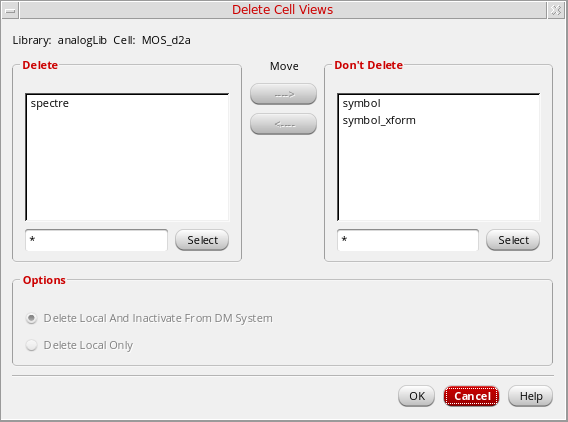 If the view is selected from a combined library, then it does not appear by default in the Delete list. It appears in the Don’t Delete list and its name indicates the physical library that it belongs to. If you want to delete the view, move it to the Delete list. In addition, the view gets deleted from the physical library to which it belongs.If the view is part of a combined cell, that is, a cell that is found in more than one library in the combined library, the Don’t Delete list displays an entry for each library, so that you can select the ones you want to delete. However, if the cell is a part of the top-level combined library, then the view does appear in the Delete list and all the other views of that cell are displayed in the Don’t Delete list.
 - To delete additional views, you need to select a view from the Don’t Delete list box and click the left-facing Move arrow to move the selected views to the Delete list box.
- Select one of the following Options:
- Click OK and then Yes in the confirmation dialog to perform the delete operation.
Related Topics
Deleting Library or Cell Files
Return to top