
Cellview and File Versions
To access the version information for a cellview or file, follow these steps:
- In the Library Manager, select the cellview or file for which you want to access the version information.
-
Choose Design Manager – Version Info.
The Version Information form is displayed where the version information is indicated as follows:- Version: The version of the cellview or file.
- Author: The ID of the user who checked in the version.
- Date: The date when the version was checked in.
- Notes: Any details about the version. The term Default Version indicates the most recent version checked in by the user. If the user rolls back the cellview or file to a lower version, it is indicated as Default Version.
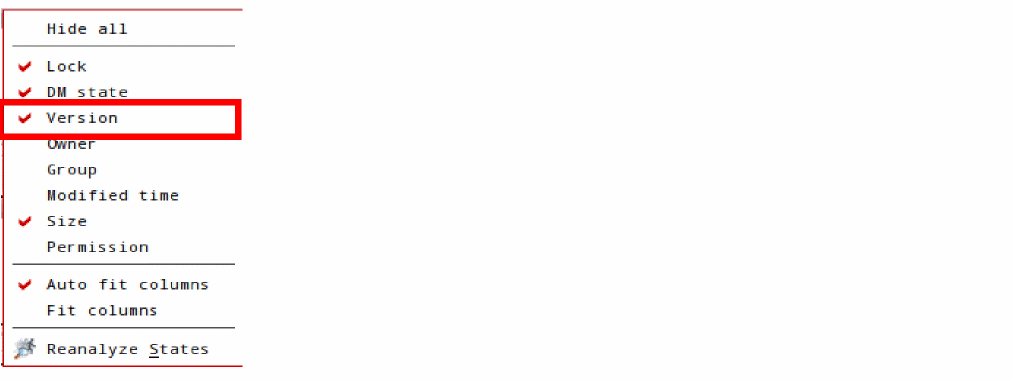
Alternatively, right-click the title bar of the View list box in the Library Manager form and choose Version from the pop-up menu.
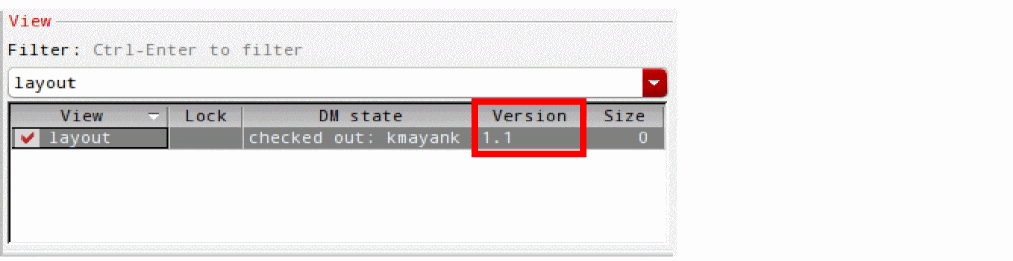
The Version column is added to the View list box of the Library Manager form.
Return to top