
Merging Layers
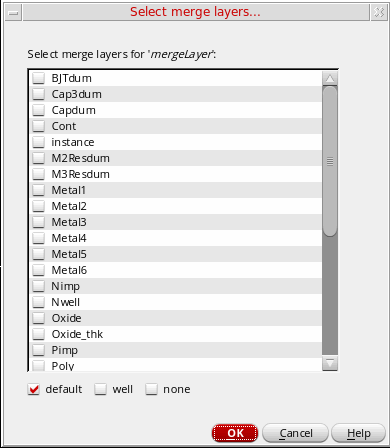
Use the Select merge layers... form to specify the layers that need to be merged.
-
To invoke the Select merge layers... form, click the Merge Layers icon
 on the Modgen Placement toolbar. Alternatively, you can right-click anywhere in the Modgen Editor window and select Merge Layers. The Select merge layers... form is displayed.
-
Select the check boxes adjacent to the layers that you want to merge.
Alternatively, select one of the Layers Preset: default, well, or none to select all layers of the selected type. - Click OK.
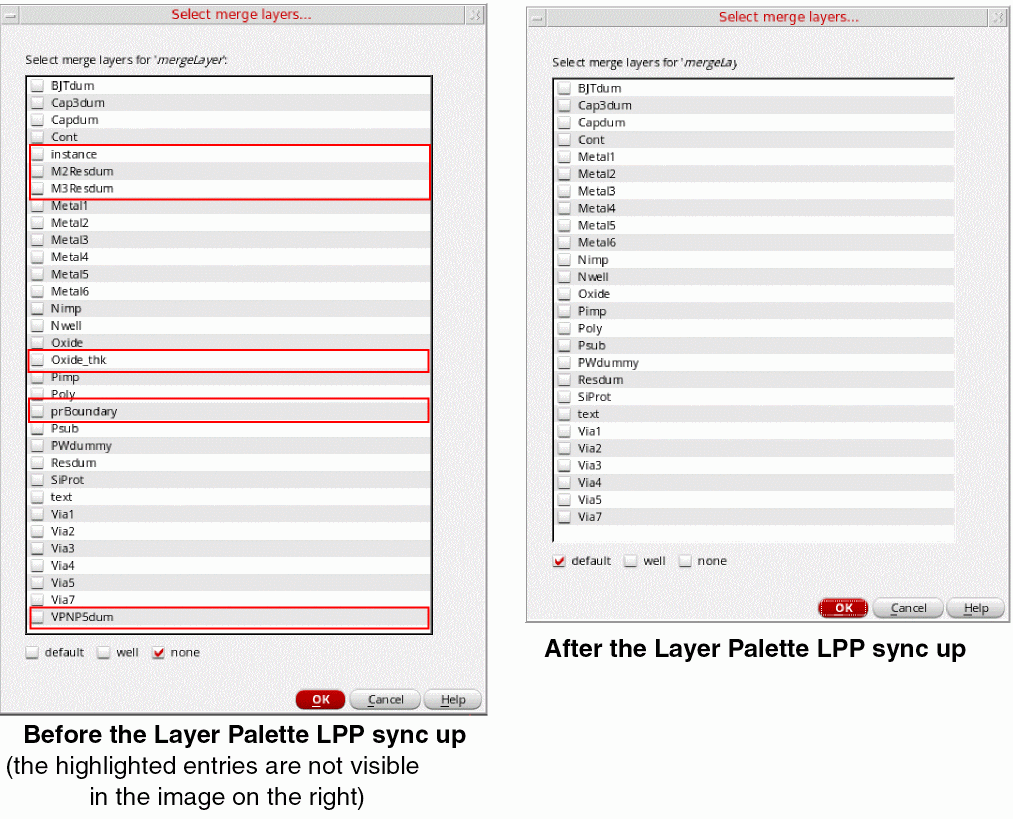
Selecting the Use Layer Palette LPPs Only check box in the Layout Editor Options form synchronizes the layers displayed in the list with the layers listed in the Palette assistant of Layout XL. To access the Layout Editor Options form, choose Options - Editor... from the Layout XL window.
When you enable layer synchronization and change the filters in the Palette assistant using the Used, Valid, and Routing check boxes, layers of specific categories are displayed in the merge layers list box. This change is visible when you update the filters in the Palette assistant and then launch the Select merge layers form.
Related Topics
Return to top