
Customizing the Color Settings
To set the color preferences for various elements of the SKILL IDE editor window:
-
Choose Options — Color Settings.
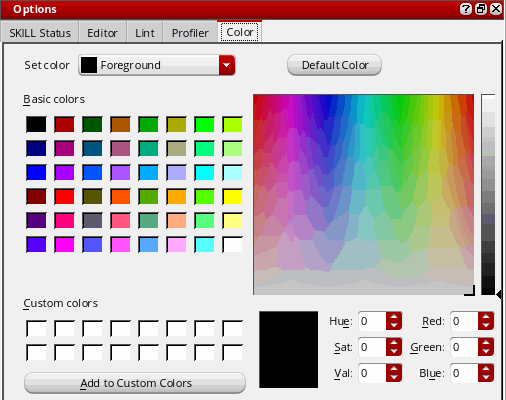
The Options assistant displays with Color as the default tab.
-
Use the Set color drop-down list box to change the color preferences for the code elements. The available options are: Foreground, Background, Selected Text, Matching Text, Matching Parenthesis, Mismatching Parenthesis, Error, Step, and Cross-Highlight.
When you select a message in the Lint Output window, its corresponding code is highlighted in the cross highlight color in the editor window. This option also changes the cross highlight color between objects and their Pcell source code. - Click a color in the color swatch to change the color of the selected element. Click Default Color to switch it back to the default color.
- Create custom colors by dragging the mouse pointer inside the color palette and adjusting the contrast. You can then click Add to Custom Colors to save the new color as a custom color.
Related Topics
Return to top