
hiCreateTreeTable
hiCreateTreeTable(?names_name[?titlet_title] [ ?choiceg_choice][?valueg_value][?defValueg_defaultValue][?helpg_fieldHelp][?headersg_headers] [ ?sortl_sort][?callbackg_callback] [ ?enableDeselectCBg_enableDeselectCB][?expandCallbackg_expandCallback][?collapseCallbackg_collapseCallback] [ ?sortCallbackg_sortCallback][?nextFieldg_nextField][?titleAlignmentg_titleAlignment][?selectModes_selectMode][?invisibleg_invisible] [ ?enabledg_enabled][ ?altRowHilightg_rowHighlight] [ ?expandCollapseOnDoubleClickg_expandCollapseOnDoubleClick] ) =>r_fieldHandle
Description
Creates a tree table field. If you have already created a tree, you can specify it when you create the field; otherwise you can add a tree later to the field. To create a tree, use hiCreateTree and other tree table field functions.
Arguments Values Returned
|
Title of the tree table field, which is displayed above the tree. |
|
|
The tree that the tree table field contains. This is the return value of To retrieve or change the value of g_choice, use: |
|
|
The initial value of the field, indicating which items in the tree table field are selected when the form first appears. Specify g_value as a list of item symbols.
After the form is instantiated, you can use the
To change the list of selected items with the
Setting the value through the |
|
|
Default value of the field, indicating which items in the tree table are selected when the Defaults button is clicked. Specify g_defaultValue as a list of item symbols.
After the form is instantiated, you can use the |
|
|
A string, symbol, list of strings, or list of symbols used to reference help. If this argument is not specified, s_name is used. This argument is currently not used. |
|
|
The list of columns in the tree table field. Specify each column as a list that contains the following elements:
This should be of type symbol.
This should be of type symbol.
sortable indicates if the column is sortable. Specify
compareFunction is the name (string) of the optional sorting function you write if you want to sort the data yourself. The return value of this sorting function must be You need to specify type, sortable, and compareFunction only if you want the column to be sortable. |
|
|
After the tree table is displayed, you can choose which columns you want to display. To do so, right-click on the tree table title, and in the pop-up menu that appears, select the columns you want to display and deselect the columns that you want to hide. By default, all the columns are displayed. |
|
|
After the form is instantiated, you can use the headers property to retrieve or change the header. Use the following syntax to set the header property: |
|
|
Indicates which column is sorted when the tree table first appears. Specify l_sort as a list of two elements:
where columnToSort is an integer indicating the column to sort (the first column is
You can also use the
Use the following format for the Clicking on the column header sorts the column. Clicking again on the column header changes the sorting direction, from ascending to descending or vice versa.
This argument is valid only if |
|
|
A string or symbol that specifies the name of the SKILL function to be called when items are selected in the tree table field. If you want the callback function to also be called when items are deselected, specify |
|
|
|
|
|
The SKILL function that is called when any tree node is expanded. The expand callback function is passed two arguments:
The default value of g_expandCallback is an empty string ( |
|
|
The SKILL function that is called when any tree node is collapsed. The collapse callback function is passed two arguments:
The default value of g_collapseCallback is an empty string ( |
|
|
The SKILL function that is called when a column is sorted. The sort callback function is passed two arguments:
where columnToSort is an integer indicating the column to sort (the first column is
The default value of g_sortCallback is an empty string ( |
|
|
Symbol or string indicating the next field to bring into focus when the |
|
|
Alignment of the title of the tree table field. Use one of the following values: |
|
Examples
The following sample creates a form with a tree table field.
; create a root tree
indexTree=hiCreateTree('index)
; create two tree items and append them to the root tree
dow=hiCreateTreeItem('dow list("Dow Jones"))
nas=hiCreateTreeItem('nas list("NASDAQ"))
hiTreeAppendItem(indexTree dow)
hiTreeAppendItem(indexTree nas)
; create two sub-trees
dowTree=hiCreateTree('dows)
nasTree=hiCreateTree('nass)
; put the two sub-trees into the two items created earlier
hiItemInsertTree(dow dowTree)
hiItemInsertTree(nas nasTree)
; add a few leaves for the dowTree and nasTree
hiTreeAppendItem(dowTree hiCreateTreeItem('cdn list("Cadence" 80.5 1 "Strong
   Buy")))
hiTreeAppendItem(dowTree hiCreateTreeItem('ibm list("I.B.M." 118 3 "Hold")))
hiTreeAppendItem(nasTree hiCreateTreeItem('sunw list("Sun Micro" 27.750 4
   "Sell")))
hiTreeAppendItem(nasTree hiCreateTreeItem('orcl list("Oracle" 28.925 5 "Strong
   Sell")))
; create callback, which is called whenever any tree items are selected and which
; prints the selected item’s description
procedure( myTreeCB(name itemSymList)
     while(itemSymList
         itemSym=car(itemSymList)
         println(hiGetTreeItemDescription(eval(itemSym)))
         itemSymList=cdr(itemSymList)
         )
)
; create tree table and use indexTree as the value for ?choice
treeField = hiCreateTreeTable(
            ?name 'treeField
            ?title "Stocks"
            ?titleAlignment 'center
            ?headers list(list("Name"             125    'left    'string)
                           list("Price"           60     'left    'float3)
                           list("Rating"          45     'center  'int)
                           list("Recommendation"  125    'right)
                          )
             ?choice indexTree
             ?callback "myTreeCB"
             )
; create a form
form = hiCreateAppForm(
            ?name 'form
            ?formTitle "A Tree Sample"
            ?fields list(
                          list(treeField 5:5 400:200 55)
                        )
            ?initialSize 500:250)
hiDisplayForm(form)
The following sample creates a form with two tree table fields. The two fields are different views of the same tree. View 1 displays the tree structure while View 2 displays more details for each element of the tree. When you make a change in one view, the other view is updated simultaneously. For example, if you expand an item in View 2, the item is also expanded in View 1.
procedure( myTreeCB(name items)
     println(name)
     println(items)
)
procedure( expandCB(name item)
     println("expanded")
     println(name)
     println(item)
)
procedure( collapseCB(name item)
     println("collapsed")
     println(name)
     println(item)
)
; create a root node for the tree
rootTree=hiCreateTree('root)
; create four items for the tree and add them to the root
item1=hiCreateTreeItem('it1 '("Folder1" "Folder1 Description" 12.120105))
item2=hiCreateTreeItem('it2 '("Folder2" "Folder2 Description" 1))
item3=hiCreateTreeItem('it3 '("Folder3" "Folder3 Description" -0.5))
item0=hiCreateTreeItem('it0 '("Leaf" "Has no children" 3.22))
hiTreeAppendItem(rootTree item1)
hiTreeAppendItem(rootTree item0)
hiTreeAppendItem(rootTree item2)
hiTreeAppendItem(rootTree item3)
; create a sub-tree for each item
Folder1=hiCreateTree('folder1)
Folder2=hiCreateTree('folder2)
Folder3=hiCreateTree('folder3)
hiItemInsertTree(item1 Folder1)
hiItemInsertTree(item2 Folder2)
hiItemInsertTree(item3 Folder3)
; add items for the sub-trees
item11=hiCreateTreeItem('i11 '("Item11" "Item1 For Folder1" 123))
item12=hiCreateTreeItem('i12 '("Item12" "Item2 For Folder1" 5.7))
item13=hiCreateTreeItem('i13 '("Item13" "Item3 For Folder1" 0.999))
hiTreeAppendItem(Folder1 item11)
hiTreeAppendItem(Folder1 item12)
hiTreeAppendItem(Folder1 item13)
item21=hiCreateTreeItem('i21 '("Item21" "Item1 For Folder2" 321.0) )
item22=hiCreateTreeItem('i22 '("Item22" "Item2 For Folder2" 33))
item23=hiCreateTreeItem('i23 '("Item23" "Item3 For Folder2" 34.0))
hiTreeAppendItem(Folder2 item21)
hiTreeAppendItem(Folder2 item22)
hiTreeAppendItem(Folder2 item23)
item31=hiCreateTreeItem('i31 '("Item31" "Item1 For Folder3" 54.67))
item32=hiCreateTreeItem('i32 '("Item32" "Item2 For Folder3" 12.4) )
item33=hiCreateTreeItem('i33 '("Item33" "Item3 For Folder3" 3.1415) )
hiTreeAppendItem(Folder3 item31)
hiTreeAppendItem(Folder3 item32)
hiTreeAppendItem(Folder3 item33)
; create tree tables
treeF=hiCreateTreeTable(
         ?name               'treeField
         ?title              "Tree Table -- View 1"
         ?selectMode         'extended
         ?titleAlignment     'center
         ?callback           "myTreeCB"
         ?expandCallback     "expandCB"
         ?collapseCallback   "collapseCB"
         ?headers            '(("Folder" 120 left) ("Comment" 150 left)
                                            ("Misc" 80 right float))
         ?choice             rootTree
)
treeF2=hiCreateTreeTable(
     ?name               'treeField2
     ?title              "Tree Table -- View 2"
     ?selectMode         'extended
     ?titleAlignment     'center
     ?callback           "myTreeCB"
     ?expandCallback     "expandCB"
     ?collapseCallback   "collapseCB"
     ?headers            '(("Folder" 120 left) )
     ?choice             rootTree
)
myRep=hiCreateAppForm(
     ?name         'myRepForm
     ?formTitle    "Multiple-View Tree "
     ?fields       list(
                        list(treeF2 5:5 350:200 55)
                        list(treeF 5:220 400:250 55)
                   )
     ?initialSize    500:680
)
hiDisplayForm(myRep)
Additional Information
A tree table field displays a tree that can be presented in a table format. Each element of the tree can have several sortable columns of descriptions attached to it. For example, the following tree has two columns:
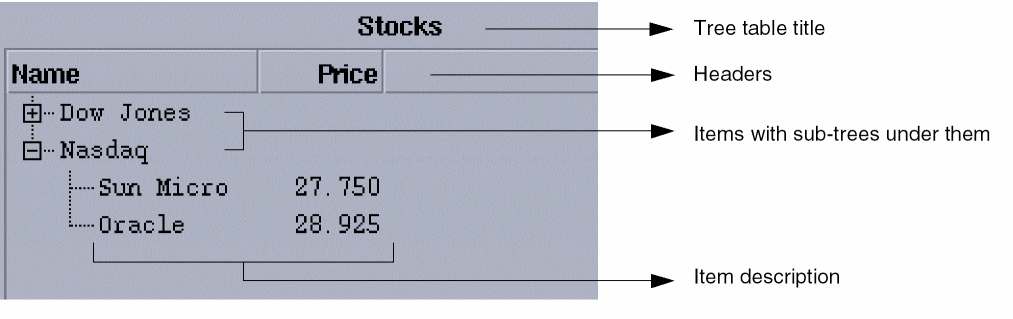
The tree table field API provides a set of SKILL functions. You create a tree table field with hiCreateTreeTable and specify a tree as the value of the field.
-
Create a tree object with
hiCreateTree. -
Create items for the tree with
hiCreateTreeItem. -
Add the items to the tree with
hiTreeAppendItem, hiTreeAppendItems, hiTreePrependItem, orhiTreePrependItems.
A tree can have several levels. You can create a sub-tree by inserting a new tree under an item with hiItemInsertTree.
After the field is created, you can do the following at any time:
- Add and remove items and sub-trees
- Change the description of the items
- Expand or collapse items in a tree
- Select or deselect items
- Sort columns by clicking on the column header
The tree table API also lets you create multiple views of the same data. The API is based on the model-view-controller paradigm. In the model-view-controller paradigm, a program is implemented in three parts—the model maintains the data; the view displays the data to the user; and the controller responds to user actions such as mouse clicks and keyboard input by sending messages to the model or view. This paradigm allows multiple views of the model.
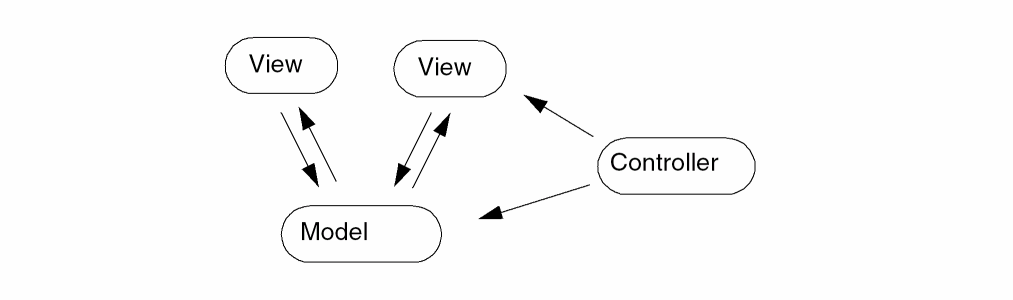
With the tree table API, you can create multiple views of the same data in such a way that when one view makes changes in the data (model), the other views are updated automatically to reflect the changes. For instance, if you expand or collapse a tree in one view, the tree is expanded or collapsed in the other views as well.
Trees and tree items are part of the data model, while the tree-table field is the view. Therefore, actions on the view such as expanding a sub-tree, selecting items, and sorting a column do not have any effect until a view (tree-table field) is instantiated. If you want some tree items to be expanded, for example, when a form is displayed, you need to instantiate the form, then call hiExpandTreeItem, and then display the form. For example:
hiCreateAppForm( ?name 'myForm, ?fields (list (list myTreeTable ...
(hiInstantiateForm myForm)
hiExpandTreeItem( 'myTreeItem t)
hiDisplayForm( myForm)
The following table describes the keyboard interface to a tree table field.
| Action | Keys | Select |
|---|---|---|
 or
or  keys
keys key
key icon
icon key
key icon
icon
You can customize the selection mode with the ?selectMode argument of hiCreateTreeTable.
You can also select, deselect, expand, or collapse items in a tree programmatically.
When a tree table field is displayed, you can interactively select the columns that you want to display. To do so, right-click the tree table title and, in the pop-up menu that appears, select the columns you want to display and deselect the columns you want to hide. Columns that are currently displayed have a check-mark next to them.
A tree table field can also have a context menu, that is, a pop-up menu that is displayed when you right-click on the field. See Creating Context Menus for Fields for more information.
You can specify a callback that is invoked when a tree item is double-clicked.
To specify the double-click callback,
-
Set the
hiDoubleClickCallbackproperty on the tree table field with the following command:
hiFormHandle->hiFieldSymbol->hiDoubleClickCallback=g_callback
where hiFormHandle is the handle to the form returned byhiCreateAppForm; hiFieldSymbol is the symbol of the tree table field (set with the?nameargument); and g_callback is the callback function, specified as a symbol, a string, or a function object. If g_callback is specified as a string, the string is evaluated and the callback function is not passed any arguments. If g_callback is specified as a symbol, the callback function is passed the following arguments:
(g_formOrRegion)
g_formOrRegion is either a form (of typer), if the field is placed at the top level of the form, that is, it is not within a scroll region or tab page; a scroll region (of typeo); or a tab page (of typeo). s_field is the symbol of the tree table field. s_item is the item that was double-clicked.
Related Topics
Return to top