
You can control the visibility of track patterns using the Display Mode icon on the Track Pattern assistant toolbar. This option lets you control the display of boundaries and track elements on the canvas. You can choose to view the local region boundaries, period lines, track lines, or full track widths.
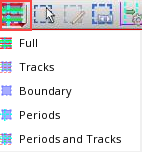
Once you select the display mode, you can decide which specific layer's track patterns are visible on the canvas. You select this by clicking the V (Visibility) column header or the individual check boxes by layer. You also use the AV (All Visible) and NV (None Visible) buttons at the top of the Track Pattern table to control the visibility of all layers at once.
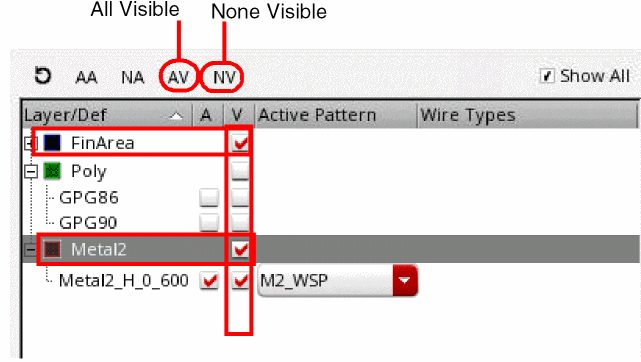
In addition, even if a WSP is not visible but it is active, the Wire Editor dynamically makes the relevant tracks visible. You can disable the Wire Editor dynamic display of tracks by setting the environment variable, dynamicDisplayEnabled.
envSetVal(“we” “dynamicDisplayEnabled” ‘boolean nil)
Related Topics