
Opening a New Design
To open a new cellview from the layout editor:
-
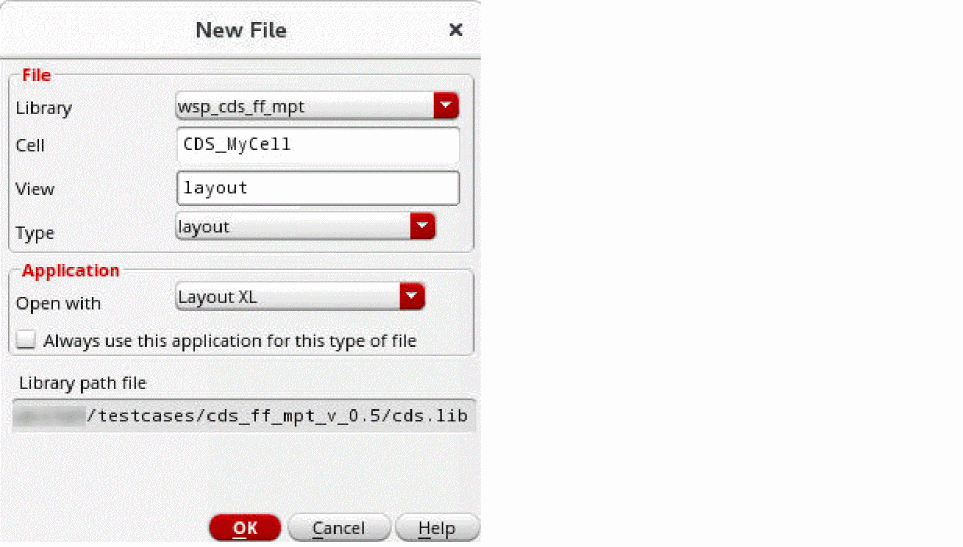
Choose File – New from an editor window or the CIW.
The New File form appears. - From the Library list, choose the library in which to store the new cellview.
- In the Cell field, enter a new cell name.
- In the View field, enter a name for the new cellview.
- From the Type list, choose the view type, such as layout, that is to be associated with the new cellview.
-
In the Open with list, choose the application that the new cellview should automatically open with.
-
Optionally, select the Always use this application for this type of file check box to associate the selection made in the Open with field with the current View type selected. This will save you in future from having to select what application should be opened with a selected cellview Type.
The Library path file field displays the location where the new cellview will be stored. - If the Open in option is displayed, choose to open the cellview in a new tab in the current session window, the current tab in the current session window, or a new window in a new session.
- Click OK.
You can use an existing layout cellview as a template to auto-create width spacing pattern (WSP) and row region specifications in the design by using the autoCopyTemplateCellViewList environment variable. Auto-creation works only while creating a new cellview.
Related Topics
Return to top