
Finding Objects
-
In the layout window, choose Tools – Find/Replace. Alternatively, press
Shift+S.
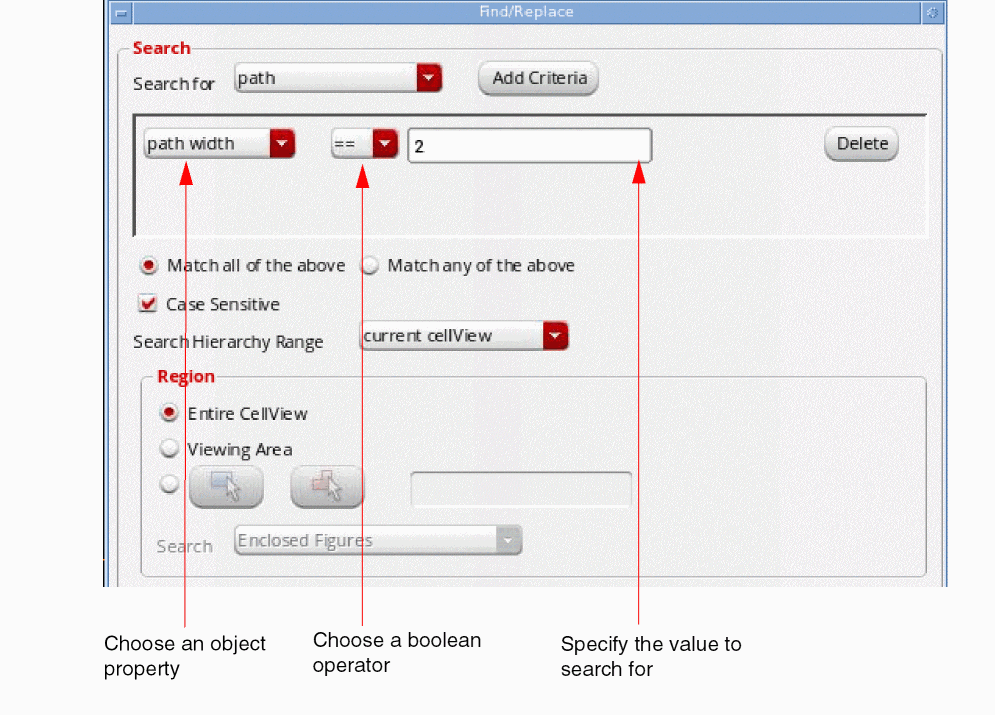
The Find/Replace form appears. - Select the type of object you want to find from the Search for list.
- Select the location where you want to perform the search by choosing from the Search Hierarchy Range list. By default, the search is performed in the current edit cellview in the layout window.
- Click Add Criteria to add boolean expressions, which control the search criteria.
- Set the search criteria:
-
Click Find.
All the objects matching the specified search criteria are highlighted on the canvas and are put in a search group. The first or current object in the group is highlighted in a different color. - Optionally, click Previous or Next to search through the group.
- Optionally, click Add Select to select the current object in the search group.
- Optionally, click Select All to select all the highlighted objects.
- Click Close when you are done selecting objects.
Related Topics
Return to top