
Replacing Instances
To replace instances of one master cell with instances of a different master cell:
-
In the layout window, choose Tools – Find/Replace. Alternatively, press
Shift+S.
The Find/Replace form appears. - Specify the criteria to search for the required instances.
- In the Replace section, choose cell name from the replace list.
-
Type the name of the new master cell.
Similar to the find criteria, you can optionally specify multiple replace criteria using the Add Criteria option in the Replace section if you want to replace multiple attributes together.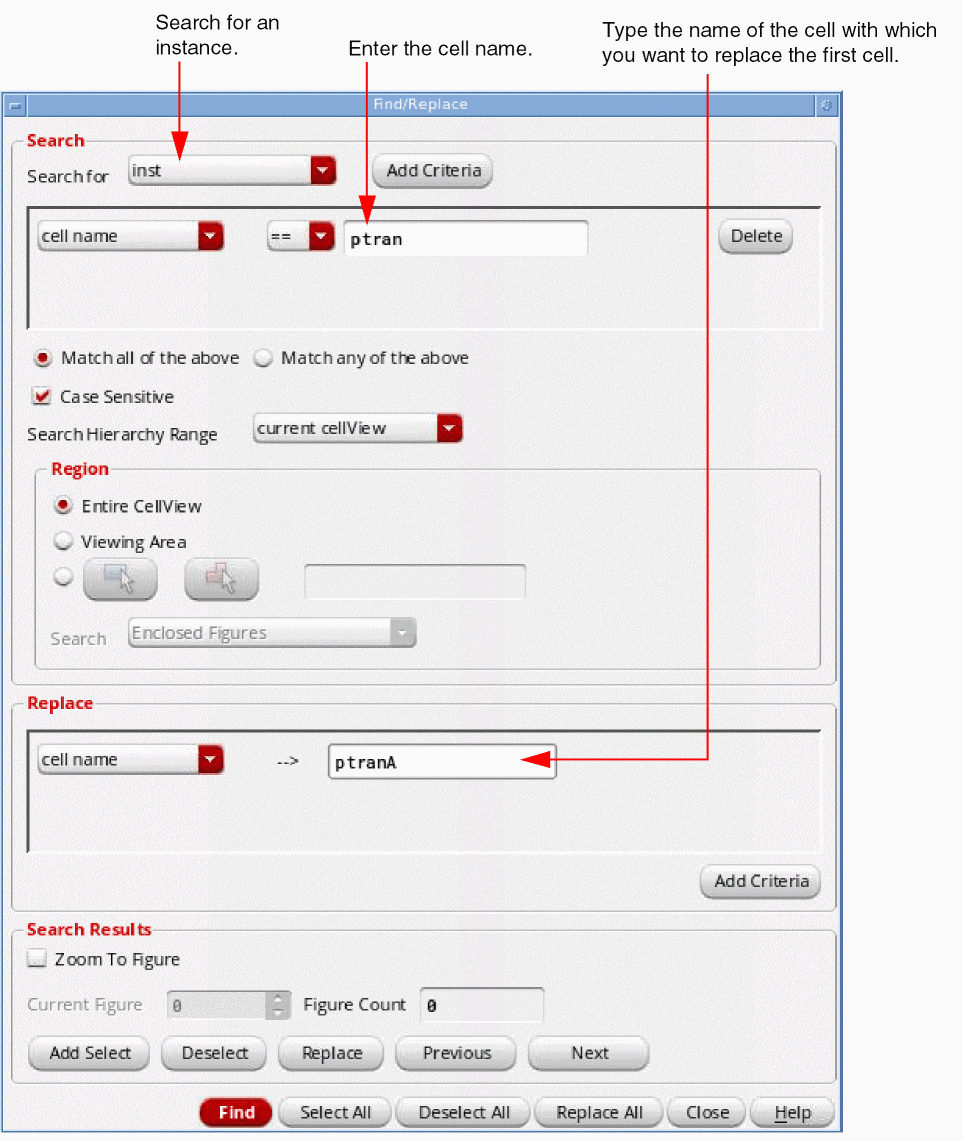
-
Click Find.
The layout editor highlights all the instances of the master cell. - To replace only one instance of the cell, click Previous or Next until the instance you want is highlighted.
- Click Replace to replace the current matching instance.
- Optionally, click Replace All to replace all instances of the highlighted cell.
Similar to the Find option, you can specify multiple replace criteria using the Add Criteria option in the Replace section of the Find/Replace form. This enables you to replace multiple attributes together.
Related Topics
Finding and Replacing Text of Labels
Return to top