
Status Information
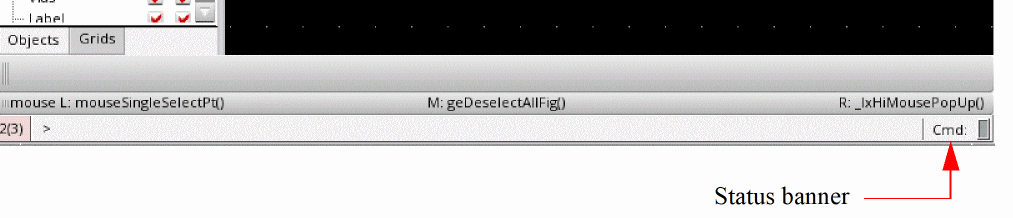
The status banner and the status toolbar in a design window provide dynamic information such as pointer movement, object coordinates, and the command currently active.
Status Banner
The status banner is displayed by default in a design window. You can choose the information that appears on the status banner and change the order in which the items appear by using the bannerFields environment variable.
Status Toolbar
You can display or hide the status toolbar by using either of the following ways:
- Choosing Window – Toolbars – Status Toolbar.
- Right-clicking anywhere on the main toolbar area and selecting Status Toolbar.
The status toolbar displays information related to the objects selected on the canvas.

The first section of the status toolbar displays the following information:
-
Selection mode: Full select (
F), full select with spine (FS), partial select (P), or partial select with spine (PS) and the number of figures selected. For example, (F)Select:2 signifies two figures are selected on the canvas in the full selection mode. - Number of nets selected: (Sel(N):n)
- Number of instances selected: (Sel(I):n)
- Number of objects selected: (Sel(O):n)
The second section of the status toolbar displays the editable toolbar. When you start a command and press the Tab key, the X and Y fields are highlighted and the dX and dY fields are set to 0. You can use the setDxDyToZero environment variable to set the dX and dY fields to 0 on the status toolbar.

You can edit the X and Y fields on the status toolbar. When you press Enter, the X and Y coordinates are used by the currently active command. When you click the X and Y fields with no active command and press Enter, the pointer pans to the coordinates specified in the X and Y fields.
The dX and dY fields get highlighted if you press the Tab key again. Similar to the X and Y fields, you can edit the dX and dY fields. When you press Enter, the dX and dY coordinates are used by the currently active command.
You can control the width of the X, Y, dX, and dY fields by using the statusBarXYdXdYLength environment variable. The X and Y fields are coupled. If you set one, the other is automatically set. The same is true for dX and dY fields.
The Dist field displays the distance the pointer has moved and the Cmd field displays the currently active command.
For Move, Copy, and Stretch commands, when you do not specify the values in the X and Y fields and press Enter:
- If the selection set has a single object with origin, the origin is considered as the reference point.
- If the selection set has a single object without origin, the lower-left corner of the bounding box of the object is considered as the reference point.
- If the selection set has multiple objects, the lower-left corner of the bounding box of the selection sets is considered as the reference point.
As the data displayed by the status toolbar is dynamic, Cadence recommends that you dock the toolbar only horizontally, either to the top or the bottom of the design window.
Using the Window – Workspaces – Save As command, you can save a configuration to display the status toolbar every time the cellview window is opened.
In Virtuoso Layout Suite XL and higher tiers, you can customize the information that is displayed on the status toolbar by using the statusToolbarFields environment variable. You can display fields such as cell size, number of selected objects, environment variable values, shell environment variable values, and window variable values. You can also customize the display format of the information displayed on the status toolbar. You can specify information in bold font and change the color of some information on the toolbar. You can also use an expression format that allows conditional formatting based on values. For example, the information can be displayed in bold font if a command is active or if the number of selections is more than zero, you can customize the status toolbar to display this information in red and bold font.
Related Topics
Return to top