Preselect and Selection Object Information Display
You can view object information in two modes, before selecting objects (preselection mode) or after selecting objects (selection mode). The preselect and selection object information is displayed by default on the Show Selection Info dockable toolbar in the design window.
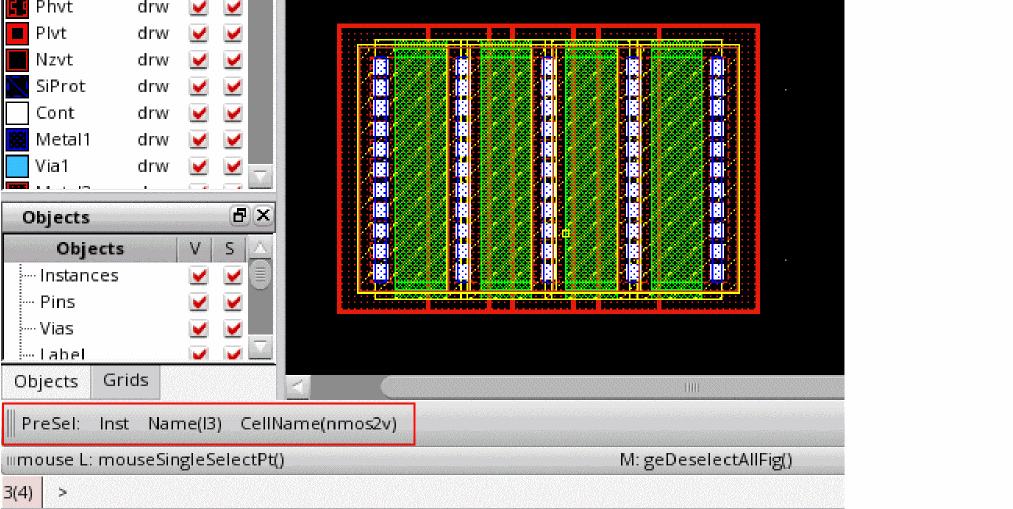
The preselect and selection object information is displayed for both fully and partially selected objects. This information is also displayed when a command is active. The following figure shows the preselect information for an instance on the Show Selection Info toolbar. The information is displayed in the following format:
PreSel: Inst Name(InstName) CellName(Cell)
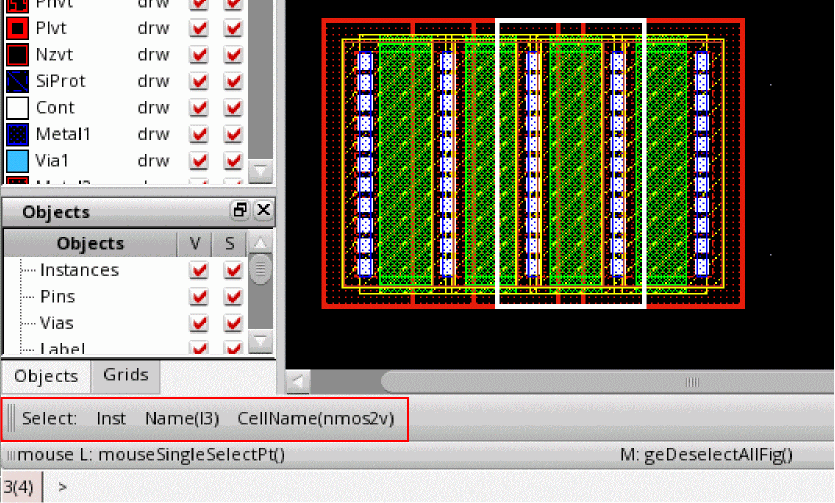
The following figure shows the selection information for the selected instance. The information is displayed in the following format:
Select: Inst Name(InstName) CellName(Cell)
(Virtuoso RF Option) You can view preselect and selection information for curvilinear geometries such as curved paths and curved polygons.
To access the Show Selection Info toolbar, you can use either of the following ways:
-
Choose Window – Toolbars – Show Selection Info in the layout window.
-
Right-click anywhere on the main toolbar area of the layout window and then select Show Selection Info.
Preselect and Selection Object Information Format
The following table lists the preselect and selection information displayed on the Show Selection Info toolbar for various types of objects.
|
Object
|
Preselect and Selection Object Information
|
|
Area Boundary
|
PreSel: Area Boundary
Select: Area Boundary
|
|
Blockages
|
PreSel: Placement Blockage Layer(layer) Color
Select: Placement Blockage Layer(layer purpose) Color
Blockages include Routing Blockage, Fill Blockage, Slot Blockage, Pin Blockage, FeedThruBlockage, and Screen Blockage.
|
|
Bus
|
PreSel: PathSeg Layer(layer purpose) Net(netname)
Select: PathSeg Layer(layer purpose) Net(netname)
|
|
Cluster Boundary
|
PreSel: Cluster Boundary
Select: Cluster Boundary
|
|
FigGroup
|
PreSel: FigGroup Name(FigGroupName)
Select: FigGroup Name(FigGroupName)
|
|
Fluid Guard Ring
|
PreSel: Inst Name(InstName) CellName(Cell)
Select: Inst Name(InstName) CellName(Cell)
|
|
Halo Blockage
|
PreSel: Halo Blockage
Select: Halo Blockage
|
|
Instance
|
PreSel: Inst Name(InstName) CellName(Cell)
Select: Inst Name(InstName) CellName(Cell)
|
|
Label
|
PreSel: Label Text(TextName) Layer(layer purpose)
Select: Label Text(TextName) Layer(layer purpose)
|
|
Marker
|
PreSel: Marker ShortMsg(short message) Severity (severity)
Select: Marker ShortMsg(short message) Severity (severity)
|
|
Modgen
|
PreSel: Modgen
Select: Modgen
|
|
Mosaic
|
PreSel: Mosaic Name(MosaicName) CellName(Cell)
Select: Mosaic Name(MosaicName) CellName(Cell)
|
|
MPP Guard Ring
|
PreSel: MPP Layer(layer purpose) Net(NetName)
Select: MPP Layer(layer purpose) Net(NetName)
|
|
Multipart Path
|
PreSel: MPP Layer(layer purpose) Net(NetName)
Select: MPP Layer(layer purpose) Net(NetName)
|
|
Pin
|
PreSel: Pin Term(TermName) Layer(layer purpose) Color LockState
Select: Pin Term(TermName) Layer(layer purpose) Color LockState
|
|
Placement Blockage
|
PreSel: Placement Blockage
Select: Placement Blockage
|
|
PR Boundary
|
PreSel: PR Boundary
Select: PR Boundary
|
|
Row
|
PreSel: Row Site(sitedefname)
Select: Row Site(sitedefname)
|
|
Ruler
|
PreSel: Ruler Length(Length)
Select: Ruler Length(Length)
|
|
Shape
|
A shape refers to a path, pathseg, polygon, rectangle, circle, ellipse, and donut. For example, the following format is used to display information for a path.
PreSel: Path Layer(layer purpose) Net(netname)Color LockState
Select: Path Layer(layer purpose) Net(netname)Color LockState
On the toolbar, instead of the full purpose name, the abbreviation for purpose is displayed. The Net field is displayed only if a net is present. Color and lock state are displayed on colored layers. For a path and pathseg, Width is also displayed. For a rectangle, Width and Height are displayed.
In Virtuoso Layout Suite XL and and higher tiers, for Edit In Place and Descend Edit commands, the cellname of the shape one level above in the hierarchy is also displayed. For example:
PreSel: CellName(Cell) | Rect Layer(layer purpose) Width(n1) Height(n2)
|
|
Snap Boundary
|
PreSel: Snap Boundary
Select: Snap Boundary
|
|
SyncClone
|
PreSel: SyncClone Name(name)
Select: SyncClone Name(name)
|
|
TextDisplay
|
PreSel: TextDisplay Text(Text)
Select: TextDisplay Text(Text)
|
|
Via
|
Via on non-colored layers:
PreSel: Via ViaDef(ViaDefName) Net(NetName)
Select: Via ViaDef(ViaDefName) Net(NetName)
Via on colored layers, where LockState is displayed only if the state is locked:
PreSel: Via ViaDef(ViaDefName) Net(NetName) Layer1(Color LockState) cutLayer(Color LockState) Layer2(Color LockState)
Select: Via ViaDef(ViaDefName) Net(NetName) Layer1(Color LockState) cutLayer(Color LockState) Layer2(Color LockState)
|
|
ViaStack
|
Via stack on non-colored layers:
PreSel: Via ViaDef(ViaDefName) Net(NetName)
Select: Via ViaDef(ViaDefName) Net(NetName)
Via stack on colored layers, where LockState is displayed only if the state is locked:
PreSel: Via ViaDef(ViaDefName) Net(NetName) Layer1(Color LockState) cutLayer(Color LockState) Layer2(Color LockState)
Select: Via ViaDef(ViaDefName) Net(NetName) Layer1(Color LockState) cutLayer(Color LockState) Layer2(Color LockState)
|
|
Virtual Group
|
PreSel: Virtual FigGroup Name (figGroupName) Type (type) PlacementStatus (status) StopLevel (number)
Select: Virtual FigGroup Name (figGroupName) Type (type) StopLevel (number)
The Type parameter can be Generated, Clone, or Created. If Placement Status of a virtual hierarchy is not set to Fixed or Locked, the Show Selection Info toolbar does not display any information about the placement status.
|
|
Virtual Pin
|
PreSel: Virtual Pin Layer(name purpose) Net(netname) Width(width) Height(height)
Select: Virtual Pin Layer(name purpose) Net(netname) Width(width) Height(height)
|
|
Wire
|
PreSel: PathSeg Layer(layer purpose) Net(netname)
Select: PathSeg Layer(layer purpose) Net(netname)
|
Related Topics
Object Information Display Criteria
Design Display Controls
Return to top