
Component Types Cells Table
The Cells table in Component Types mode shows the cells in the design organized by component type.
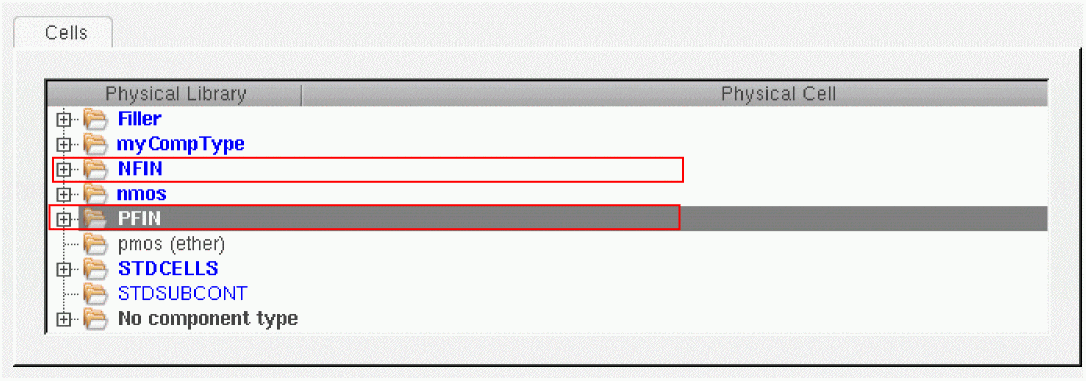
To represent FinFET devices, the Cells table includes cells of the component type, NFIN and PFIN, as displayed in the figure below.
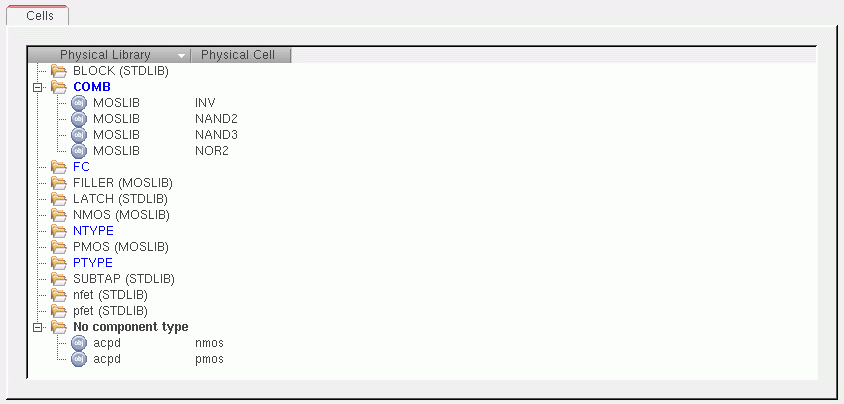
Each component type in the cells table is represented by a directory containing the cells that are assigned to it. This includes cells such as filler cells that have only a physical representation but no logical representation. If a cell is not assigned to a particular component type, it is put in the No component type directory.
The names of design-level component types are in blue; library-level ones in black. If a component type has cells assigned to it, its name is in bold type of the appropriate color.
By default, only the component types for the cells in the current design are shown. You can filter the cells that are shown on a per-library basis using the Show cells command on the shortcut menu. The Physical library list is prepended to the list of libraries from your library definitions file in order to build the correct library order.
You can perform the following operations directly in the table view.
- To add a new component type, right-click and choose Add component type. Use the Create Component Type dialog to specify a name for the new component type.
- To remove a component type, select the component type you want to remove, right-click and choose Remove component type. You can remove only design-level component types. Evicted cellviews are put into the No component type directory.
- To move cells between component types, select the cells to move, right-click and choose Move cells. Use the Move Cells dialog box to select a new component type for the selected cells.
Resolution of Conflicts in Component Type Names
When the same component type name exists in multiple LAM files, the first definition found in the (Physical library list, cds.lib) list is the one that is used, as illustrated in the examples below. Component type definitions shown in bold are used; those in normal type are disregarded.
lib list: lib1, lib2, lib3

lib3:    CT1(lib3/C1)   CT2(lib3/C2)           CT3(lib3/C3 )
lib2:                   CT2(lib2/C1 lib2/C2)
lib1:                                          CT3(lib1/C1 lib1/C2)

effective LAM: CT1(lib3/C1) CT2(lib2/C1 lib2/C2) CT3(lib1/C1 lib1/C2)
Conflicting component type settings are resolved, as indicated below.
lib list: lib1, lib2, lib3

lib3:    CT1(lib1/C1)   CT2(lib1/C2)   CT1(lib1/C3)
lib2:                   CT2(lib1/C2)
lib1:                                  CT3(lib1/C1)

effective LAM:  CT1:lib1/C3 CT2:lib1/C2 CT3:lib1/C1
To edit the attributes for a particular component type, you must select that component type in the table view. The settings you specify in the Attributes pane are applied to all the cells assigned to that component type.
Related Topics
Defining a Design-Level Component Type
Defining a Design-Level Component Type
Return to top