
Opening a Cellview from the CIW
To open a cellview from the Command Interpreter Window or your session window:
-
Choose File – Open.
Alternatively, if you have a tab on display in your session window, right-click the tab and select Open from the displayed pop-up menu to display the form.
The Open File form appears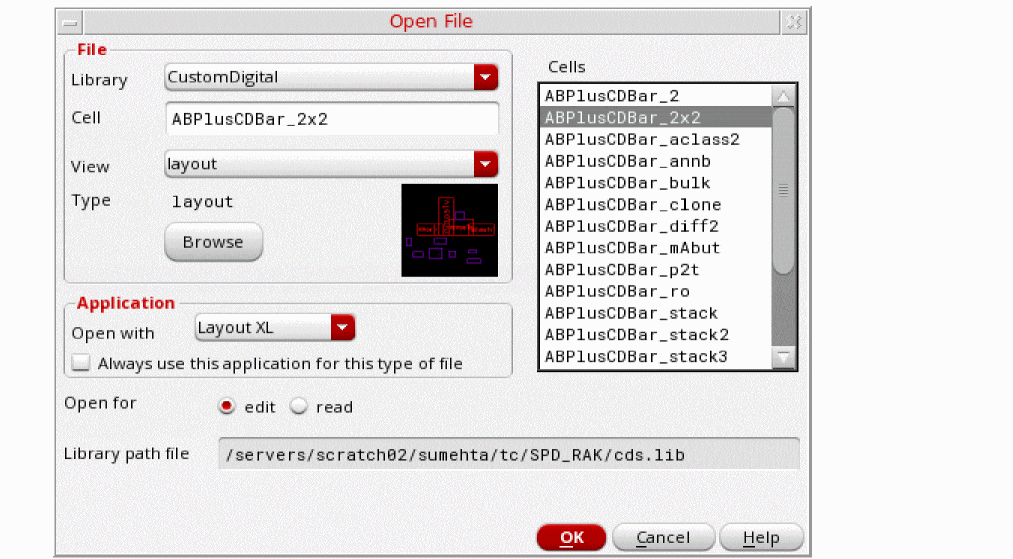
-
In the File group box:
-
In the Library drop-down combo box, select a library.
Cell names from the selected library appear in the Cells list box. -
Select a cell name from the Cells list or directly type the cell name in the Cell field.
When you type the cell name, the most relevant cell in the Cells list gets selected.
Once the cell name is entered in the Cell field, the views available for that cell appears in the View drop-down combo box. -
In the View drop-down combo box, select a view name.
If a thumbnail of the selected cellview is available, this gets displayed in the Open File form as an aid to selection. If no thumbnail is available, the space remains blank. For more information on thumbnails, see Thumbnail Images of Cellviews.
Alternatively, you can click Browse to open the Library Browser – Open File window and select your design.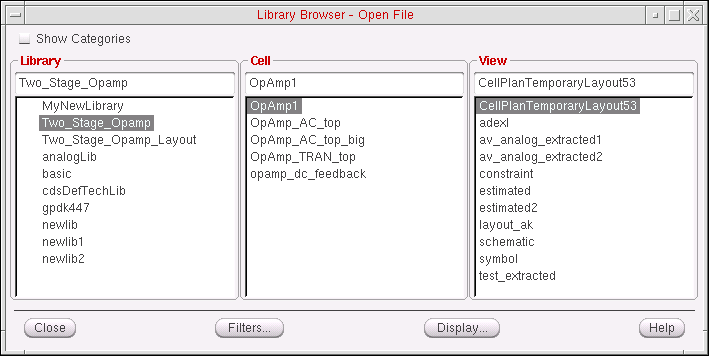
-
In the Library drop-down combo box, select a library.
-
In the Application group box, select an item from the Open with drop-down combo box. For example:
For more information, see Starting Virtuoso Studio. - Select the Always use this application for this type of file check box if you want the program to use the selected application when opening a view that is the same file type as what you specified in the View field.
-
Select one of the Open for radio buttons: edit or read.
To open the file in edit mode, you must have write permission to the file. - If you chose File – Open in a session window, you can select one of the Open in radio buttons to indicate how you want the program to open the cellview.
-
Click OK.
The cellview appears in the specified application design window according to your selections. If the appropriate application design window is not already open, the software starts the application.
Enable Design Preview
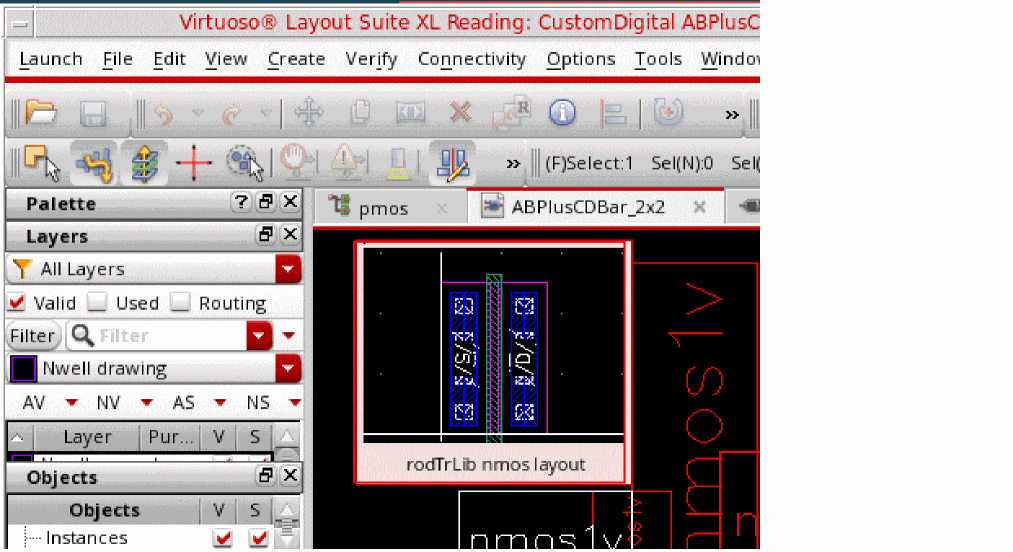
If multiple designs are open, place the mouse pointer on a tab to preview the design open in that tab, as shown below:
Cellview Already in Use
If you attempt to open a cellview that is already being used (that is, the cellview file is locked by another user), a warning message gets displayed informing you of the current user of the cellview and the current host machine name.
From here you can choose to either open the cellview as read-only or not to open the cellview.
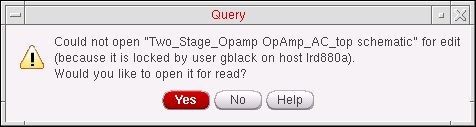
This warning message gets displayed if you attempt to descend into, or edit in place, a cellview currently in use by another user.
Indication of Modified Cellviews
Design Editor title bar indicates if a cellview has been modified, but not saved. It uses asterisk (*) as the default indicator at the end of the cellview name in the title bar to indicate a modified cellview.
You can change the default indicator using the environment variable cellviewModifiedIndicator. Design Editor reads this environment variable once and uses the indicator value throughout a DFII session. If the environment variable is modified during a session, a warning message is issued once.
Related Topics
Return to top