
Product Documentation
Virtuoso Studio Design Environment User Guide
Product Version IC23.1, November 2023

Mouse Controls in the Virtuoso Studio Design Environment

You can use mouse buttons in the following ways:
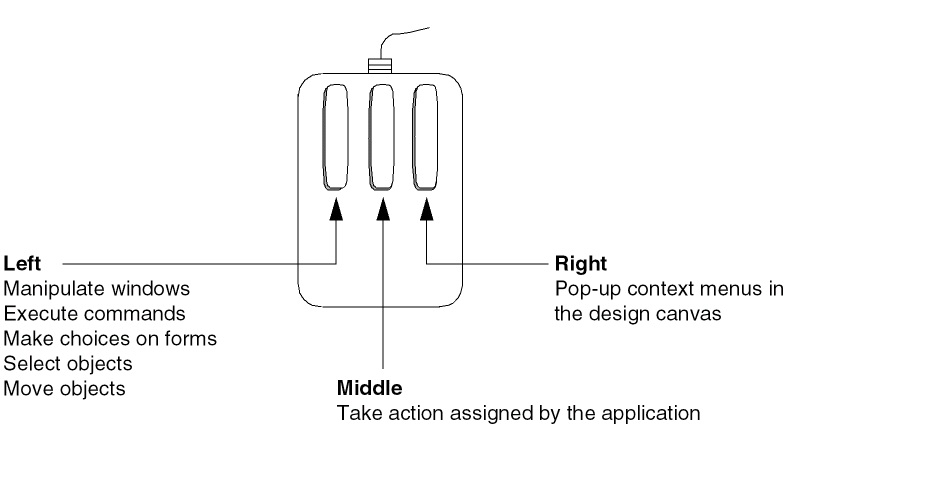
Each Virtuoso application has its own mouse button settings. You can change or add to these settings using the Bindkey Configuration form or by editing your .cdsinit file. You can view mouse button bindings for each application from the Bindkey Configuration form.

Each time you issue a command, the mouse bindings line changes to show what the mouse buttons do when you use that command.

You can specify mouse button settings related to window management tasks—such as raising, lowering, resizing, and minimizing windows—in your .Xdefaults file. You can edit this file to add or change settings.

If your mouse has a scroll wheel, the default bindings are as follows:

[Key +] Scroll Wheel Action SKILL Command

Scroll wheel up

Scroll/pan up

hiSetBindKey(p "None<Btn4Down>"             "geScroll(nil \"n\" nil)")

Scroll wheel down

Scroll/pan down

hiSetBindKey(p "None<Btn5Down>"             "geScroll(nil \"s\" nil)")

Ctrl + Scroll wheel up

Zoom in

hiSetBindKey(p "Ctrl<Btn4Down>"             "hiZoomInAtMouse()")

Ctrl + Scroll wheel down

Zoom out

hiSetBindKey(p "Ctrl<Btn5Down>"             "hiZoomOutAtMouse()")

Shift + Scroll wheel up

Pan left

hiSetBindKey(p "Shift<Btn4Down>"            "geScroll(nil \"w\" nil)")

Shift + Scroll wheel down

Pan right

hiSetBindKey(p "Shift<Btn5Down>"            "geScroll(nil \"e\" nil)")

Related Topics

Viewing the Current Bindkeys for an Application

Bindkey Configuration form

Bindkeys and Access Keys

geScroll

hiSetBindKey


Return to top
 ⠀
X