
Interaction with the User Interface
This section lists down all the useful interactions that you may encounter using menus in Virtuoso Studio Design Environment.
Types of Menus
A menu is a list of related commands. Virtuoso Studio Design Environment uses the following kinds of menus:
-
Pull-down menus: These menus are menus that are attached to the menu bar and that are displayed when you click a menu title to pull down the menu.
You create a pulldown menu withhiCreatePulldownMenuusing previously created menu items. After you create a pulldown menu, attach it to the menu bar of a window.
Menu items in pulldown menus can be text, icon, or slider items. They can be enabled or disabled. They can also have callback functions associated with them.
Some text menu items in pulldown menus, such as Load, Open, Save As, Undo, Redo, Close, Exit, and Print, automatically display an icon next to the text. You can choose not to display the default icons for these menu items by setting the following variable in your.cdsenvfile:ui useAutoPixmaps boolean nil
-
Pop-up menus: These menus that are not visible until the user displays them, typically with a right-click on an application window. Popup menus contain context-sensitive choices.
You can create popup menus with the following SKILL functions:-
hiCreateSimpleMenuCreates a menu with text menu items only. You can create this menu and its items at the same time, without having to create menu items ahead of time. -
hiCreateMenuCreates a menu with text, icon, or slider menu items. Menu items are laid out in a column, top to bottom, in a specified order. Items can also be disabled (greyed-out) so that they are unselectable. -
hiCreate2DMenuCreates a menu with text or icon menu items, or inactive labels. This menu type lets you specify the exact placement of each menu item through an attribute list provided with each item.
Some text menu items in popup menus, such as Load, Open, Save As, Undo, Redo, Close, Exit, and Print, automatically display an icon next to the text. You can choose not to display the default icons for these menu items by setting the following variable in your.cdsenvfile:ui useAutoPixmaps boolean nil
You can set awarpCursorBackproperty on a popup menu that will store the cursor location at the time a popup menu is displayed.
For example, you can set the following menu property:MyPopupMenu->warpCursorBack = t
Therefore, when set totthe cursor will be restored back to its original position, prior to the popup menu opening, when that popup menu is subsequently closed. -
- Toolbar icons: Get displayed on main window and assistant toolbars
- A floating icon, typically a column or large icon buttons.
When you use an icon on the toolbar, the window automatically becomes active and the command affects only that window. Inactive buttons are grayed out and do not respond when you click them.
Functionality of Pointer and the Cursor
- The pointer is the visible shape that moves across the screen as you move the mouse.
-
The cursor is a visible shape (see table below and refer to your own desktop documentation) in each window that shows where you can enter text.
The cursor can have one of several shapes—typically a rectangle in a terminal window or an I-beam in a Cadence form.
The pointer can have many shapes, as shown in the examples below:
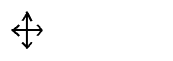


Instructions in this user guide assume that the window with the pointer in it is the active window.
To verify that the pointer determines the active window, move the pointer to another terminal window and type some text. If the text appears in the window containing the pointer, the pointer determines the active window.
Functionality of Pop-Up Menus and Forms
Some menus and forms are invisible during ordinary use but can be displayed (popped up) when you need them. Use the following mouse actions to pop them up:
| Action | Procedure |
|---|---|
|
Click or press and hold the right mouse button over the icon. |
|
|
If holding down a mouse button, slide the pointer to the item and release, otherwise click the item. |
Select and Deselect Items
Related Topics
Run Modes of Virtuoso Studio Design Environment
Menu Access Keys
Menu access keys, also known as menu shortcuts, provide keyboard access to menus. With these keys, you can:
without using the mouse. These keys provide a quick way of navigating and learning menus.
Menu access keys use the modifier ALT. To display a menu, you press ALT and the access key for that menu. To select an option in that menu, you then press the access key for that option (without ALT). For example, if the menu access key for the File menu is F, you would press ALT+F to display the menu. To select the New option in the menu, you would then press N (assuming that its access key is N.)
Menu access keys are displayed as underlined letters in the menu or menu item names. For example:
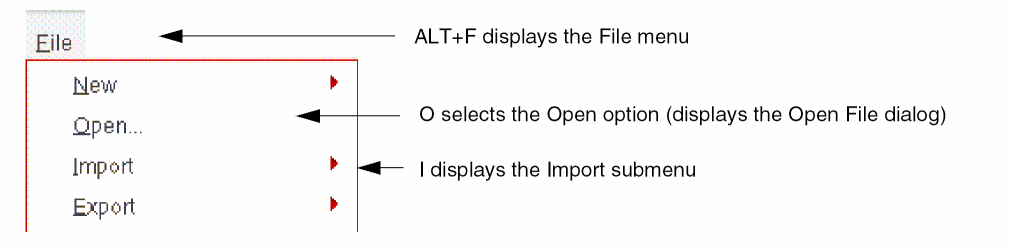
Menu access keys always display a menu, unlike bindkeys that do not display a menu or require a menu to be displayed in order to select menu items. For example, with a bindkey, you can select the Filefl–New option without the File menu being displayed.
Setting Access Keys for Menu Items
To set an access key for a menu item when you create the menu item, in the item text, specify & (ampersand) before the character that you want to designate as the access key. Specifically:
When you create a menu item with hiCreateMenuItem, add & before the desired chararcter in the ?itemText argument. For example, creates the menu item New, whose access key is N:
hiCreateMenuItem(?name ’new ?itemText "&New")
-
When you create a menu item with
hiCreateSliderMenuItem, add&before the desired character in the?itemTextargument. For example, creates the menu itemOpen, whose access key isO:hiCreateSliderMenuItem(?name ’open ?itemText "&Open" ?subMenu openOptions) -
When you create an action for a menu, specify
&before the desired character in the?iconTextargument ofhiCreateAction. For example, creates the actionRefresh, whose access key isF:hiCreateAction(?name ’refresh ?iconText "Re&fresh" ?callback "refreshCB")
-
When you create a simple menu with
hiCreateSimpleMenu, specify&before the desired character in each menu item in thel_menuItemsargument. For example, creates a menu with the menu itemsPlaceandPrint, whose access keys arePandRrespectively:hiCreateSimpleMenu(’customized "Custom" ’("&Place" "P&rint") ’(CB1 CB2))
Since symbols are created from the item text in this case, the symbol names also include the ampersands.
-
When you create a menu item with
Setting Access Keys for Menus
To set an access key for a menu,
-
When you create the menu with
hiCreatePulldownMenu,hiCreateMenu,hiCreateSimpleMenu, orhiCreate2DMenu, specify&(ampersand) in the menu title before the character that you want to designate as the access key.
For example, creates theFilemenu. PressingALT+Fdisplays this menu:hiCreatePulldownMenu(’File "&File" list( new open close))
Escaping Ampersand
If you have an ampersand as part of a menu or menu item name, you need to escape it with another ampersand. For example, to display the name P&R, you need to specify the menu title or menu item text as "P&&R". Otherwise, it will be displayed as PR and R will be the access key for it.
Guidelines for Creating Menu Access Keys
-
Access keys always use the modifier
ALT. - Access keys can be any printable ASCII character, although they are typically alphanumeric characters.
-
Access keys for menus must be unique within an application.
Many applications can launch other applications by adding their menus to the menu bar. Access keys for menu items must be unique within the menu or submenu. -
If a window manager or desktop, such as CDE, predefines an
ALT+key binding, then thatALT+key combination will not work as a menu access key or bindkey on that system.
Menu Access Key Conflicts
You can display warnings about menu items that have conflicting access keys by setting the following variable in your .cdsenv file:
ui checkAccessKeyConflicts boolean t
Warnings are displayed in the CIW. This variable is set to nil by default.
Disable Menu Access Keys
Menu access keys can be disabled in one of the following ways:
-
By adding the following line to your
.cdsenvfile:ui enableMenuShortcuts boolean nil
- By deselecting the Menu Shortcuts option in the User Preferences form (displayed by selecting Options – User Preferences in the CIW) and then saving your defaults in the Save Defaults form (displayed by selecting Options – Save Defaults in the CIW).
Your change will take effect the next time that you start the software.
When you disable menu access keys, bindkeys can use ALT.
Compatibility Issues
-
In your custom code, if you access Cadence menu or menu item names and do string comparisons against them, you need to be aware that there are now extra ampersands in the names because of access keys. You need to modify your code accordingly.
The code that accesses Cadence menus through menu handles or symbols is unaffected. -
If you have bindkeys that use
ALT, you should redefine them becauseALTis the modifier used with menu access keys. It can no longer be used with any printable characters in bindkeys, unless menu access keys are disabled.
Related Topics
Run Modes of Virtuoso Studio Design Environment
Return to top