
Moving Back through a Design
Use the Back icon to return to the cell/cellview that was displayed immediately prior to the current view. Continued selection of this option allows you to move back through successive views, dependent upon availability.
Use the Back drop-down icon to display a list of previously displayed cells/cellviews.
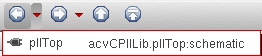
The list presented allows you to select a view and navigate straight to it without having to repeatedly scroll back. The cellview at the top of the drop-down list represents the most recently viewed cellview.
The maximum number of cellviews displayed at a time in the drop-down list is five. When the number of possible cellviews to go back to exceeds five, an additional more menu item appears on the drop-down list.
To move back through the extended hierarchy:
-
On the Go toolbar, click the down-facing red arrow to the right of the Back button.
A drop-down menu appears.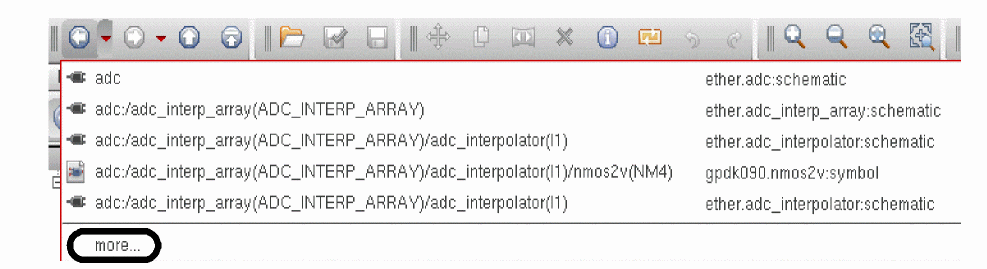
-
Click more.
The Go Back form appears.
You can resize the form by dragging an edge or corner to the dimensions you want.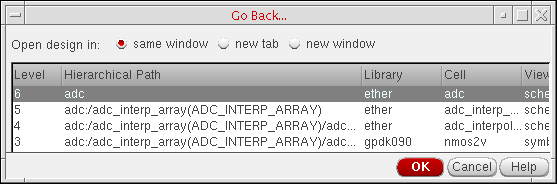
- Select a level.
-
Click OK.
The program restores the selected level on the schematic pane.
Related Topics
Moving Forward through a Design
Moving Up and to the Top of a Design
Return to top