
Creating a Design Intent in the Constraint Manager
All design intents implemented using the Constraint Manager must have their constraints included in the design intent template (physical constraint). This ensures that when syncing design intent or transferring from Layout XL to Schematics XL using the Update Layout Constraints button, a constraint view is not created.
To create a design intent from the Constraint Manager:
- In the Constraint Manager assistant in Layout XL, select the object (instance, net, pin, or terminal) for which you want to create the design intent.
- From the Constraint Creation menu, choose the Design Intent submenu.
-
Choose the design intent category that is to be created for the selected object.
The Create Design Intent Form is displayed. - Select the object and the constraint to be added in the Constraint Manager assistant.
-
Right-click and choose Design Intent – Add Design Intent Constraints from the shortcut menu.
The constraint is added to the design intent and its associated objects.
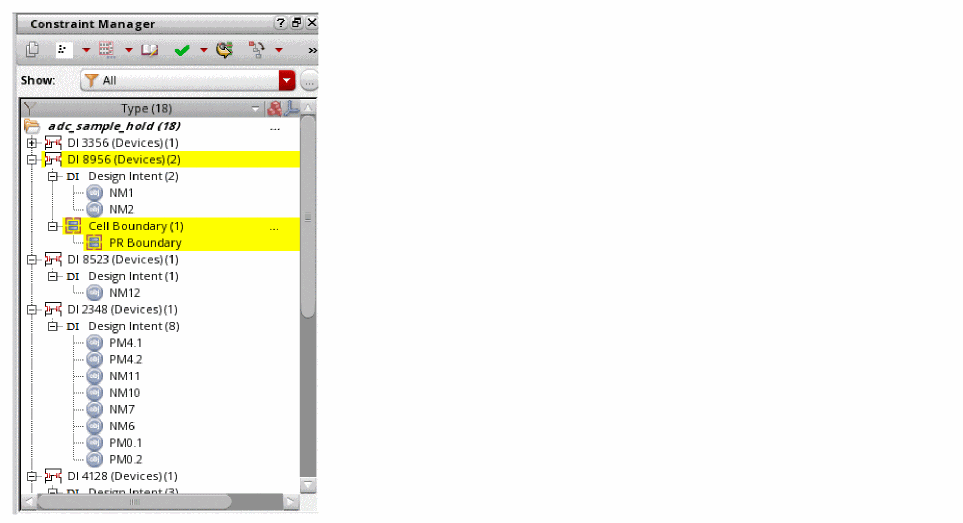
For more information on how to use constraints and the Constraint Manager, see the Constraint Manager Assistant in the Virtuoso Unified Custom Constraints User Guide.
Related Topics
Creating a Design Intent in Schematics XL
Creating a Design Intent in Layout XL
Return to top