
There is an option to customize the connect module table to add or delete the variables to be displayed as per your requirement. Perform the following steps to customize the table:
- Click the View menu and select Column Editor. Alternatively, right-click the connect module instance table header and select Column Editor.
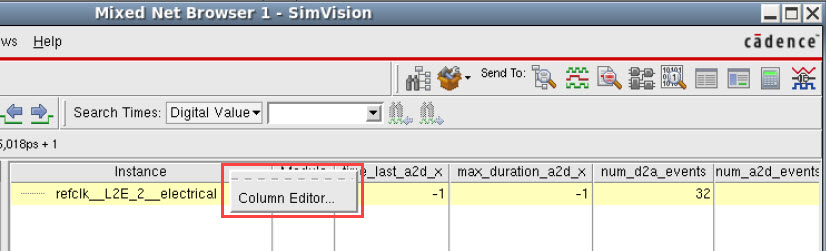
The Edit Columns form appears.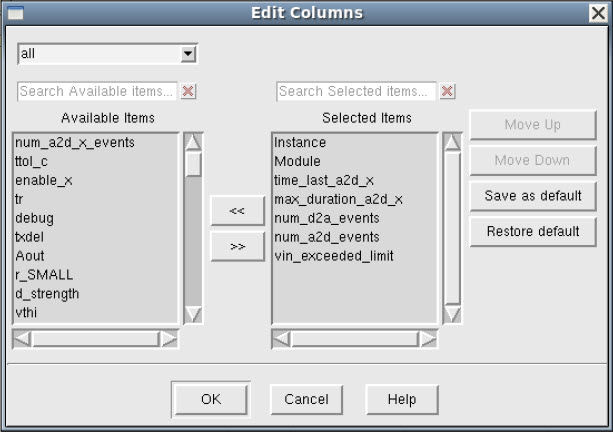
- Update the variables, as required:
- To add a column to the table, select the required items from the Available Items list and click
 .
. - To remove a column from the table, select the required items from the Selected Items list and click
 .
. - Reorder the items as required in the Selected Items list using the Move Up and Move Down buttons.
- To add a column to the table, select the required items from the Available Items list and click
- (Optional) To save the updated list of Selected Items as your default selection of columns, click Save as default.
You can updatepreferences setin the ~/.simvisionrcfile in your home directory. For example, add the following in the file:preferences set iebrowser-default-columns {treeView moduleName vsup num_a2d_events num_d2a_events}
This will ensure that your customization is saved and restored every time you launch SimVision. - Click OK to save the changes and close the form.