
You can open, close, disable, enable, and display information about databases. See the following topics for more information:
Opening a Database
You can open two types of databases: SHM or VCD. SHM databases support probing both analog and digital signals. VCD databases support probing only digital signals.
When you open a VCD database, the software converts it to SHM format. You can export a database to VCD format.
- If you are using the Tcl command-line interface, type
database-opento open either type of database.
Partial syntax:database [-open] dbase_name [-shm | -vcd] [-into file_name ][-default]See "Database" in the "Using the Tcl Command-Line Interface" chapter, of Cadence Verilog Simulation User Guide for complete syntax and details on thedatabasecommand.
- If you are using the Cadence®SimVision environment, choose File - Open Database and fill in the Open Database form.
See "Managing Simulation Databases" in the SimVision User Guide for information about managing your databases.
You can also open a database from a digital context with the $shm_open system task in your Verilog®-AMS code. A database opened in this way does not support probing analog signals.
Displaying Information about Databases
- If you are using the Tcl command-line interface, type
database-showto display information about databases.
Syntax:database -show [{ dbase_name | pattern } ...]
- If you are using the Cadence SimVision environment, choose Simulation - Show - Databases.
Disabling a Database
- If you are using the command-line interface, type
database -disableto disable either type of database temporarily.
Syntax:database -disable { dbase_name | pattern } ...
- If you are using SimVision, do the following:
- Choose Simulation - Show - Databases.
The simulator:Databases view appears in the Properties window.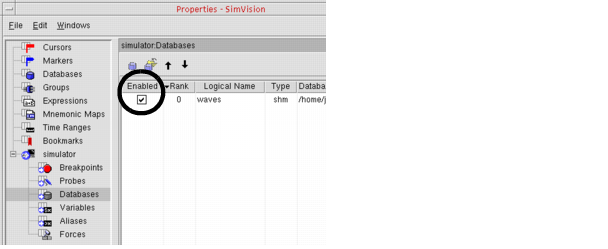
- Remove the mark from the Enabled check box for the database you want to disable.
- Choose Simulation - Show - Databases.
Enabling a Database
- If you are using the command-line interface, type
database -enableto enable a previously disabled database.
Syntax:database -enable { dbase_name | pattern } ...
- If you are using SimVision, do the following:
- Choose Simulation - Show - Databases.
The simulator:Databases view appears in the Properties window.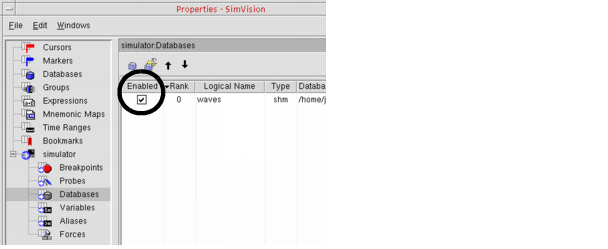
- Mark the Enabled check box for the database you want to enable.
Closing a Database
- If you are using the Tcl command-line interface, type
database -closeto close either type of database.
Syntax:database -close { dbase_name | pattern } ...
- If you are using SimVision, do the following:
- Choose File - Close Database/Simulation to close a simulation database.
- On the Close Database/Simulator form, select the database you want to close.
- Click OK.