
10
Cadence Locking System
The Cadence® locking system (CLS) is the mechanism used by many Cadence applications to lock files.
CLS creates a lock file, called Lock-Stake file, when it locks a file for editing. The Lock-Stake file contains information about the application that has locked the file.
CLS allows applications to steal locks from active processes; however, few applications support this feature. CLS automatically recovers locks that are stranded if an application exits without releasing the locks.
In addition, CLS provides a user interface for administrative tasks such as releasing all locks in a directory hierarchy.
Applications on OpenAccess
Cadence applications on the OpenAccess 2.2 database use OpenAccess locking instead of CLS. OpenAccess locking is compatible with CLS—the lock file has the same format and file name extension as the file created by CLS, and the same rules are followed while getting locks.
Virtuoso applications on OpenAccess use both CLS and OpenAccess locking; they use OpenAccess locking to lock database files and CLS to lock other files such as CDS.log. Since the two systems are compatible and they lock different files, conflicts should not arise.
OpenAccess locking uses a different daemon, oaFSLockD, instead of the CLS boolean daemon clsbd to recover locks. oaFSLockD is run automatically whenever a library is opened. Virtuoso applications on OpenAccess start both daemons.
You can use the clsAdminTool to search for and release locks created by either system.
clsbd) cannot be recovered by a native OpenAccess application and vice versa. This is because each locking system needs to talk to its own boolean daemon to recover locks. In such a case, remove stranded locks manually or with clsAdminTool.Installation
CLS is automatically installed when you install Cadence applications; you do not need to install it separately.
However, on Windows NT, you should manually set up the Boolean daemon (a component of CLS) as a service after you install Cadence applications.
You can also customize how the Boolean daemon is started. The daemon must run on every system that runs Cadence applications. You can set up your system to run the Boolean daemon every time the system is started. This procedure is optional, applications that use CLS start the Boolean daemon if it is not already running on the system.
Related Topics
Setting Up the Boolean Daemon on Windows NT
Adding the Boolean Daemon to System Startup Files
Boolean Daemon (clsbd)
The Boolean daemon, called clsbd, is a daemon that runs on all systems on which any Cadence application using Cadence® locking system (CLS) is running. The daemon responds to requests from remote systems to determine the status of processes that own Edit locks.
clsbd connections. This is also the same time period used for Open Access connections.When an application wants to lock a file and finds that it is already locked by a process on another system, CLS queries the Boolean daemon running on that system about the status of the process that locked the file. Whether the application can obtain the lock depends on the information CLS receives from the Boolean daemon.
-
If the Boolean daemon indicates that the process that locked the file has exited, the application gets the lock. The Lock-Stake file (filename
.cdslck) is overwritten with information about the new process. - If the Boolean daemon indicates that the process that locked the file is still active, the application cannot get a lock on the file.
- If the application cannot connect to the Boolean daemon, the process that owns the lock is assumed to be active and the application cannot get a lock on the file.
If you do not want CLS to query Boolean daemons on remote hosts (you may not want to query remote hosts if you have firewall access issues, for example), set the following environment variable:
CLS_DONT_QUERY_REMOTE_HOSTS [listOfRemoteHosts]
where listOfRemoteHosts is an optional list of patterns (typically host or domain names), separated by blank spaces, that you do not want CLS to query. For example, if you specify
setenv CLS_DONT_QUERY_REMOTE_HOSTS cds00 cadence.com ns.com
CLS will not query hosts that match cds00 or any hosts from the domains cadence.com or ns.com.
If you do not specify listOfRemoteHosts, CLS will not query any remote hosts.
When the CLS_DONT_QUERY_REMOTE_HOSTS environment variable is set, if CLS comes across a file locked by a remote host, it always assumes that the process that locked the file is still active. Therefore, CLS cannot get a new lock on the file. In such a case, if you want to lock the file, you need to remove the old lock with the CLS administrative tool.
Setting Up the Boolean Daemon on Windows NT
After you install Cadence applications on Windows NT, you should manually set up the Boolean daemon as a service so that Cadence applications can start it.
To list the Boolean daemon as a service,
- Log on to the Windows NT system as a user with administrator privileges.
-
From the Start menu, choose Programs – Command Prompt.
The MS DOS Command Prompt window appears. -
In the MS DOS Command Prompt window, type
clsbd.exe -install
The following message appears:CDS Boolean Daemon Installed.
-
Close the MS DOS Command Prompt window by typing
exit. - From the Start menu, choose Settings – Control Panel.
-
In the Control Panel window, double-click Services.
The Services dialog box appears. - Confirm that CDS Boolean Daemon is listed as a service.
- In the Services dialog box, click Close.
Location of the Boolean Daemon
The Boolean daemon is automatically installed when you install Cadence applications.
The Boolean daemon program, clsbd, is located in the following directory:
application_install_dir/tools/bin/
where application_install_dir is the directory in which your Cadence application is installed.
Related Topics
Starting the Boolean Daemon
The Boolean daemon must run on all systems that run Cadence applications. It is started in several ways.
- You can add the Boolean daemon to a system startup files so that the daemon is run automatically when your system is started.
- Cadence applications that use Cadence® locking system (CLS) start the daemon if it is not already running.
- You can start the Boolean daemon directly from the application installation hierarchy, if it is not already running.
Adding the Boolean Daemon to System Startup Files
To add the Boolean daemon to a system startup files, do one of the following:
-
For SunOS 5.x, create a
/etc/rc2.d/S98clsbdfile that contains the following:#!/bin/sh # Start-up Cadence locking system boolean daemon (clsbd). # INSTALL_DIR=’hierarchyPath’ if [ -x ${INSTALL_DIR}/tools/bin/clsbd ] ; then ${INSTALL_DIR}/tools/bin/clsbd echo “Starting Cadence locking system boolean daemon (clsbd).” else echo “Cadence locking system boolean daemon not started.” fi
where hierarchyPath is the path to your Cadence installation directory. -
For IBM AIX, add the following to the
/etc/inittabfile:INSTALL_DIR=’hierarchyPath’ if [ -x ${INSTALL_DIR}/tools/bin/clsbd ] ; then ${INSTALL_DIR}/tools/bin/clsbd echo “Starting Cadence locking system boolean daemon (clsbd).” else echo “Cadence locking system boolean daemon not started.” fi
where hierarchyPath is the path to your Cadence installation directory. -
For HPUX, add the following to the
localrcfunction definition to the/etc/rcfile:localrc() { ... INSTALL_DIR=’hierarchyPath’ if [ -x ${INSTALL_DIR}/tools/bin/clsbd ] ; then
where hierarchyPath is the path to your Cadence installation directory.${INSTALL_DIR}/tools/bin/clsbd echo “Starting Cadence locking system boolean daemon (clsbd).” else echo “Cadence locking system boolean daemon not started.” fi } -
For Linux, create a
/etc/rc.d/rc3.d/S98clsbdfile that contains the following:#!/bin/sh # Start-up Cadence locking system boolean daemon (clsbd). # INSTALL_DIR=’
where hierarchyPath is the path to your Cadence installation directory.hierarchyPath’ if [ -x ${INSTALL_DIR}/tools/bin/clsbd ] ; then ${INSTALL_DIR}/tools/bin/clsbd echo "Starting Cadence locking system boolean daemon (clsbd). else echo "Cadence locking system boolean daemon not started." fi -
For Windows NT:
- Log in to your system as a user with administrator privileges.
- From the Start menu, choose Settings – Control Panel.
-
In the Control Panel window, double-click Services.
The Services dialog box appears. - In the Service list, select CDS Boolean Daemon.
-
Click Startup.
The Service dialog box appears. - In the Startup Type field, select Automatic.
- Click OK.
- Click Close to close the Services window.
Starting the CLS Boolean Daemon from the Installation Directory
To start the CLS Boolean daemon from the application installation directory,
-
In a UNIX or MS DOS window, type
where application_install_dir is the directory in which your Cadence application is installed.application_install_dir/tools/bin/clsbd
You can use the following command-line options when you start clsbd:
Related Topics
Setting Up the Boolean Daemon on Windows NT
Changing the CLS Boolean Daemon Port Number
Changing the CLS Boolean Daemon Port Number
If the default port number used by the Boolean daemon is consistently used by another application, you might have to change the Boolean daemon port number. This situation is uncommon.
clsbd uses port number 16723 on every system on which it runs. When clsbd is started, if it finds that this port number is already being used, it checks if another clsbd is running on the system. If another clsbd is running, the new clsbd exits. If another clsbd is not running, the new clsbd exits and displays the following error:
“Fatal (clsbd): port number xxx is in use by a program that is not clsbd. Exiting.”
If you get this error, close and restart the Cadence application. However, if you get this error repeatedly, you have to set a different port number for the Boolean daemon or for the application that is using the Boolean daemon port number.
To change the Boolean daemon port number,
- Exit all Cadence applications.
-
Stop all
clsbdprocesses on all systems. -
Set the following environment variable on every system that runs Cadence applications:
CLS_PORTNUM
where portNumber is a port that is not being used.portNumber - Restart Cadence applications.
CLS_PORTNUM must be the same on every system that runs Cadence applications on any platform.Related Topics
Troubleshoot Cadence Locking System Problems
Edit Locks
Cadence® locking system (CLS) locks files with Edit locks. An Edit lock on a file signifies that a process is editing the file and prevents other processes from getting an Edit lock simultaneously on the file. However, a process can steal an Edit lock from another process.
Files remain locked even if the network, or the client or server computer, fails. If the process that holds the lock exits without releasing the lock, the lock is considered stranded. for information about how CLS handles stranded locks, see Recover Stranded Locks.
A file can be locked only if its parent directory has write permissions.
Lock-Stake File
Edit locks are implemented using Lock-Stake files. The existence of a corresponding Lock-Stake file in the same directory as a file indicates that the file is locked.
When an application gets an Edit lock on a file, CLS creates the following Lock-Stake file in the same directory as the file:
filename.cdslck
where filename is the name of the file that is locked.
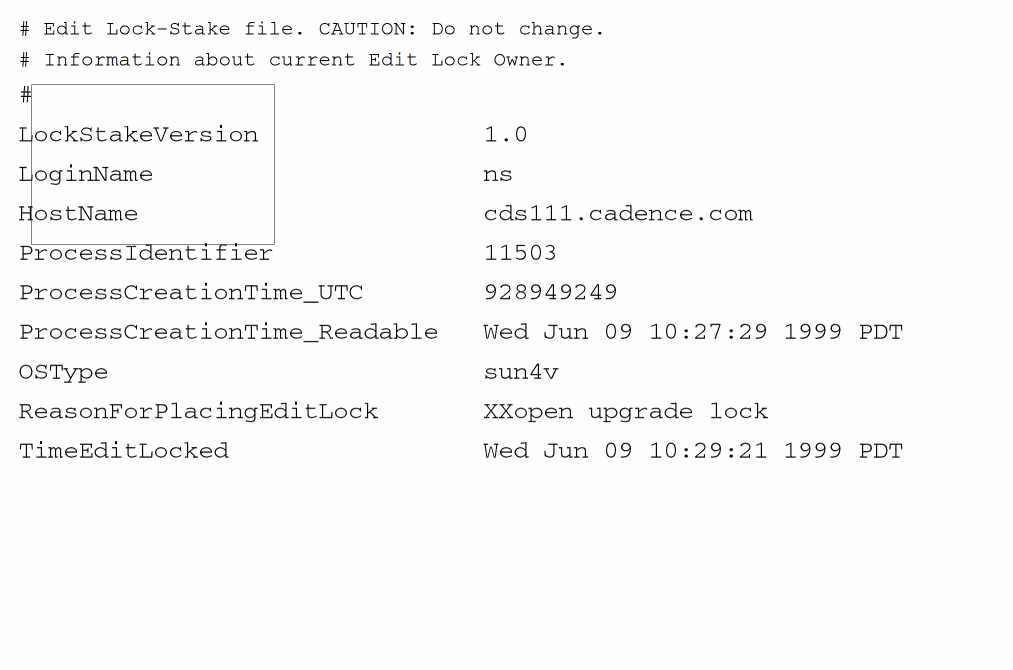
The Lock-Stake file, an ASCII file, contains information about the lock and the process that holds the lock. The Lock-Stake file has the following information:
- Lock-Stake version
- Login name of the user who locked the file
- Host name (including domain name) of the process that locked the file
- Process ID of the process that locked the file
-
Time and date when the process was created
There are two entries for the time: - Application that holds the Edit lock
- Type of operating system
- Reason for the Edit lock on the file
- File path used to lock the file
- Time and date when the file was locked
The following is a sample .cdslck file:
A file cannot have more than one Edit lock, so it can have only one corresponding Lock-Stake file.
The Lock-Stake file is automatically deleted by the process that owns it when it releases the Edit lock on the file. You can also delete the Lock-Stake file using the CLS administrative interface.
Steal Edit Locks
Applications can steal Edit locks from another process. When a lock is stolen, information about the new owner is added to the Lock-Stake file (filename.cdslock). Information about previous owners is retained at the end of the file.
A few Cadence applications provide this option of stealing locks. See your application’s documentation for information.
Applications cannot steal locks in compatibility mode.
Related Topics
Lock Links
In this topic, we are discussing locking the symbolic and hard links.
-
Lock Symbolic Links
Cadence® locking system (CLS) handles symbolic links automatically. When an application tries to lock a symbolic link, CLS locks the file to which it is linked. The Lock-Stake file is created in the directory that contains the file. If the file does not exist, CLS displays an error. -
Lock Hard Links
CLS does not lock hard links by default. However, you can set your environment to lock hard links.
When an application tries to lock a hard link, CLS creates a Lock-Stake file in the directory that contains the hard link, not in the directory that contains the file.
Locking hard links is risky because you can get multiple Edit locks simultaneously on a file.
Setting Your Environment to Lock Hard Links
To force CLS to lock hard links,
-
Set the following environment variable:
CLS_LOCK_HARD_LINKS YESIf both the hard link and a file point to the same chunk of memory, then the hard link will be locked but the original file will remain intact. However, when an application tries to lock the hard link, CLS creates the Lock-Stake file in the directory associated with one of these file handles (hard link). All the other file handles (other hard links) to the same file space are not protected. Therefore, multiple Cadence locks via the other file handles are not prevented. So, resolving the links is always the better option.
Related Topics
Recover Stranded Locks
Stranded locks are locks that remain after the process that owns them has exited. Locks can be stranded if the application or application host exits abnormally, or if the file server is inaccessible.
Stranded Edit locks are recovered in the following ways:
-
The Cadence locking system recovers a stranded Edit lock when a process tries to lock the file that has the stranded Edit lock.
When a process wants to lock a file that is already locked, Cadence® locking system (CLS) determines the status of the process that owns the Edit lock on the file (if the process is running on another system, CLS sends a query to a Boolean daemon running on that system). If the process that owns the lock has exited, the new process takes over the stranded lock—the Lock-Stake file (filename.cdslck)is overwritten with information about the new process. If the process is active or if its status cannot be determined, the old lock is not modified. -
You can search for and remove both stranded and good Edit locks using the CLS administrative tool (
clsAdminTool).
TheclsAdminTooldoes not differentiate between stranded locks and non-stranded locks.
Related Topics
CLS Administrative Tool
The Cadence® locking system (CLS) administrative tool lets you view and release locks in any directory hierarchy.
The clsAdminTool does not differentiate between stranded locks and non-stranded locks.
With the CLS administrative tool, you can:
- Remove a specific Edit lock
- View all Edit locks in a directory hierarchy
- Remove all Edit locks in a directory hierarchy
- View all Edit locks belonging to a process in a directory hierarchy
- Remove all Edit locks belonging to a process in a directory hierarchy
-
View and remove all locks that are in the CLS format and that have the
.cdslckextension, regardless of whether they were set by CLS or OpenAccess locking
You can use the adminstrative tool interactively (as a shell interface) or in batch mode.
clsAdminTool automatically recovers any stranded locks. You can however use the clsAdminTool to clean up lock stakes from those libraries that have been, or will be, tarred for transfer (as the hosts that obtained these locks would not exist in the new environment).clsAdminTool Commands
The CLS administrative tool consists of the following commands, which can be used in both interactive mode and batch mode:
-
aleale
Lists all Edit locks in the directory hierarchy you specify. For each edit lock, the following information is provided: the file path, host name, user name of the user who locked the file, process ID, and the time the process was created.directoryHierarchy -
apleaple
Lists all Edit locks in the directory hierarchy that match the host name, process ID, and process-creation time that you specify. The processID and processCreationTime arguments are optional. However, if you need to specify processCreationTime, you must also specify processID.directoryHierarchyhostName[processID[processCreationTime]] -
areare
Releases all Edit locks in the directory hierarchy you specify and displays the list of released locks.directoryHierarchy -
apreapre
Releases all Edit locks in a directory hierarchy that match the host name, process ID and process-creation time you specify and displays the list of released locks.directoryHierarchyhostNameprocessIDprocessCreationTime -
asreasre
Removes the Edit lock on the file you specify.filePath
Command Arguments
Related Topics
Changing the CLS Boolean Daemon Port Number
Running the CLS Administrative Tool in Interactive Mode
In interactive mode, the Cadence® locking system (CLS) administrative tool is a shell interface that lets you run one command at a time.
To start the CLS administrative tool in interactive mode,
-
In a UNIX shell, type
clsAdminTool [-noprompt] [-echo] [-force
]
The shell displays the>prompt. You can typeclsAdminToolcommands at this prompt.
To display the version number of the CLS administrative tool,
Using the CLS Administrative Tool
After you start the administrative tool, at the > prompt,
In addition, you can use the following commands:
-
force
Sets the force mode, which forcesclsAdminToolto use a simple host name, that is, a host name without a domain. For example,cds111is a simple host name, whilecds111.cadence.comis not.
IfclsAdminToolis not in force mode and you do not provide a domain name with the hostName argument of theapleandaprecommands,clsAdminToolautomatically adds the domain name of the system you are using.
You can also set the force mode with the-forceargument toclsAdminTool. -
help
Displays a description ofclsAdminToolcommands. -
system
systemcommandName
Executes the shell command you specify. -
quit
Exits theclsAdminToolinterface. -
exit
Exits theclsAdminToolinterface with the return status of the last command used inclsAdminTool. This command is mainly used whenclsAdminToolis run from scripts.
For example, if you have a filemyfile, which contains the following:ale mixSigLib/OpAmp
exit
and you use the following command:clsAdminTool < myfile
clsAdminToollists all the locks in themixSigLib/OpAmpdirectory hierarchy and then exits.
Exiting the CLS Administrative Tool
To exit the CLS administrative tool
Displaying the CLS Administrative Tool Options
To display the arguments you can use with the clsAdminTool command,
Related Topics
Using the CLS Administrative Tool in Batch Mode
In addition to using the Cadence® locking system (CLS) administrative tool interactively in a shell interface, you can run it in batch mode on a UNIX command-line.
In batch mode, you can use any of the clsAdminTool commands—ale, aple, are, apre, asre—as arguments to clsAdminTool.
To run the administrative tool in batch mode,
-
At the command-line, type the following command:
clsAdminTool [-force] -
whereCommandcommandOptions-Command commandOptions is one of the following:-ale
aleOptions-aple
apleOptions-are
areOptions-apre
apreOptions-asre
For a description of these commands and their options, see clsAdminTool Commands.asreOptions
-forcesets the force mode, which forcesclsAdminToolto use a simple host name, that is, a host name without a domain. For example,cds111is a simple host name, whilecds111.cadence.comis not. If you do not use this argument and you do not provide a domain name with the hostName argument of theapleandaprecommands,clsAdminToolautomatically adds the domain name of the system you are using.
To display the arguments you can use with the clsAdminTool command,
You can also create aliases for clsAdminTool commands and use the alias to call the command. For example:
alias findLocks “clsAdminTool -ale .”
alias cleanLocks “clsAdminTool -are .”
To display the version number of clsAdminTool,
Related Topics
Troubleshoot Cadence Locking System Problems
Problem: Application hangs on lock request to a remote system
For NFS prior to version 4, check whether the network lock daemons lockd and statd are running on the remote system. lockd and statd must always be running on every UNIX system that runs Cadence applications or stores data. Some applications that use read and write locks use the operating system’s fcntl function, which relies on lockd and statd daemons. (CLS Edit locks no longer use fcntl.) If the daemons are running, but calls to them still hang, verify that you have the latest operating system patches.
Problem: Locking requests to a Linux machine fail with the following error:
“No locks available”
While CLS Edit locks no longer use fcntl, some applications that use read and write locks do use the operating system’s fcntl function. Locking requests to a Linux machine will fail if the Linux NFS server does not support locking.
To solve this problem, upgrade your NFS software to a version that supports locking.
Problem: Failed to obtain lock information on a cellview:
“no data on lock available”
This message appears when the SKILL function geGetLockInfo() fails to obtain lock information from the .cdslck file or there is no lock available on a cellview. For more information, see geGetLockInfo().
Problem: Lock requests fail for files locked by an application running on remote systems
Check whether the Boolean daemon (clsbd) is running on the remote system on which the application is running. The Boolean daemon must always be running on every system that runs Cadence applications. For more information about how to start it, see Starting the Boolean Daemon.
Problem: You cannot start the Boolean daemon or you get the following error:
“Fatal (clsbd): port number xxx is in use by a program that is not clsbd. Exiting.”
Check if another application is using the Boolean daemon’s port number (16723). If another application is using the port number, you might need to change the Boolean daemon’s default port number.
Problem: Your Cadence application does not run and you get the following error:
*Warning* file /usr/xyz/CDS.log Malformed Lock-Stake file.
Failed to lock log file: /usr/xyz/CDS.log
This error message indicates that the Lock-Stake file is either empty or corrupted. A Lock-Stake file can be empty if it was created when the disk was full. A Lock-Stake file can be corrupted if it was manually edited or if the application or system exited abnormally.
Resolve the cause of the problem. If it is safe to remove the lock on the file, remove the Lock-Stake file (filename.cdslck) manually or with clsAdminTool.
Problem: If the machine that a cellview lock is registered to is no longer available, DFII will only inform that the cellview is still locked after a lengthy period of time.
This situation can arise after several minutes of DFII trying to access the cellview, via an exchange with oaFSLockD, only to inform that the cellview cannot be accessed, and remains locked.
You can however reduce the time that will be allowed for such an exchange, using the CLS_CLSBD_CONNECT_TIMEOUT environment variable. For example:
setenv CLS_CLSBD_CONNECT_TIMEOUT 5
Related Topics
Changing the CLS Boolean Daemon Port Number
Return to top