
You can modify Doc Assistant settings from this page. You can also open this page from the Settings button in the hamburger menu. You can change the font settings, configure a proxy server, specify a web browser to open HTTP URLs, and set the indexing behavior.
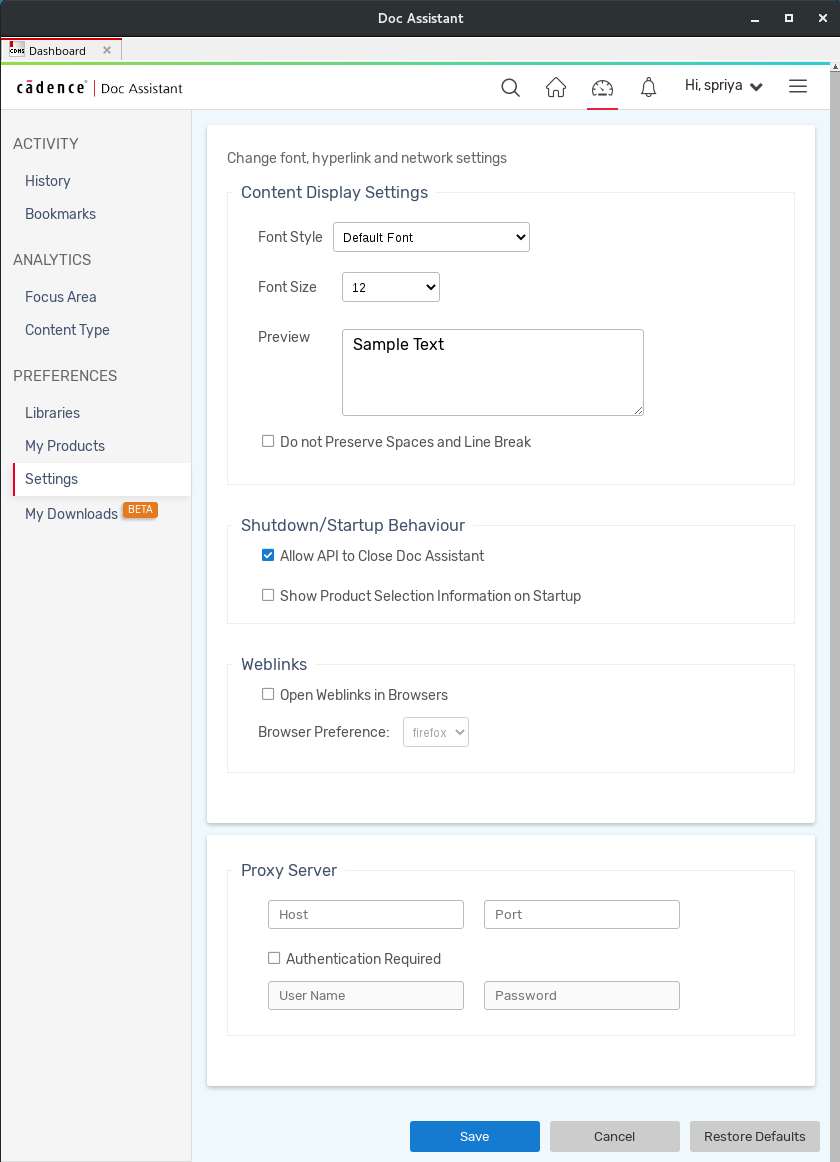
You can view this page by clicking the Setting button on the Hamburger menu.
Content Display Settings
To change the font style and font size of the content displayed in the topic viewer:
- Select a font style from the Font Style drop-down list.
- Select a size from the Font Size drop-down list. A preview is displayed in the Preview section.
- Unselect Do not Preserve Spaces and Line Break to reduce line spaces and line breaks in content pages. This provides a compact view of the content in the topic viewer.
Selecting this check box honors all line spaces and line breaks in the source content.
Shutdown/Startup Behavior
Use the following options to control the shutdown and startup behavior of Doc Assistant:
- Allow APIs to Close the Application: Closes Doc Assistant whenever the parent application is closed. For example, if Help was launched from a Virtuoso application, closing the application will close the Doc Assistant window. Do not select this check box if you want to keep the Doc Assistant window open even after closing the parent application.
- Show Product Selection Information on Startup:
Weblinks
You can configure Doc Assistant to open HTTP links in an external web browser. To set a web browser:
- Select the Open Web Links in Browsers check box.
- Select a web browser from the Browser Preference drop-down list.
Proxy Server
Proxy settings let you manually configure the proxy server for Doc Assistant and are specific to your corporate network. These settings are applicable to LINUX. You can configure these settings if you are unable to access online documents in Doc Assistant.