
Click a search result to open a topic.
The topic is opened in a new tab that displays:
- The table of Contents (TOC) on the left side.
- The topic content on the right side.
- Breadcrumbs, which allow you to navigate to the lower nodes of the document.
- Show or Hide header, which lets you control display of the header. Hiding the header improves the readability of content in the topic viewer.
- Recommendation, which displays topics related to the current topic displayed.
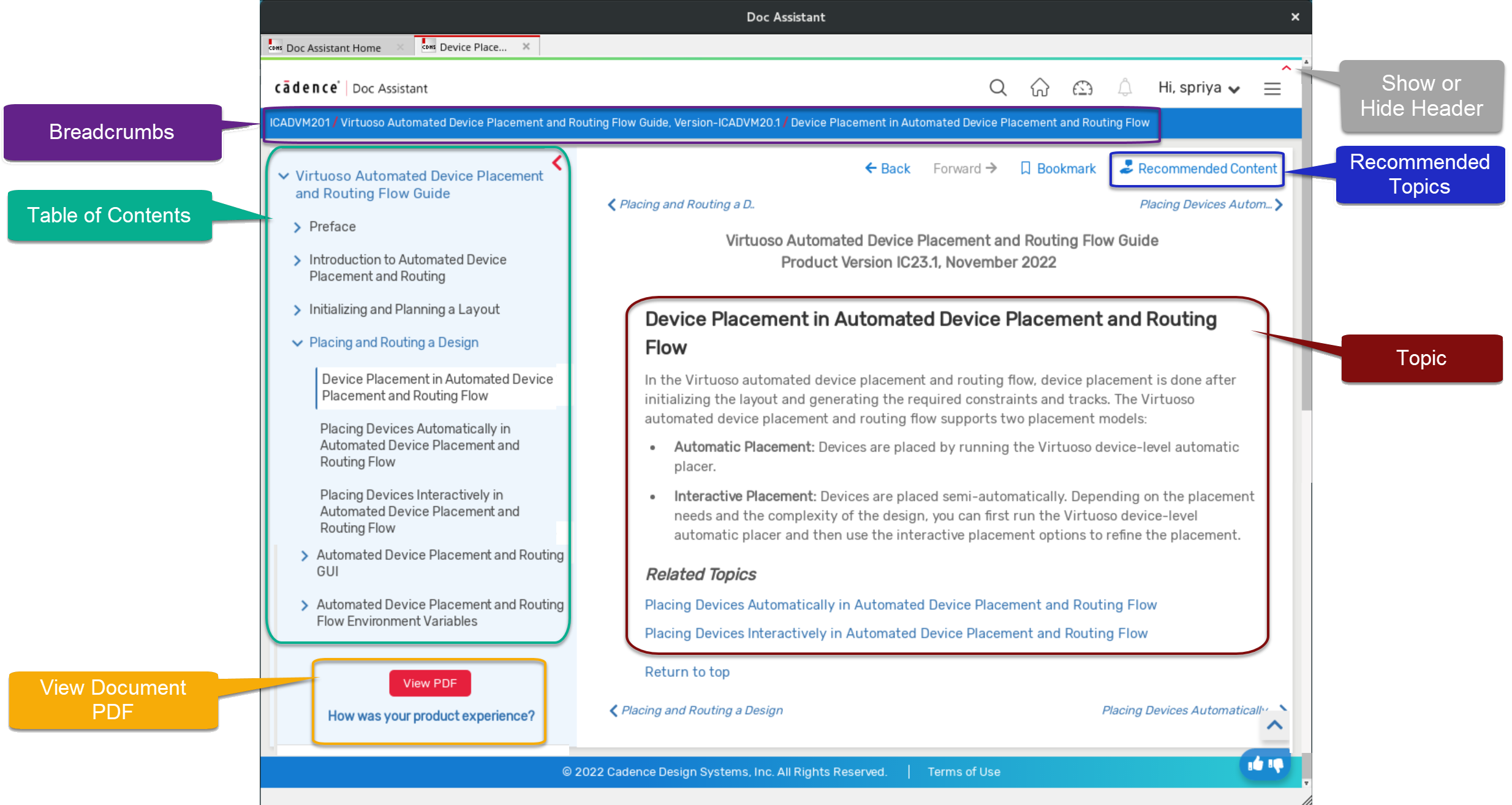
To view the topic contents in the PDF format, click View PDF at bottom of the TOC. The PDF opens in a new tab.
To close a tab, click the Close button or right-click anywhere in the topic viewer and choose Close Tab from the shortcut menu.
If only one tab is open, the command closes the entire Doc Assistant window.
You can also use the Control + w bindkey to close a tab in the topic viewer. This bindkey does not work as required when there is only one tab open in the topic viewer.