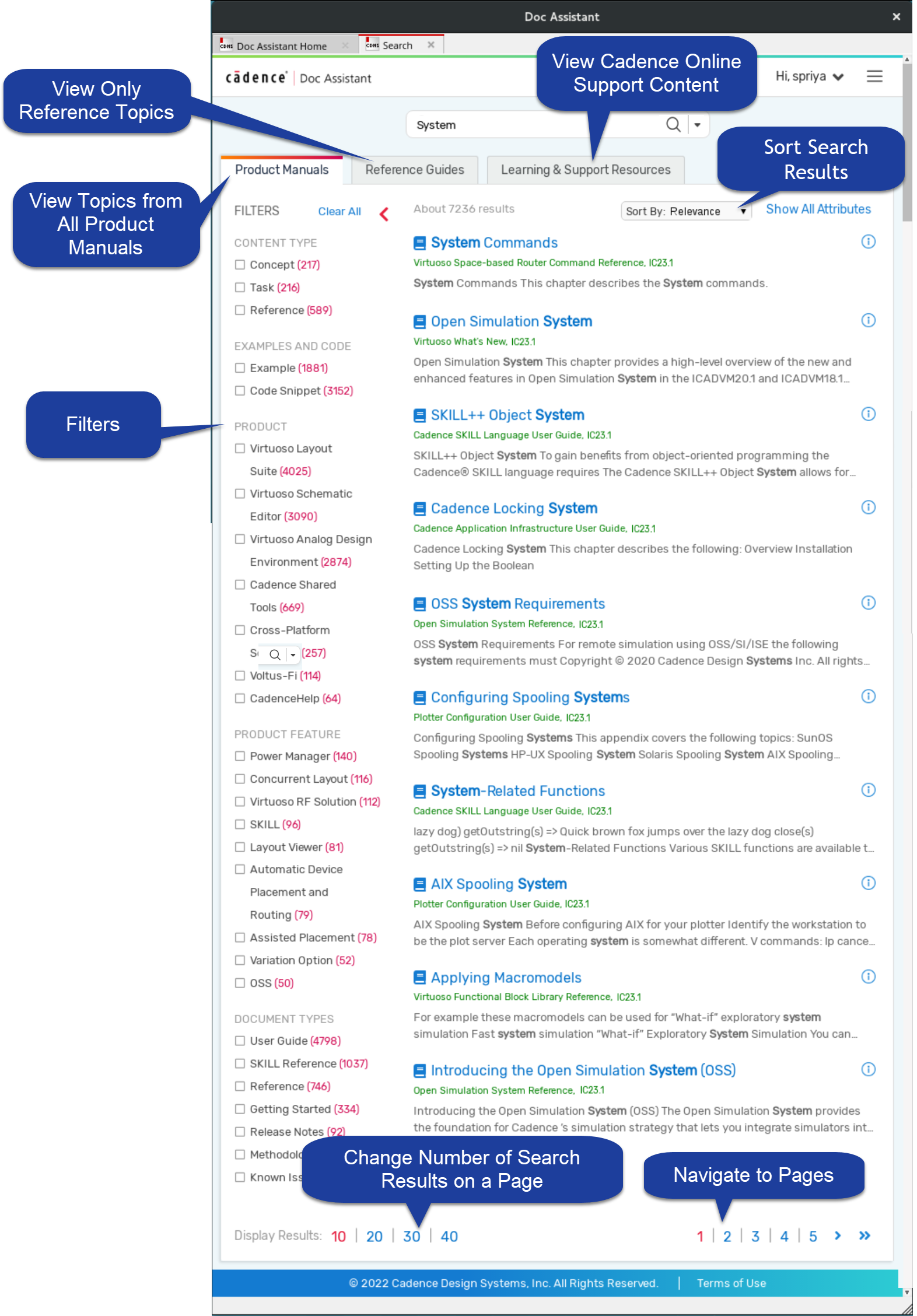
You can click a matching suggestion or press enter to search. Search results with all the topics matching the searched term are displayed.
On the search results page, you can:
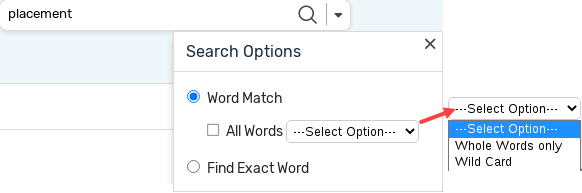
- Refine the search criteria. The drop-down arrow in the search box displays the Search Options form, that lets you customize the search options.
- Word Match, the default option, retrieves topics that contain the specified keyword. Here, you can select whether the tool must match only whole words or honor wildcards.
- Find Exact Word returns only those topics that include the exact search string as specified in the search criteria.
- Sort the results from the Sort By drop-down. Sorting can be done based on the following:
- Relevance: Sorts results based on their relevance to the search keyword. Closest matches are listed at the top.
- Manual Title: Sorts results by arranging their product manual titles alphabetically.
- Last Updated: Displays the most recently-updated documents at the top.
- View the search results on the All tab.
- Filter the search results.
- View only reference topics related to your search in the Reference Guides tab.
- View content related to your search available on the Cadence Support portal in the Learning & Support Resources tab. Doc Assistant, by default, opens up all the links in this tab within Doc Assistant (as a separate tab). You might have to provide support.cadence.com credentials depending on the licenses you own.
- Specify the number of search results to be displayed on each page from the options at the bottom of the search results page.
Although the Doc Assistant displays the contents of web pages, the interface does not support all web browser features. To open web links in an external web browser, go to Doc Assistant Settings and select Open Web Links in Browsers.