
Saving a Configuration as VHDL
The Hierarchy Editor provides the File – Save As VHDL command to save a configuration in VHDL syntax so that it can be read by VHDL tools. The VHDL configuration is always saved in a view called configuration.
The Hierarchy Editor adds those cellviews that have a VHDL source file to the VHDL configuration. It currently considers vhdl.vhd and vhdl.vams files as VHDL source files.
The Hierarchy Editor also adds those cellviews that do not have VHDL source files to the configuration but comments them out and generates a warning for them. However, if these cellviews have Verilog source files, you can choose to add them to the VHDL configuration by selecting the Check for Verilog option in the Save As VHDL form. If you select this option, the Hierarchy Editor adds the cellviews that do not have VHDL source files but do have Verilog source files to the VHDL configuration without commenting them out and does not generate a warning for them.
If Verilog views are included in the VHDL configuration based on the above, the inner for/end statements for these views are not written out.
To save a configuration for VHDL applications,
The Save As VHDL form appears.
-
In the Library and Cell fields, specify the name of the library and cell in which you want to save the VHDL configuration.
The View field is automatically set toconfiguration. -
Select the Check for Verilog option if you want those cellviews that do not have VHDL source files but do have Verilog source files to be added to the VHDL configuration.
If you do not select this option, the Hierarchy Editor adds all the cellviews that do not have VHDL source files to the VHDL configuration but comments them out and generates a warning for them. -
Click OK.
Saving a VHDL configuration does not save it in a format that can be read and edited by the Hierarchy Editor. You must also save the configuration with the File – Save or File – Save As command in order for it to be read by the Hierarchy Editor.
The VHDL configuration is saved. If the Hierarchy Editor generated any warnings while creating the VHDL configuration, it displays a dialog box asking you whether you want to see the warnings. If you click Yes, the Hierarchy Editor displays the following dialog box::
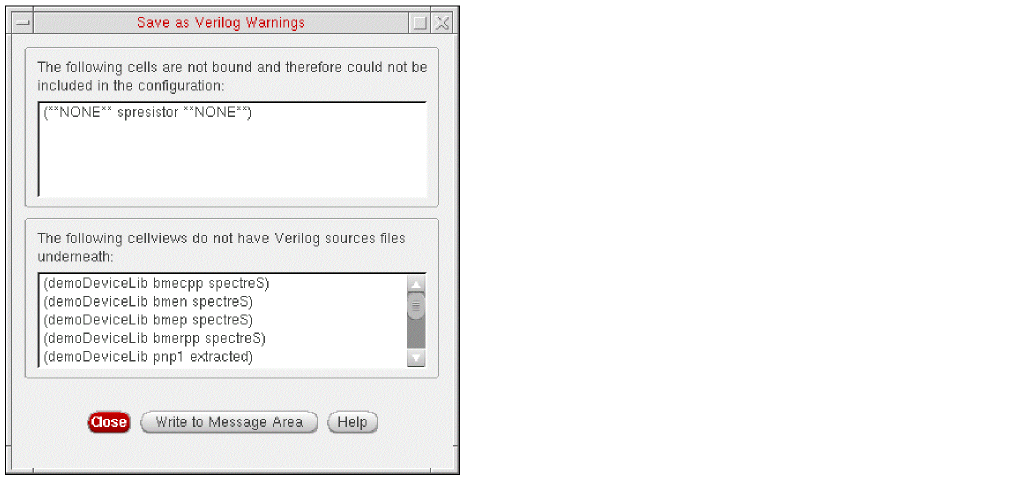
The Save as VHDL Warnings dialog box contains all the warnings that were generated while the VHDL configuration was created.
If you selected the Check for Verilog option when you saved the VHDL configuration, the warnings dialog box does not list those cellviews that do not have VHDL source files but do have Verilog source files.
To save the warnings to a log file,
-
Click Write to Message Area.
The warnings are displayed in the Messages area and also saved to the log file.
Return to top