
Using Verilog Files in Configuration
You can use Verilog views in a design configuration in the same way that you use other views. Verilog views contain Verilog text files such as verilog.v, verilog.vams, or verilog.va, which describe Verilog modules.
However, if you have Verilog text files that are not in a Cadence design library, that is, they are not in the Cadence library/cell/view structure, you can still use them in your configuration in the following ways:
-
By using the Hierarchy Editor’s Populate Library command to bring Verilog modules from these text files into a Cadence design library.
The Hierarchy Editor creates cellviews for all the modules in the library you specify. Use this option when you want the cellviews to be created in a master library or an explicit temporary directory. -
By referencing the Verilog text file.
The file is later compiled, by other tools in the flow, into the implicit temporary directory. Use this option when you cannot create cellviews in the master library or explicit temporary directory.
You can bring Verilog modules into your Cadence design library so that you can use them in your design configurations. The Hierarchy Editor creates a cellview in the library for each module, with corresponding pc.db and master.tag files, as well as a link to the original source file.
You can get modules from multiple Verilog source files at the same time. Each Verilog file can contain a single module or several modules that are independent of each other or hierarchically related.
You do not have to open a configuration to populate a library with Verilog modules. If you do open a configuration, you have the choice of updating the global view list and library list of the configuration with the Verilog views or the library you specify.
To populate a library with Verilog modules,
-
Choose File – Populate Library – Verilog.
The Populate Library with Verilog Modules form appears. -
Click OK after specifying all the required details.
The dialog box closes and the library is populated with Verilog modules. If there are any errors, they are displayed in the Messages section of the Hierarchy Editor.
If a configuration is open and you chose to update the library and view lists, the updated lists are displayed in the Global Bindings section as well as the Inherited Library List and Inherited View List columns.
The Verilog views are now available for binding. You can bind a cell, instance, or occurrence to the Verilog views in the same way that you bind to other views.
Compiler Options
The Hierarchy Editor uses the xmvlog compiler to create cellviews. It uses the following options with xmvlog:
xmvlog -use5x -worklibraryName[-viewviewName] [-ams]
where -use5x specifies that the Cadence library structure be created for the modules; -work libraryName specifies the library in which the cellviews are created; -view viewName, which specifies the name of the view, is used only if you fill in the View field in the Populate Library with Verilog Modules form (the default view name is module); and -ams is used for any source files that have a .va or .vams extension. For more information about xmvlog, see the Cadence NC-Verilog Simulator Help.
If the AMS plug-in is installed, the Hierarchy Editor runs xmvlog with the options specified in the AMS – Options – Compiler form.
If you want the xmvlog compiler to be run with any other options, specify them in the hdl.var file. For more information about the hdl.var file, see the Cadence NC-Verilog Simulator Help.
Referencing a Verilog File
If you want to use Verilog modules from a Verilog text file that is outside the Cadence library/cell/view structure and you cannot create cellviews for these modules in the master or explicit temporary library, you can reference the Verilog file. The file gets compiled later, by other tools in the flow, into the implicit temporary directory.
You reference a Verilog file by
- Specifying the path to the file; and
- Binding the cell, instance, or occurrence to a view that gets implemented later with the modules in the Verilog file
This puts the verilogfile property on the cell, instance, or occurrence. The value of the property is the path to the Verilog file and it is stored in the prop.cfg file in the configuration view. The property is used by downstream processes such as the design preparation step of AMS, which reads the property and compiles the file it refers to into the implicit temporary directory.
To reference a Verilog file for a cell, instance, or occurrence,
- For a cell, display the table view of the Hierarchy Editor; for an instance, display either the table view or the tree view; for an occurrence, display the tree view and turn on the occurrence editing mode.
- Right-click the cell, instance, or occurrence.
-
From the pop-up menu, select Set Cell View / Set Instance View / Set Occurrence View — Reference Verilog. For example:The Reference Verilog Modules form appears.
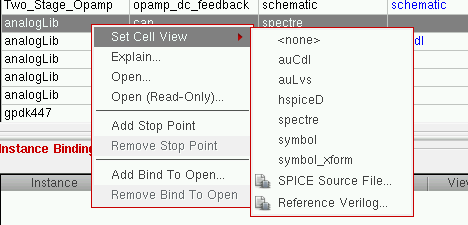
- Click OK after specifying all the required details.
The cell, instance, or occurrence is bound to the view. The View to Use column displays the view name. The  icon (file icon) next to the view name indicates that it gets implemented with a text file.
To remove a Verilog file reference,
- If you are editing a cell, display the table view of the Hierarchy Editor; if you are editing an instance, display either the table view or the tree view; if you are editing an occurrence, display the tree view and turn on the occurrence editing mode.
- Right-click the cell, instance, or occurrence.
- From the pop-up menu, select Set Cell View / Set Instance View / Set Occurrence View – <none>.
Related topics
Using Text Files in Configuration
Populate Library with Verilog Modules Form
Reference Verilog Modules Form
Return to top