
Importing a Peer Partition after Concurrent Layout Editing
To import changes made to the peer design partitions and view the updated design as a whole:
-
Right-click the design partition and click Import Peer Design Partitions or choose Concurrent – Import Peer Design Partitions
The Import Peer Design Partition form appears.
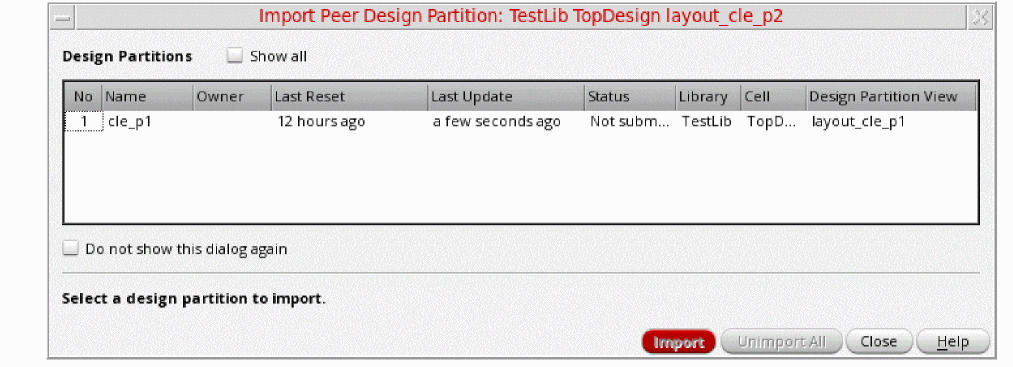
- Select Show All to display all edited peer design partitions.
- Select the design partitions to import.
-
Click Import.
Updates from the selected design partitions will be imported for your reference. You cannot submit these changes for merge or make any further edits.
In constraint-aware editing, when a new wire with net is imported from a peer partition, to prevent wire commands from changing this wire and prevent edit loss, Concurrent Layout automatically sets the wire to locked. This triggers Constraint Manager to create a locked constraint on the wire's net that, in turn, prevents designers from moving the wire, preventing edit loss. This constraint appears only when such peer partition is imported.
Unimporting Peer Design Partition Updates
You can remove the imported information related to the updates made in the peer design partitions from the current design partition:
-
Right-click the design partition and click Import Peer Design Partitions or choose Concurrent – Import Peer Design Partitions.
The Import Peer Design Partition form appears. -
Click Unimport All.
All imported updates will be removed from the current design partition.
Related Topic
Import Peer Design Partition Form
Return to top