
Creating a Group
To create a group to include specific hierarchical instances, perform the following steps:
-
Choose View — Show/Hide Settings to open the Settings and Options assistant.
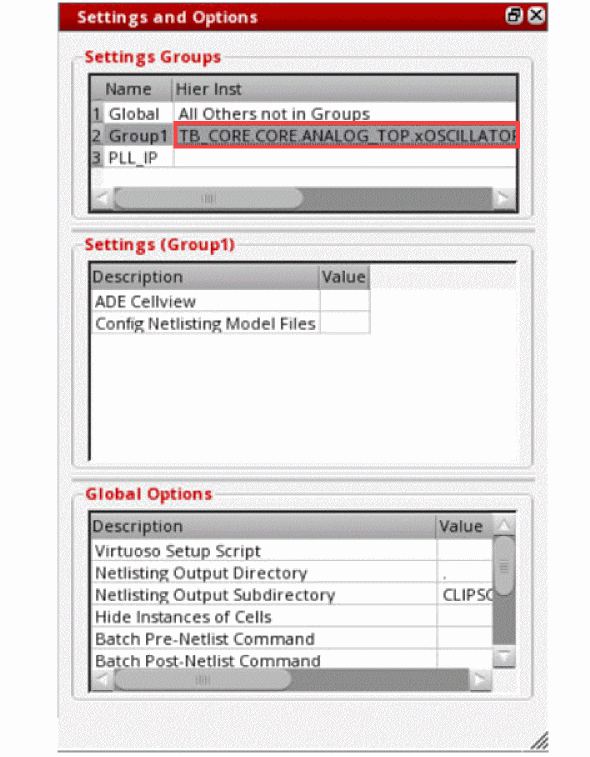
The available groups are displayed in the Settings Groups section.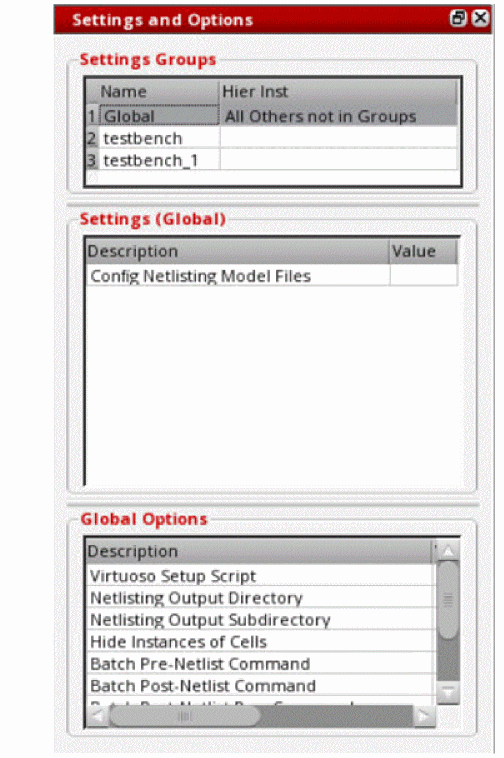
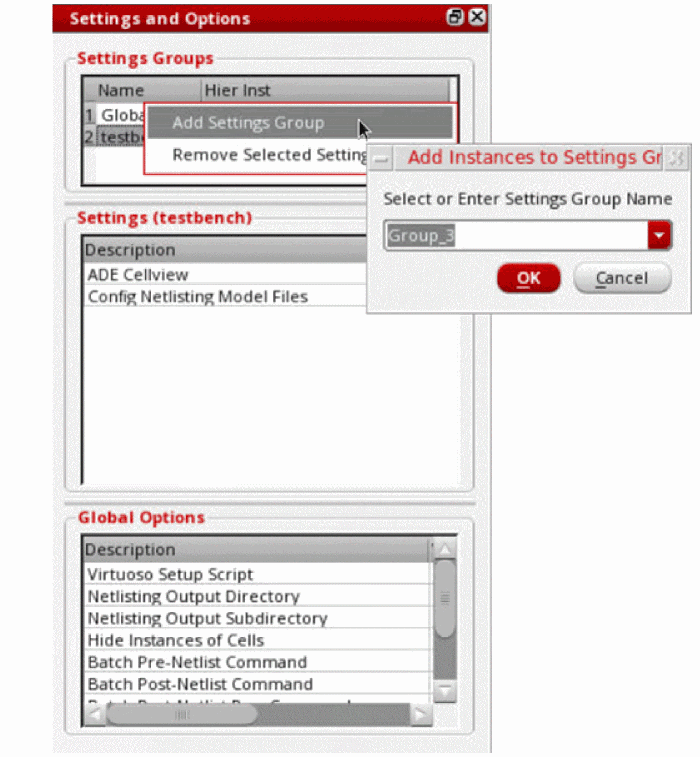
- To create a new group, right-click in the Settings and Groups section and choose Add Settings Group from the context-sensitive menu. The Add instances to Settings Group form is displayed.
- Specify a name for the new group in the Select or Enter Settings Group Name field.
-
Click OK to close the form.
A new group is displayed in the Settings Groups section.
-
To add an instance to this group, right-click an instance in the Hierarchy sections of the CLIPS window and choose Add Selected Instances to the Settings Group.
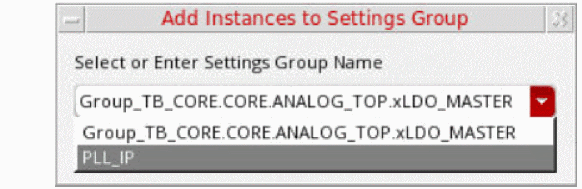
The Add Instances to Settings Group form is displayed.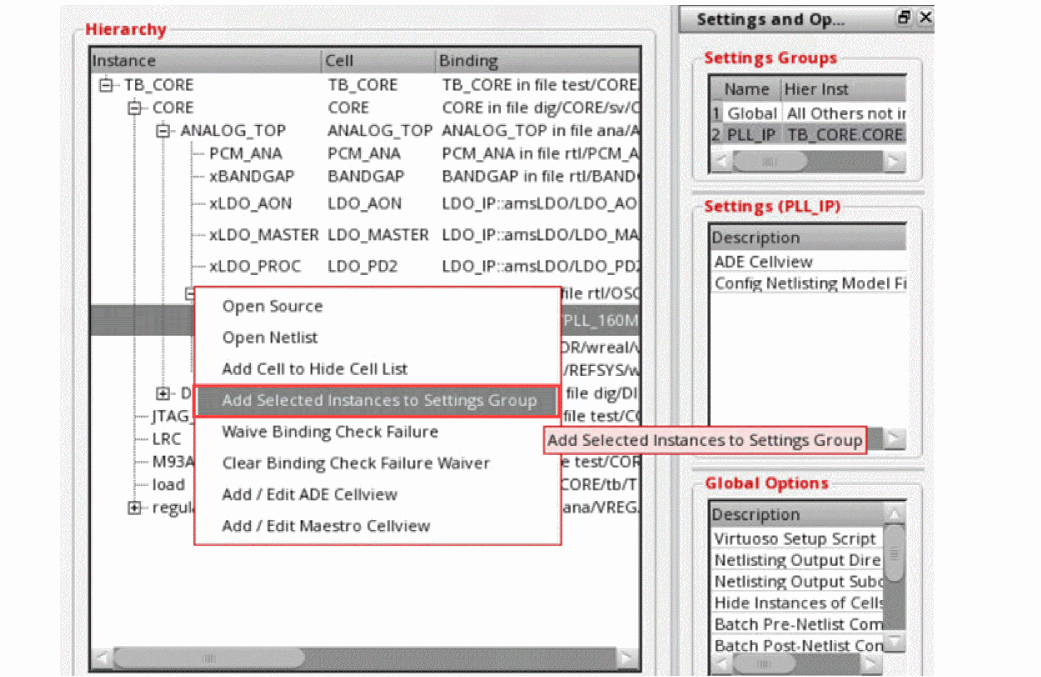
-
In the Select or Enter Settings Group Name drop-down list, select the name of the group to which you want to add the instance.
The instance name is displayed in the Hier Inst column of the Settings Groups section, as shown below.
Return to top