
3
Additional Virtuoso Studio Licensing and Configuration Information
The administration of the software is summarized below.
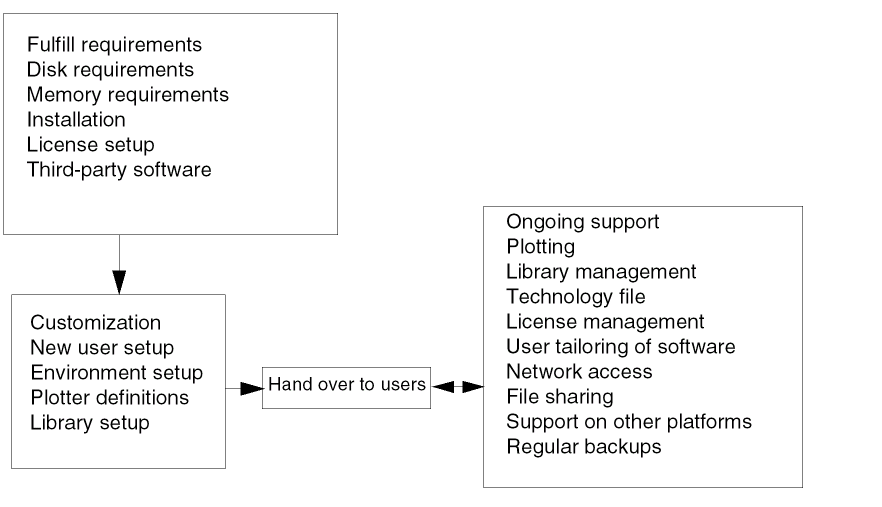
.cshrc, and .login file or .profile file). The Virtuoso Studio Design Environment User Guide provides more information about customizing these files.The following information is described in this chapter:
X Window System
You can find server-dependent directories and files in the following location:
X_install_dir/etc/*
where X_install_dir is the directory where your X Window system software is installed.
You can start X in one of the following ways:
-
The workstation runs X all the time (X is running even before you log in). You are using
dtlogin. -
The workstation comes up in text or a proprietary graphics mode. You start X after you log in (without
xdm).
Running 64-Bit Versions of Applications
Most Cadence® applications have both 32- and 64-bit versions. The 64-bit versions of applications are installed in the same tools hierarchy as the 32-bit versions. A wrapper for each application determines which version of the application is run.
CDS_AUTO_64BIT environment variable is set to ALL (see below for more information).To run the 64-bit version of a Cadence application, do the following:
-
Verify that your operating system supports 64-bit applications.
-
Verify that a 64-bit version of the application is installed.
The 64-bit version of an application is located in the64bitdirectory in the standard installation location of the application.
For example,your_install_dir/tools/bin/64bit/cdsHierEditor your_install_dir/tools/dfII/bin/64bit/virtuoso -
Set the following environment variable:
CDS_AUTO_64BIT { ALL | NONE |
list| INCLUDE:list| EXCLUDE:list}
For example, if you havevirtuosoandlibManagerinstalled:
SettingCDS_AUTO_64BITdoes not guarantee that you will run the 64-bit version of an application. The wrapper runs the 64-bit version of the application only if all the following conditions are true:- The operating system supports 64-bit applications.
- A 64-bit version of the application is installed.
-
You choose to run the 64-bit version by setting the
CDS_AUTO_64BITenvironment variable.
Otherwise, the 32-bit version of the application is run. -
Start the Cadence application from its standard location.
For example, for the virtuoso executable, your_install_dir/tools/dfII/bin/virtuoso. or for the Cadence Hierarchy Editoryour_install_dir/tools/bin/64bit/cdsHierEditor
The wrapper for the application assess whether to run the 32- or 64-bit version of the application based on the value ofCDS_AUTO_64BIT.
The corresponding versions of the applications reside in subdirectories of thebindirectory. For example, the 32-bit version of appName is in your_install_dir/tools/bin/32bit/appName.Do not run the executables in the32bitor64bitdirectories directly (always run the application through its wrapper).See your application documentation for more information. In some cases, you might need to start appName.exe instead of appName to run the application through its wrapper.When you start an application, you can use theIn the following example, the 32-bit version of the libManager executable was run even though-debug3264option to assess whether you are running the 32- or 64-bit version. Diagnostic information is displayed before the program starts.CDS_AUTO_64BITwas set toALL. The output of the-debug3264option indicates that the 32-bit version was run because the 64-bit version of the application was not installed.% setenv CDS_AUTO_64BIT ALL
% libManager.exe -debug3264
-------- 32/64 bit wrapper diagnostics -------------
App name: libManager.exe
App path: /net/machine/cds/5.0.0/tools/dfII/bin
OS is 64-bit capable.
The user has selected 64-bit operation via the environment variables.
No 64-bit version of the application exists.
A 32-bit version of the application exists.
----------------------------------------------------
PATH : /net/ansbk/usr/SoftWindows.solaris/bin:/mnt3/ns/bin:/usr/bin/X11:/usr/openwin/bin:.:/usr/ucb:/bin:/mnt3/ns/bin:/usr/local/bin:/usr/bin:/usr/etc:/usr/local:/usr/lang/v3:/net/machine/cds/5.0.0/tools/bin:/net/machine/cds/5.0.0/tools/dfII/bin:/net/machine/cds/5.0.0/tools/lib:/opt/SUNWdtpcv/bin:/usr/local/pvt
LD_LIBRARY_PATH : /net/machine/cds/5.0.0/tools/lib:/usr/lib:/usr/openwin/lib:/usr/lib/X11:/usr/dt/lib
CDS_AUTO_64BIT : ALL
Launching "/net/machine/cds/5.0.0/tools/dfII/bin/32bit/libManager.exe"
------------------------------------------------------
TrueColor Visuals
The software defaults to a 24-planes TrueColor visual. If a 24-planes visual is not available, the software will first search for a 16-planes TrueColor visual, then a 15-planes TrueColor visual.
Finding Available Visuals
To check for available graphics display visuals, do the following.
The following shows the results of xdpyinfo for a typical 24-planes TrueColor visual:
visual:
visual id: 0x2e
class: TrueColor
depth: 24 planes
available colormap entries: 256 per subfield
red, green, blue masks: 0xff, 0xff00, 0xff0000
significant bits in color specification: 8 bits
Pseudocolor and TrueColor Visuals
In previous releases, the software supported Pseudocolor visuals. Pseudocolor visuals allowed color mapping (mapping between the pixels used to define the colors and the colors that display). In the IC 6.1 release, only TrueColor visuals are supported. TrueColor provide a full palette of colors which increase with larger numbers of planes (bits). In other words, the incremental difference between each color is smaller with the more planes you have.
A 15-plane TrueColor visual provides 32,768 colors and uses 5 bits each to describe the red component, green component, and blue components. A 16-plane TrueColor visual provides 65,535 colors and uses 6 bits to describe the red component, 5 bits to describe the green component, and 5 bits to describe the blue component. The 24-plane TrueColor visual provides 16,777,216 colors and uses 8 bits to describe each component of the red, green, and blue.
The following table shows how the total number of planes (or bits) are used to describe each of the components; red, green, and blue for TrueColor visuals.
| 15 Planes Color Depth | |||
| 16 Planes Color Depth | |||
| 24 Planes Color Depth | |||
Locale Settings
Virtuoso software requires locale settings to be set to C in order to work properly. When you run Virtuoso software on any platform, the software sets the locale to C automatically. Your original locale settings are ignored.
This also means that for a script, shell, or other tool that is run from a Virtuoso application (for example, a shell invoked from the CIW), the locale setting that is used is always C, regardless of any locale variables set in your environment.
If you want to restore your original locale settings for a script, shell, or tool that is invoked from a Virtuoso application, source one of the following scripts first:
your_install_dir/tools/dfII/samples/local/cdsOrigLocale.sh
your_install_dir/tools/dfII/samples/local/cdsOrigLocale.csh
sourceyour_install_dir/tools/dfII/samples/local/cdsOrigLocale.csh
.your_install_dir/tools/dfII/samples/local/cdsOrigLocale.sh
You can also do this from the system command. For example, to run dtpad, you could use the following command:
system( strcat( ". " prependInstallPath( "samples/local/cdsOrigLocale.sh" )
       "; /usr/dt/bin/dtpad -standAlone" ) )
Return to top