
Electromagnetic Model Creation in Virtuoso RF Solution
The Electromagnetic Solver assistant in Virtuoso Layout MXL provides an interface to create 3D models for passive devices in the layout view.
The following flow diagram describes how you can use the Electromagnetic Solver assistant in the Virtuoso RF design flow.
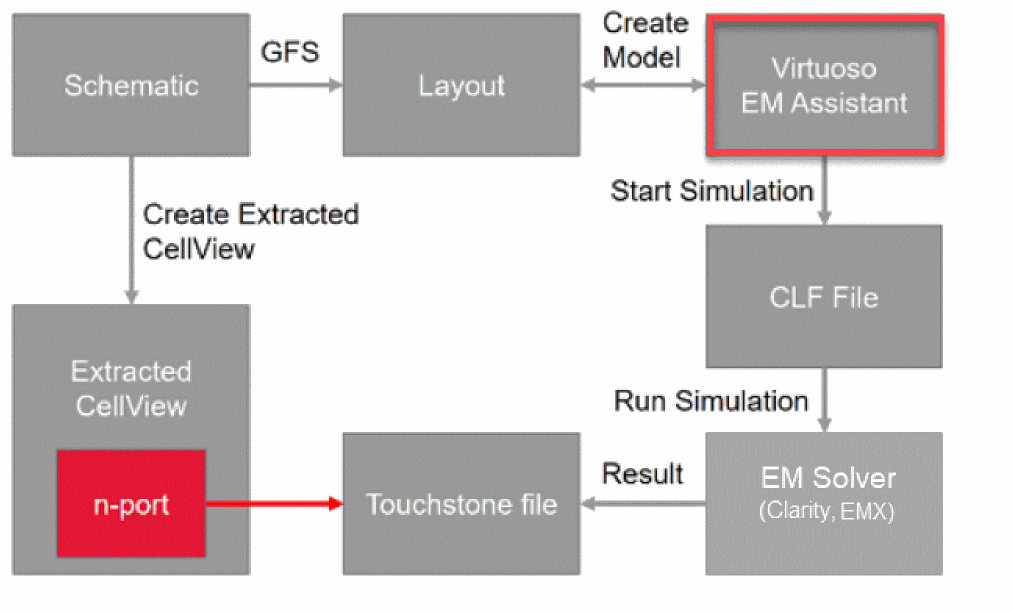
- After the layout is ready, open it in Virtuoso Layout MXL and launch the Electromagnetic Solver assistant. Next, create a model by selecting the shapes and devices that you need to analyze. The model definition contains all of the information needed to create the physical structure as well as the required settings for simulation by the EM solver.
-
This model is exported to an encrypted data model file (
.clf) that is automatically imported by the solver for S-Parameter extraction. - The solver computes the RF behavior for the shapes identified in the model and saves the output in a touchstone file.
- You can create an extracted view for use in the ADE Explorer or ADE Assembler setup to run simulations.
- The extracted view contains an n-port that replaces the original net connections for the identified shape or device. This n-port points to the touchstone file in which the RF behavior of the devices is saved. The Spectre simulations read the data from the touchstone file and use that for running simulations.
The integration of the EM engines into the Electromagnetic Solver assistant makes the EM extraction and analysis fully automatic and time saving. You can use a single interface to create models, generate RF data, and save it in a format to be used for running simulations.
Contents of Model Definition File
The model definition in the .clf data file includes the following information:
- (Only for an IC layout) The process information that defines layer thicknesses and material properties. This might include one or both of the following:
- (Only for a package layout) The stackup from the technology database
- Interconnects from the layout. These can be a set of nets and instances with an optional rectangle or polygon cutting boundary.
- (Optional) Cutting boundary or die ground size that determines the X-Y extents of the model
- Ports
- Simulation settings
Related Topics
Supported Electromagnetic Solvers
Launching the Electromagnetic Solver Assistant
Return to top