
Analyze Connectivity Form
Use the Analyze Connectivity form to display information about connectivity within and between blocks. This information is useful during floorplanning design.
| Field | Description |
|---|---|
|
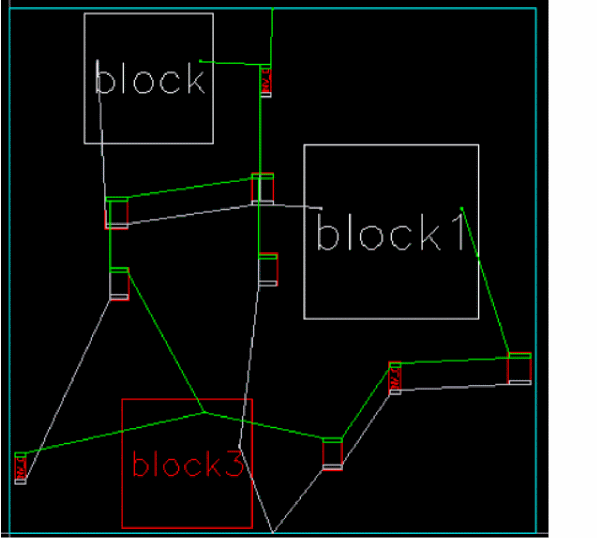
Lets you select Block or Net mode to highlight connections between blocks or virtual hierarchies in the design canvas.
|
|
|
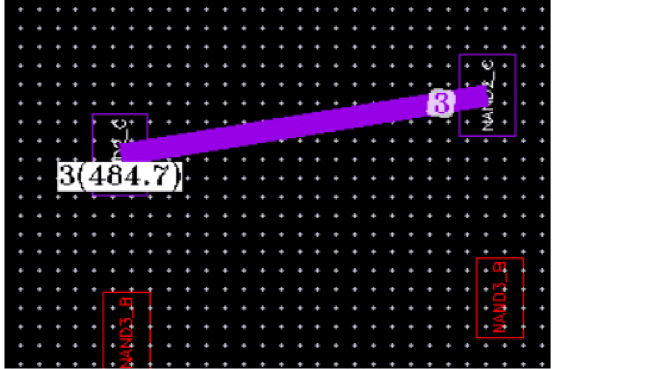
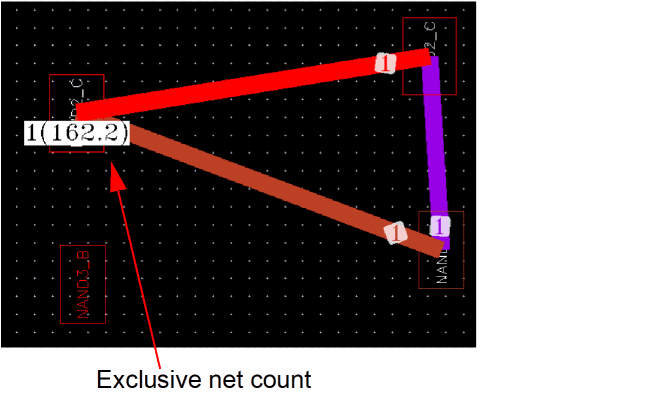
When multiple blocks are selected, the net count and net length values are displayed at the center of the larger block, as shown in the image below. 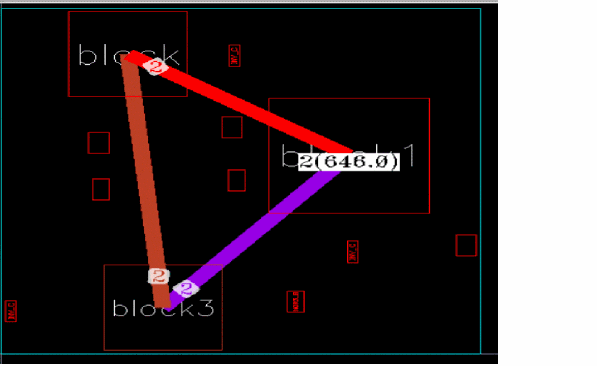 |
|
|
Reads connectivity information from the schematic for the objects selected in the layout when at least one of the selected object is unconnected in the layout. The supported object types are block instances and PR boundary.
The command also supports bus nets that are scalarized in the layout. For example, Environment variable: analyzeConnCheckLogicalConn |
|
|
This section specifies the display settings of nets in the design canvas. |
|
|
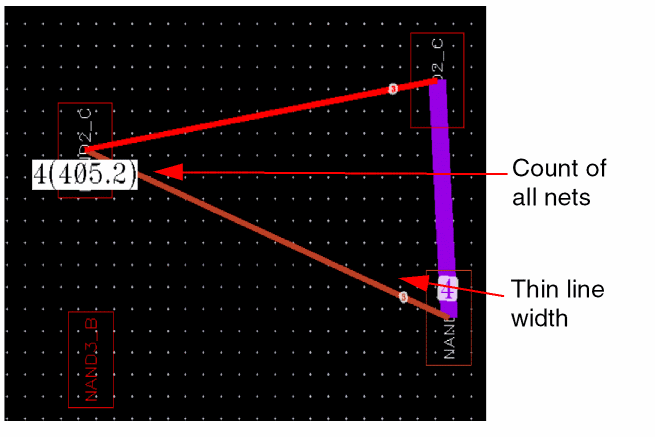
Shows only critical nets from the displayed connectivity lines or nets. When this option is selected, only critical nets that are connected to the selected blocks are highlighted and the net count is displayed at the center of the largest selected block. In the following example, the net count is displayed as 4. 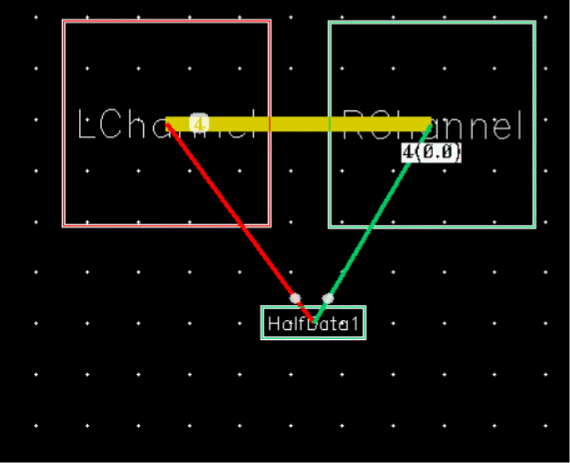 |
|
|
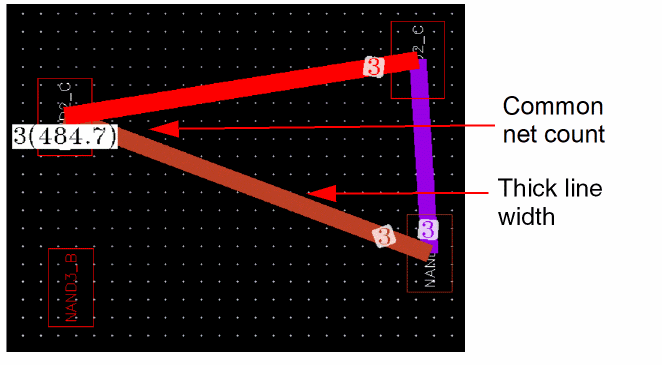
When this option is not selected, all the nets that are connected to the selected blocks are highlighted and the net count is displayed at the center of the largest selected block. In the following example, the net count is displayed as 2. 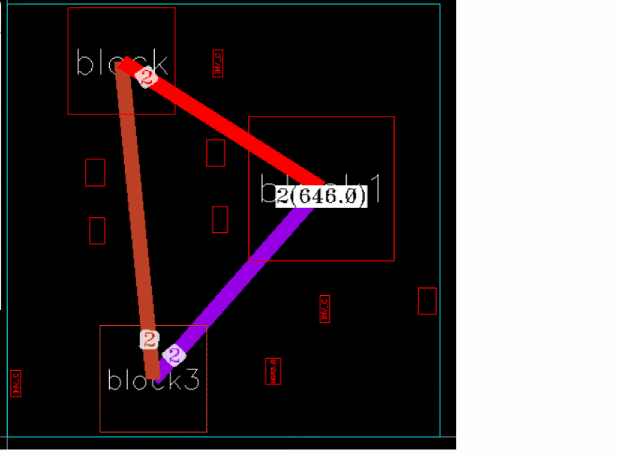 Environment variable: analyzeConnCriticalNetOnly |
|
|
Opens the Categories table, which filters the critical nets based on the available priorities. 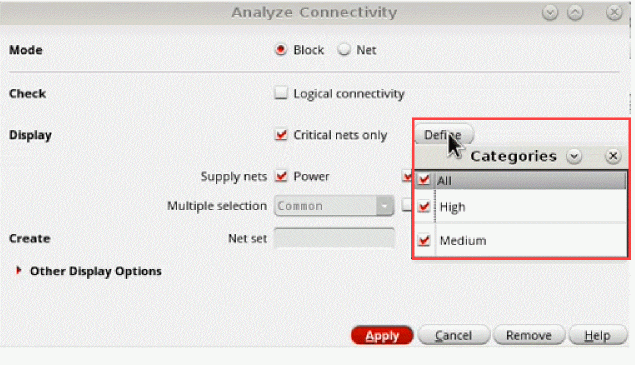 |
|
|
Displays connections to the selected type of nets – Power, Ground, and Global. For example, when you select only Ground, it displays ground nets and does not display the global nets and power nets between the selected blocks. Environment variables: analyzeConnFltGroundNet, analyzeConnFltGlobalNet, analyzeConnFltPowerNet |
|
|
Enables cross selection of multiple nets between the design canvas and the Navigator assistant. Therefore, when you run the Analyze Connectivity command, the nets highlighted in the design are automatically selected in the Navigator assistant. The available options are: |
|
|
|
When Logical connectivity is selected, the tool selects the bound top-level nets in the layout corresponding to the schematic nets. These nets might not be connected between the selected objects in layout. Environment variable: analyzeConnEnableNetSel |
|
|
Displays the total number of nets selected on the canvas and their lengths. In the following example, the net count between three selected blocks is 2 and the average net length between all the blocks is 646. The total net length is 646*2=1292. 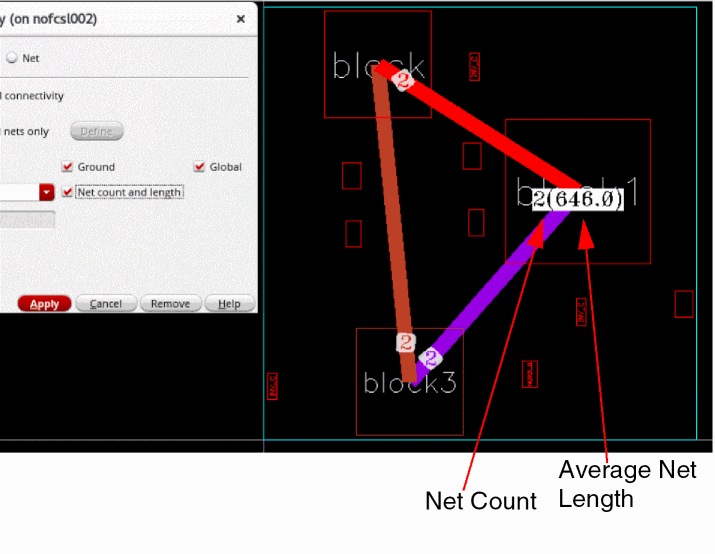 The available options are All, Common, and Exclusive. Environment variables: analyzeConnDisplayNetCount, analyzeConnDisplayNetOpt |
|
|
Specifies a name for the set of nets that are selected on the design canvas. Environment variable: analyzeConnNetSetName |
|
|
This section specifies the settings of the labels displayed on the flight lines. |
|
|
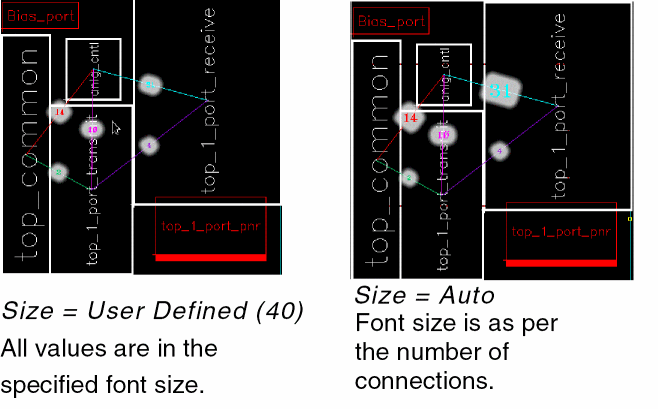
Specifies the font size of the labels. The available options are:
Environment variables: analyzeConnFontOpt, analyzeConnFontSize |
|
|
Specifies the font color of the labels. Set it to Color to have the same color as the connectivity line (default) or to Black and White. 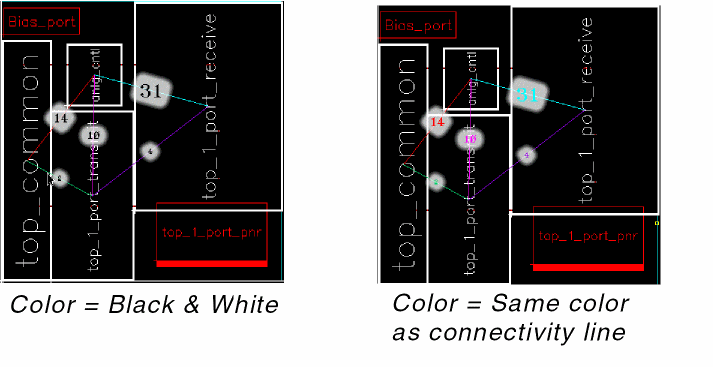 Environment variable: analyzeConnFontColor |
|
|
Specifies the transparency of the labels displayed on the flight lines. In the following example, the transparency value is increased to 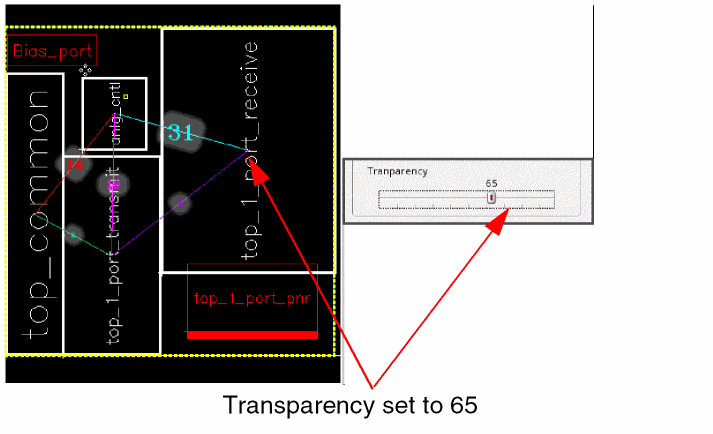 Environment variable: analyzeConnTransValue |
|
|
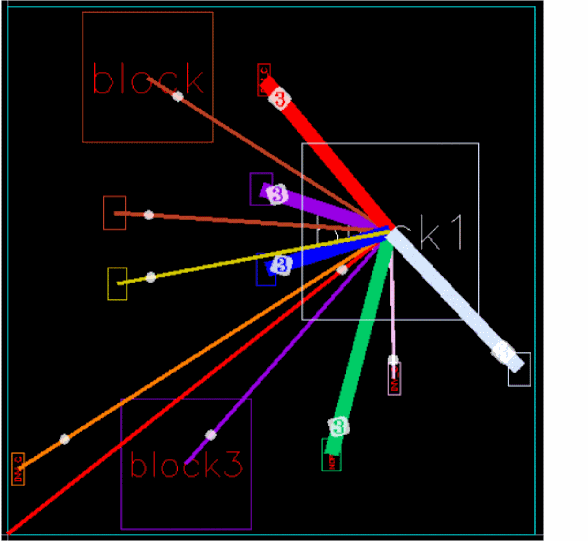
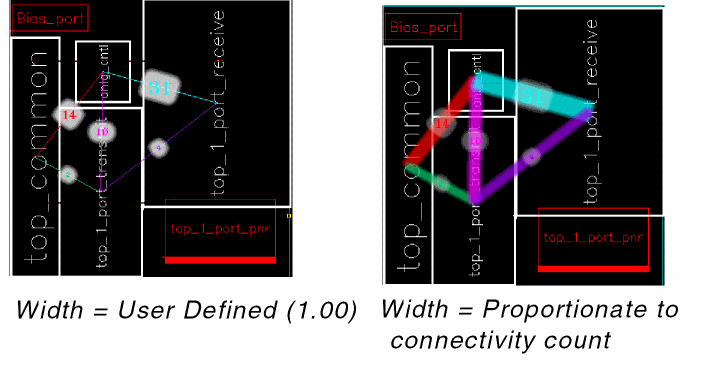
Sets the width of the flight lines to either User Defined or Proportionate to connectivity count.
Environment variables: analyzeConnLineSizeWidth, analyzeConnWidthOpt |
|
|
Specifies the mode in which connectivity information is to be displayed when a block is selected. The available options are:
Environment variable: analyzeConnDisplayConn |
|
|
Deletes all the flight lines and associated information within the selected boundary or between the selected instances. |
Related Topics
Analyzing Connectivity in a Floorplan
Return to top