
Label Update Form
Use the Label Update form to update pin labels and text displays for clearer visualization.
| Field | Description |
|---|---|
|
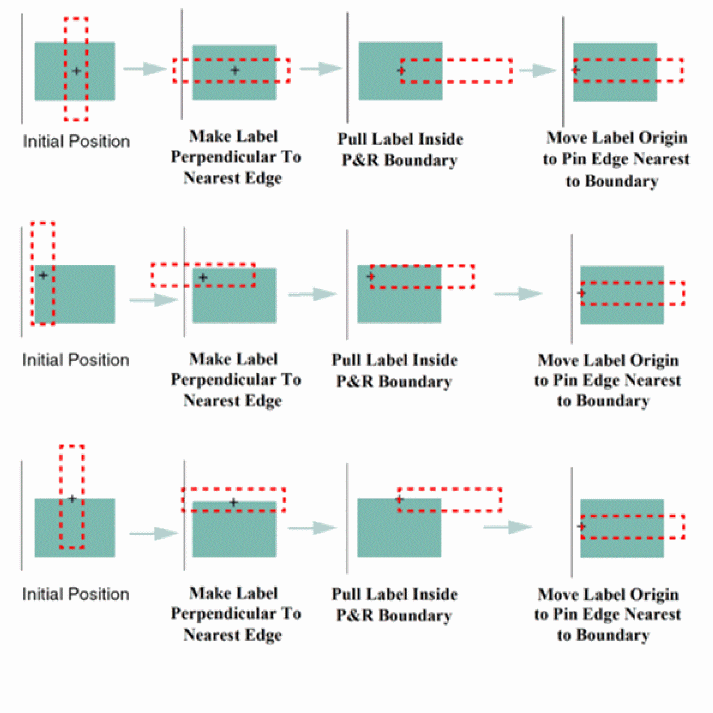
This section makes labels and text displays perpendicular to the nearest PR boundary edge. Orientation remains unchanged for labels and text displays that are already perpendicular to the nearest PR boundary edge. |
|
|
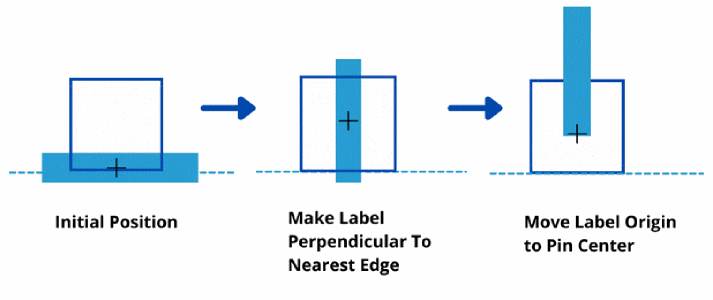
Makes labels and text displays perpendicular to the nearest PR boundary edge. The nearest PR boundary edge is determined based on the minimum distance of the label’s parent pin center from the PR boundary. |
|
|
This section includes the options for adjusting label positions. |
|
|
Places labels and text displays inside the PR boundary after performing different permutation and combinations for justification and orientation. The label or text display origins remain unaltered. If all labels and text displays could not be successfully pulled inside the PR boundary, an appropriate report is displayed in the CIW. |
|
|
Specifies whether the origins of labels and text displays are to be changed when running the Label Update command. |
|
|
Environment variables: moveLabelTo, moveLabelOrigin |
|
|
Specifies the label size in the adjoining box. Update Label Size does not run in the following situations:
In the above situations, an appropriate message is printed in the report. |
|
|
Computes any existing label overlaps and reduces the size of the labels or text displays so as to remove any remaining overlaps. Choose this option when label or text display overlaps exist even after making the above settings. The size of labels or text displays is reduced up to a minimum threshold value as specified in the adjoining text box. |
|
|
Specifies the minimum threshold value for reducing the size of labels. |
Related Topics
Updating Pin Labels and Text Displays
Return to top