
Updating Pin Labels and Text Displays
During pin optimization, pins are re-positioned to obtain the shortest possible net length. However, the Pin Optimizer does not update pin labels and text displays for clear visualization. This may result in positioning of pin labels and text displays outside the PR boundary causing overlaps and inapt visualization, defeating the purpose of labeling.
After optimizing pins in a design, you can use the Label Update command to update pin labels and text displays for clearer visualization. To run the Label Update command:
-
Open the Label Update form using Floorplan – Label Update command.
In Layout EXL and higher tiers, choose Plan – Pin Planning – Label Update.
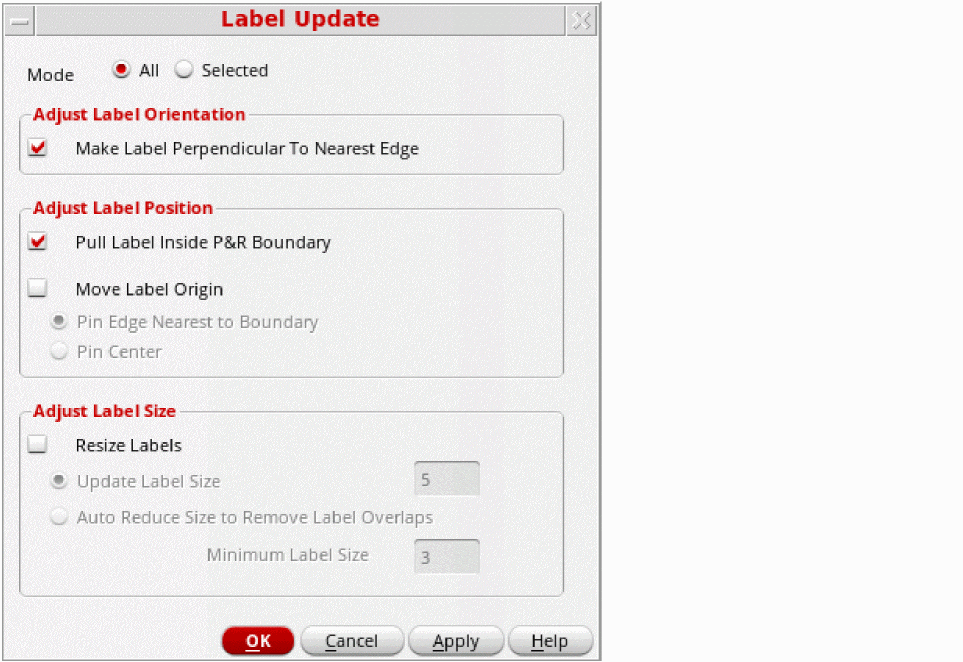
- In the Mode section, you can specify the pins on which the command has to run.
- Select All to run on all soft block pin labels and text displays in the current design.
- Optionally, choose Selected to run only on the selected pin labels and text displays.
- In the Adjust Label Orientation section, you can make labels and text displays perpendicular to the nearest PR boundary edge.
- In the Adjust Label Position section, select Pull Label Inside P&R Boundary to try different permutations and combinations of justification and orientation to place the selected labels and text displays inside the PR boundary.
- In the Move Label Origin section, you can adjust the label positions by choosing Pin Center or Pin Edge Nearest to Boundary option.
- Select Pin Center to move the origins of all labels and text displays to the center of the pin.
-
Optionally, select Pin Edge Nearest to Boundary to move the origins of all labels and text displays are moved to the center of the nearest pin edge.
Depending on the access direction of the nearest PR boundary edge from the label parent pin, the orientation and justification of labels is set based on the following table:Edge Orientation / Justification
The following images depict the various orientations and justifications.The Adjust Label Orientation and Adjust Label Position options will not run for labels and text displays for which: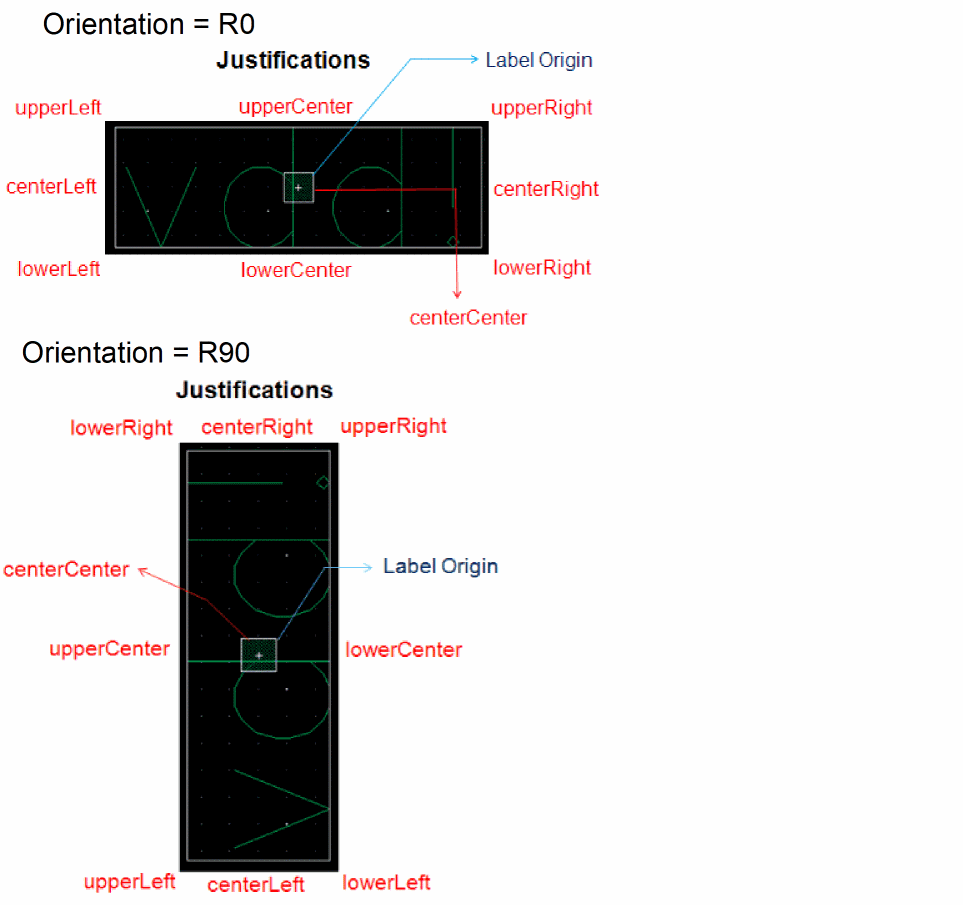
- The label or text display origin is already outside the PR boundary.
- The label or text display parent is outside PR boundary.
In the above situations, appropriate messages are printed in the report. - In the Adjust Label Size section, choose Update Label Size to specify the label size in the adjoining box.
- Choose Auto Reduce Label Size when label or text display overlaps exist even after making the above settings. This option intelligently computes the overlaps and reduces the size of the overlapping labels or text displays so as to remove any remaining overlaps.
- Click Apply to make changes.
Related Topics
Return to top