
Inserting Filler Cells
- Define the design area. It could either be an entire design or a selected region of a design. After defining the design area, select the filler cells from the libraries that are to be used.
-
Choose Floorplan – I/O Placer – Insert Filler.
In Layout EXL and higher tiers, choose Plan – I/O Placer – Insert Filler.
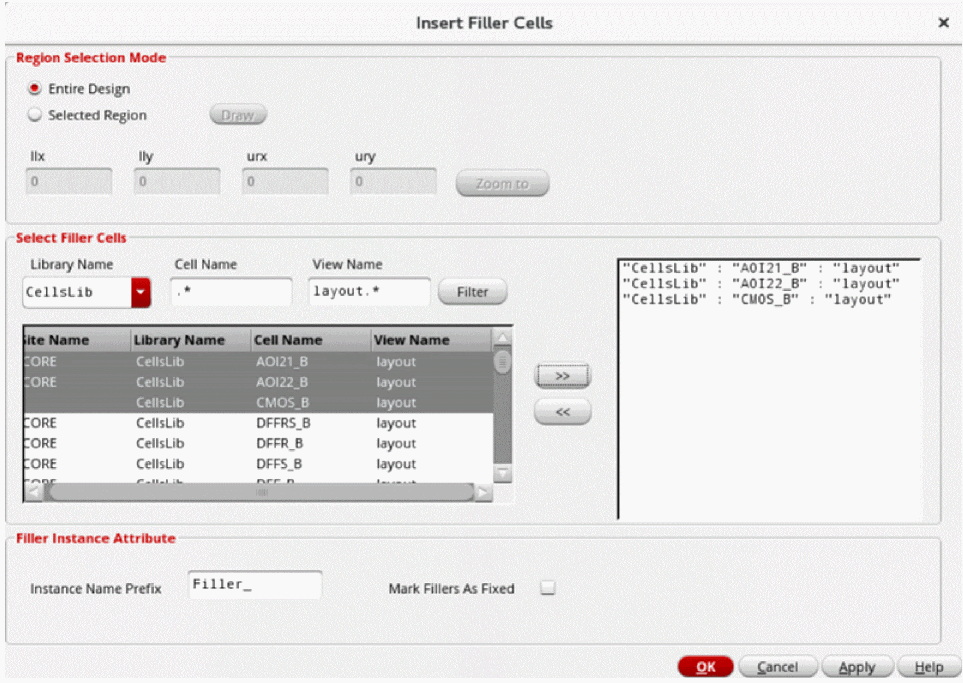
The Insert Filler Cells form is displayed.
-
In the Region Selection Mode section, choose if the filler needs to added to the entire design or a selected region.
-
Click Draw to select the area on the canvas on which the operation must be performed. Choose from Entire Design or Selected Region. This automatically populates the coordinates field.
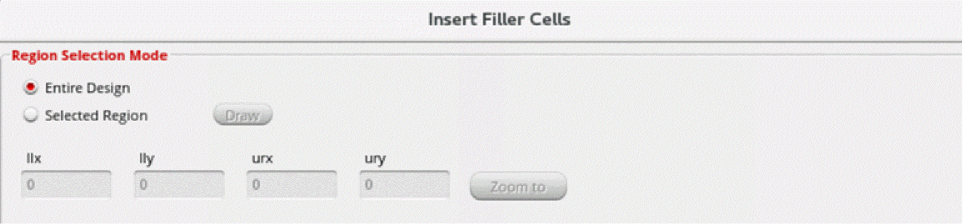
- Define the coordinates of the selected region in the coordinates field. You can manually edit the coordinates.
- Click Zoom to for zooming in the selected region.
-
Click Draw to select the area on the canvas on which the operation must be performed. Choose from Entire Design or Selected Region. This automatically populates the coordinates field.
- Enable selection of few cells from entire range of libraries/cells/views using the Select Filler Cells section. The few selected cells would be used by the engine as filler cells.
-
To select a
lib:cell:viewfor the filler cell, you can type the library, cell, and view names in the corresponding fields or perform the following steps:-
Select the library from the Library Name drop-down list and click Filter.The value of the selected
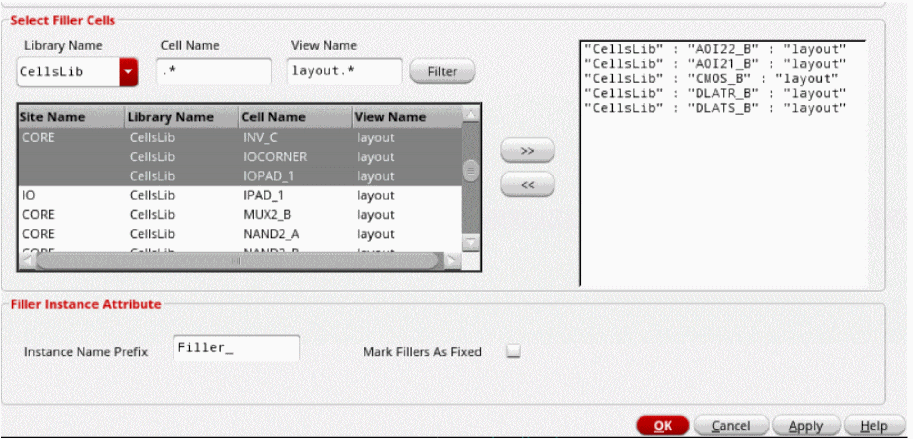
lib:cell:viewname along with the site name is displayed in the Library Name, Cell Name, View Name, and Site Name columns, respectively. -
Click the right arrow button to add the selected library/cell/view to the list of fillers in the right pane. You can add multiple
lib:cell:viewfrom the Library Name, Cell Name, View Name, and Site Name table and add them to the filler list in the right pane using a single click.
You can click the left arrow button to delete the selectedlib:cell:viewname as a filler.
-
Select the library from the Library Name drop-down list and click Filter.
-
Define the instance name prefix and the placement status of the filler cell in the Filler Instance Attribute section.
-
Specify instance name prefix, which is pre-pended to the inserted physical only filler instances in Instance Name Prefix. This will help you recognize the filler inserted in a specific row or location for deleting them or doing some edits.
- Select Mark Fillers as Fixed field to specify the placement status of inserted cells as Fixed. By default, the check box is not selected. When the check box is deselected, the placement status of the inserted cells is set to Placed.
-
Specify instance name prefix, which is pre-pended to the inserted physical only filler instances in Instance Name Prefix. This will help you recognize the filler inserted in a specific row or location for deleting them or doing some edits.
- Click OK or Apply.
Fillers are inserted according to their site patterns and row as shown in the following image:
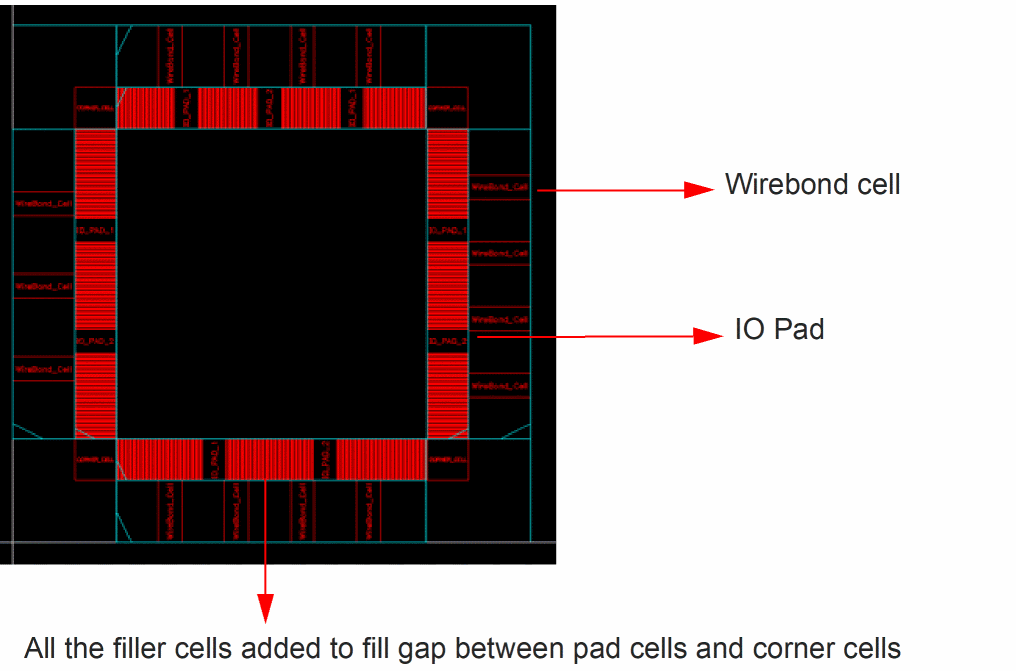
The filler cells are then placed from the biggest to the smallest in order to minimize the number of inserted filler cells. Filler cells with height less than that of the row site are not considered for placement because if their heights are lesser than the row site, there will be discontinuity in the rails.
Related Topics
Return to top