
Customizing Block Annotation Options
During floorplanning, you can turn on block annotations to view textual information about the blocks. Block annotations are aligned to the top-left corner of the PR boundary of the blocks, and include the block instance names, master cellview information, area, cell types, and orientation values.
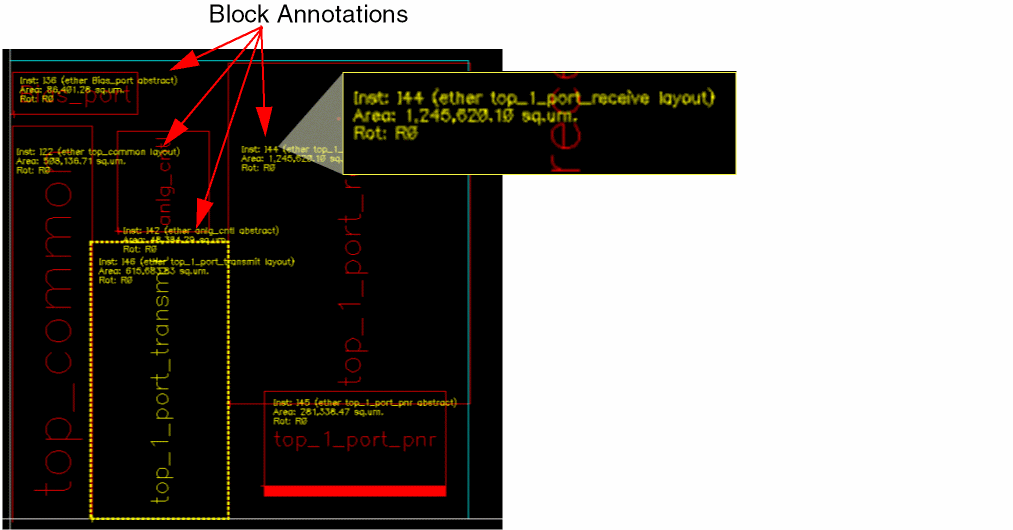
Any change made to the block is dynamically updated in the annotated information. For example, if a block is moved, the information text is also moved to the new location. Similarly, when a block shape is changed by stretching or chopping the block, the annotation values are dynamically updated.
To customize the information displayed in the block annotations:
-
Choose Floorplan – Block Annotations to turn on block annotations.
The Block Annotations Options form is displayed. The Block Annotations form is available for both edit and read-only cellviews.
In Layout EXL and higher tiers, choose Plan – View – Block Annotations.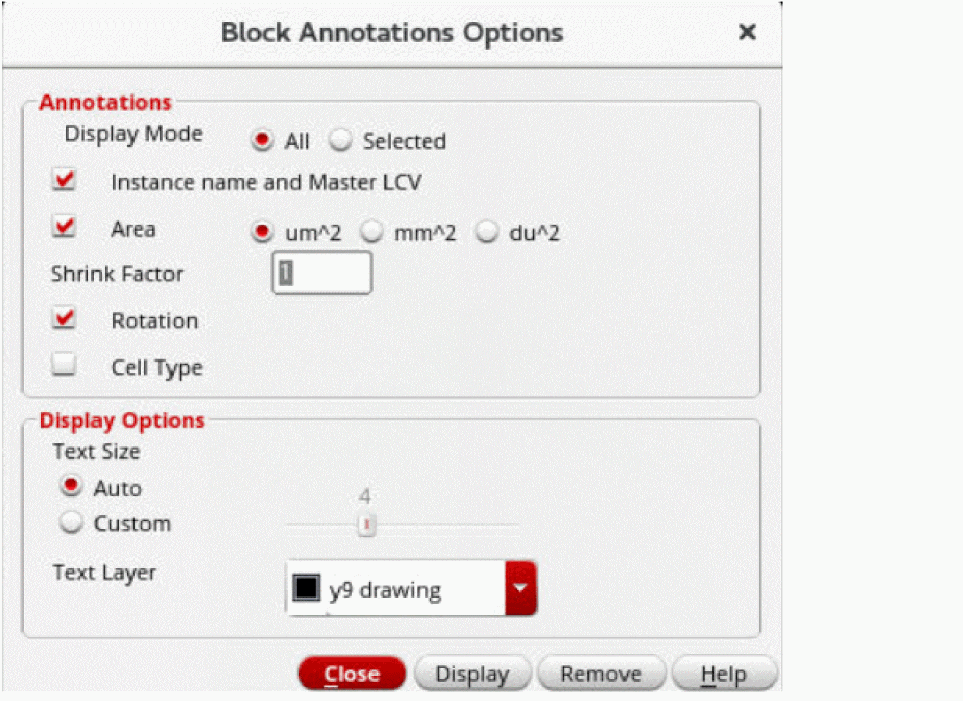
- In the Annotations section, use the options to specify the information that is to be included in the block annotations.
- Set the Display Mode to specify whether the block annotations are to be displayed for All or Selected blocks.
- Select Instance name and Master LCV to display the relevant information in the block annotations.
- Select Area to display the total block area within the PR boundary.
- Select Shrink Factor to specify the factor by which each edge has to be shrunk. Specify a Shrink Factor to display the shrunk area. The shrunk area is only displayed in the annotation without changing any values in the design.
- Select Rotation to include the block orientation information in the block annotations.
-
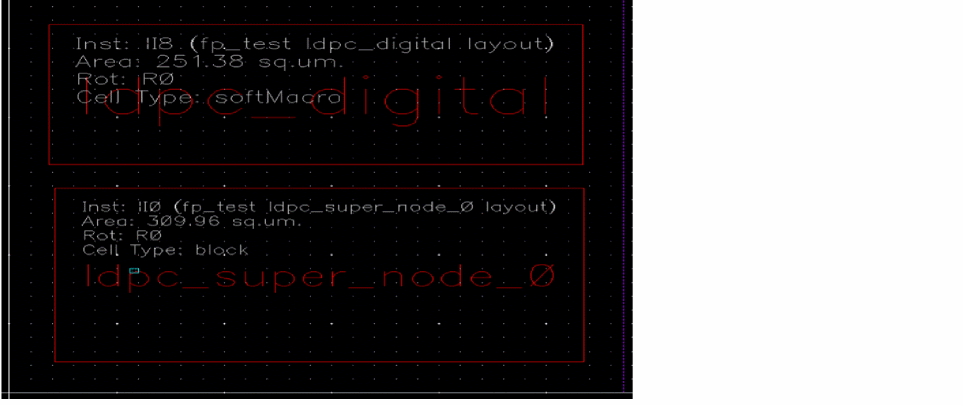
Select Cell Type to display the cell type of soft blocks in the block annotation.
The following image shows the instance name, area, rotation and cell type of the two soft blocks.
- In the Display Options section, use the Text Size field to specify the size of block annotations.
- Click Display to apply the size of annotations to the layout design.
- In the Text Layer field, select a layer based on which the block annotation text is to be formatted.
- Click Display to view and Remove to hide block annotations in the layout canvas.
Related Topics
Block Annotations Options Form
Return to top