
Updating Label Layer-Purpose Pairs on Pin Layer Changes
When you run certain pin-related commands, such as the Pin Planner and Pin Optimizer, pins in the design are re-layered. You can use the options in the Label Layer Purpose Pair Update section of the Floorplan Global Options from to control the re-layering of the associated pin labels.
In Layout EXL and higher tiers, these settings are available in the Design Planning and Options form.
To specify custom layers and purposes:
-
Choose Floorplan – Floorplan Global Options.
The Floorplan Global Options form is displayed. - In the Label Layer Purpose Pair Update section, you can define the label re-layering behavior by selecting one of the options.
- Select Define Custom Layer Purpose Pair.
-
Click Options to display the Label Layer Purpose form.
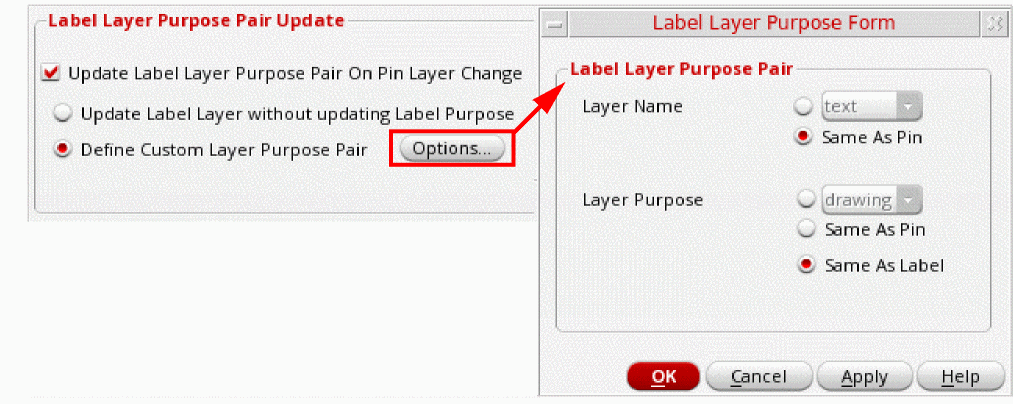
- Select one of the Layer Name options to specify the layers to which the labels are to be moved:
- Select Custom layer to specify the layer to which labels are to be moved.
- Select Same as Pin to move labels to the same layers as the pins.
- Select one of the Layer Purpose options to specify the purposes to be assigned to labels when their associated pins are re-layered.
- Select Custom purpose to specify the purpose to be assigned to labels when the associated pins are re-layered.
- Select Same as Pin to match the label purpose to that of the pins after they are re-layered.
-
Select Same as Label to retain the original label purpose.
When pins are re-layered with Update Label Layer Purpose Pair On Pin Layer Change not selected, labels remain unchanged. - Click OK.
When both
pinTextSamePurpose and sameLabelPurpose are set to t, sameLabelPurpose takes precedence. This is irrespective of the pinTextPurpose setting.Related Topics
Return to top