
Selecting Pin Members for Pin Group Guide
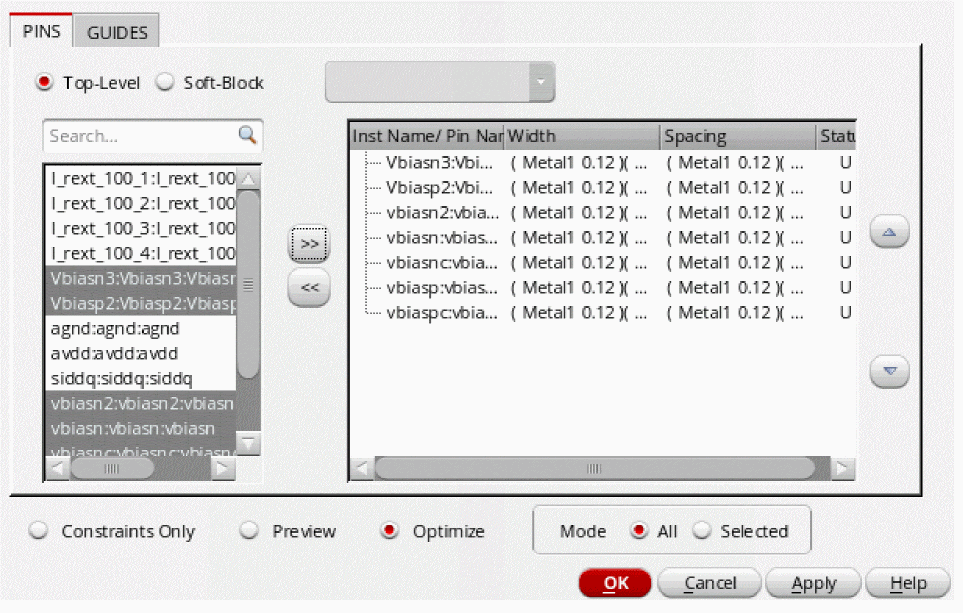
You can use the PINS tab of the Pin Group Guide form to select pin members for the pin group guide constraint. The PINS tab comprises a pin browser on the left side and a pin group table on the right side. The pin browser enlists all the shape pins found in the current scope. It does not list pins that are vias.
The entries are expressed as termName:pinName:figName because the pin figure is the physical entity that you are placing. If a pin has more than two pin figures attached to it, but the pin figures have the same name, they are represented by a single entry in the pin list. Pins that you select in the layout design are automatically selected in the pin browser. Similarly, pins selected in the pin browser are automatically highlighted in the layout design.
To select pin members in the PINS tab:
-
Choose Floorplan – Pin Group Guides – Create.
In Layout EXL and higher tiers, choose Plan – Pin Planning – Create/Edit Pin Group Guide.
The Pin Group Guide form appears. -
Select the pins to be included in the pin group guide using the options on the PINS tab.
-
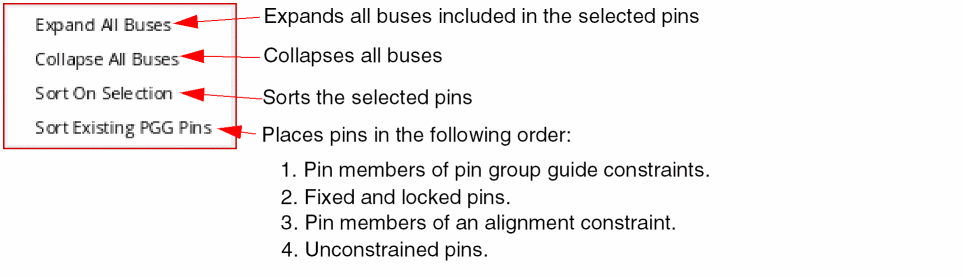
Select the required pins in the pin browser and right-click to display the shortcut menu, which provides the following options:
-
Use
 to move pins from the pin browser to the pin group table.
 -
After moving pins to the pin group table, right-click to display the shortcut menu in the pin group table, which provides the following options:

- You can add top-level pins, soft block pins, or a mix of both to the pin group table.
- Choose Soft Block to display a list of soft block pins.
-
Select the required soft block from the drop-down list. Pins in the selected soft block are displayed in the pin browser. Also the focus in the layout design changes to the selected soft block.
- Use the add (>>) or remove buttons to add or remove pins from the pin group table. The pin group table also provides the Pin Name, Width, Spacing, and Status values in corresponding columns. Status indicates the placement status of the pins. Valid statuses are:
-
Double-click the required cell and select the required values from the drop-down list. You can directly edit the pin width, spacing, and status values in the pin group table.
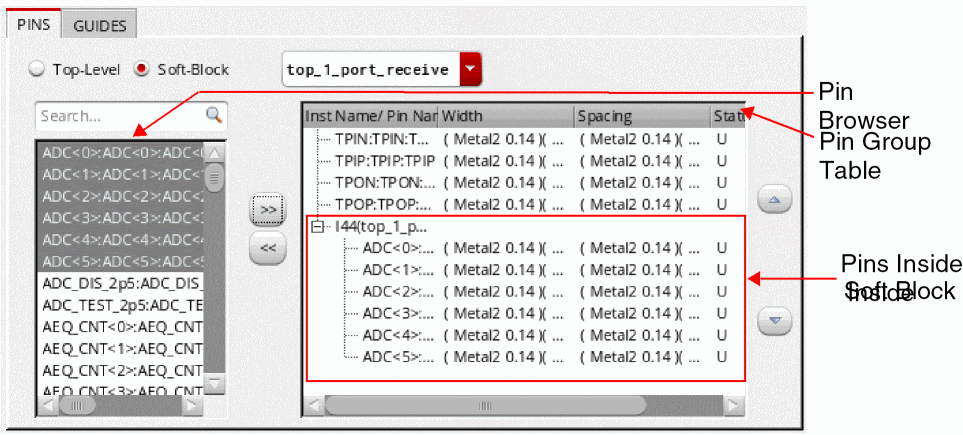
Cross-selection of pins is implemented between the layout design and the Pin Group Guide form. Therefore, the pins selected on the PINS tab are highlighted in the layout design. Similarly, the pins selected in the layout design are selected in the pin browser.
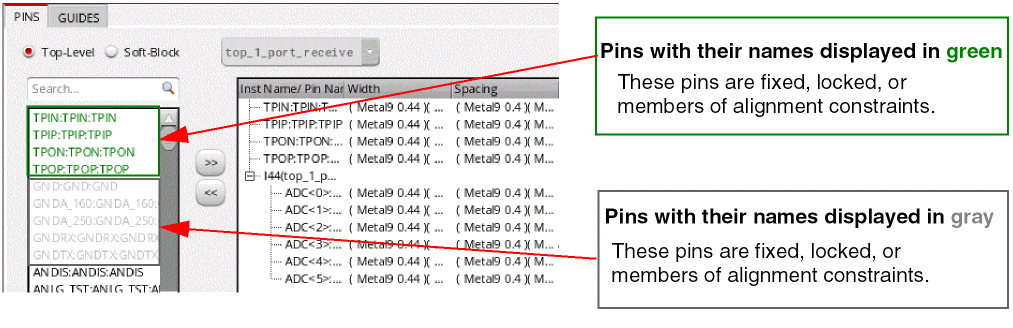
You cannot add the following types of pins to the pin group table:
Related Topics
Return to top