
Creating a Pin Group Guide
Virtuoso Floorplanner provides options to create pin groups and guides interactively. When you select pins on the layout, then the pins are selected and highlighted in the form, and vice versa.
-
Choose Floorplan – Pin Group Guides – Create.
In Layout EXL and higher tiers, choose Plan – Pin Planning – Create/Edit Pin Group Guide.
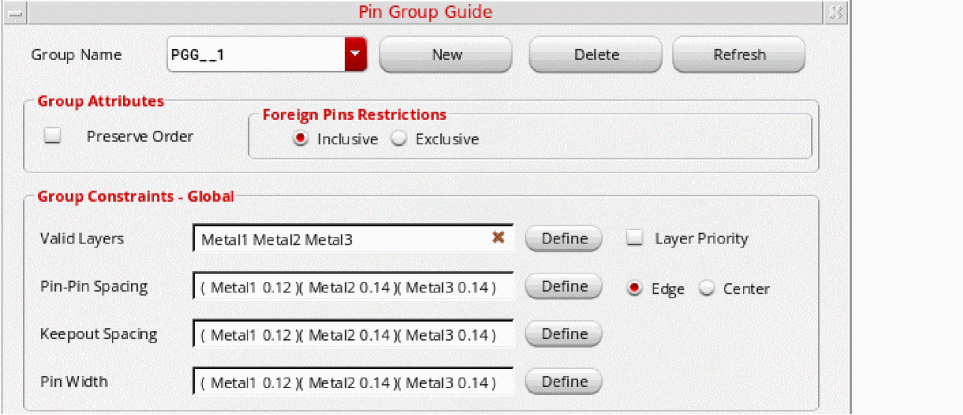
The Pin Group Guide form appears.
-
Specify the name of the new pin group guide in Group Name field or click New to generate a unique group name.
You can edit the automatically-generated group name. -
In the Group Attributes section, select Preserve Order to honor the pin order group constraint and optimize pins in that sequence.

- Select a Foreign Pins Restrictions option to specify whether foreign pins are allowed in the pin group guides.
-
In the Group Constraints section, select Valid Layers to specify valid layers for pin placement.
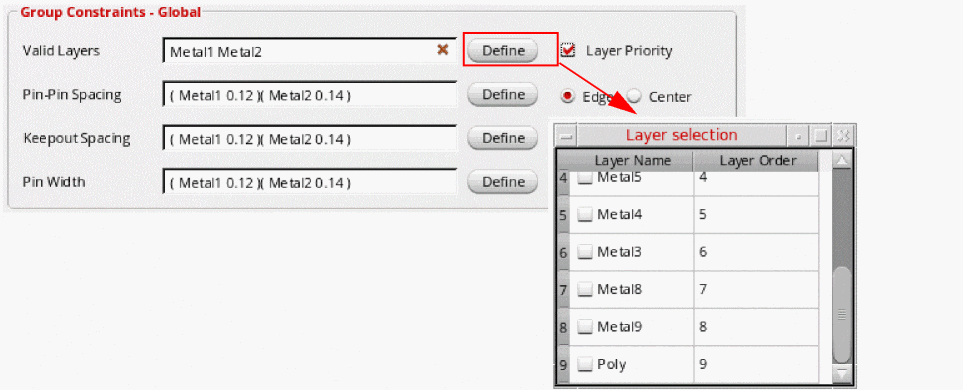
Click Define to display the Layer selection pop-up box, which lists all the layers that are available in the current design. Add or remove the layers by selecting or clearing the corresponding check boxes.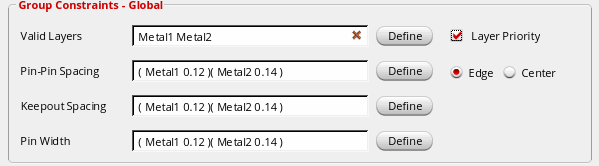
Click to delete all layers from the Valid Layers field. If the Layer Priority check box is selected, then pins are optimized based on their layer priority.
-
Select Pin-Pin Spacing to specify the spacing between adjacent pins on each layer.
Click Define to display the Pin-Pin Spacing Constraints pop-up box. All valid layers are automatically populated in the Layer Name column.
Specify the spacing values for these layers and close the window. - Select Keepout Spacing to define the minimum edge-to-edge spacing between pins and other components.
- Select Pin Width to specify the width of pins for each layer by typing the layer name and pin width values in the Pin Width field, or click Define to open the Width Constraints pop-up box.
-
Select the pins to be included in the pin group guide using the options on the PINS tab.
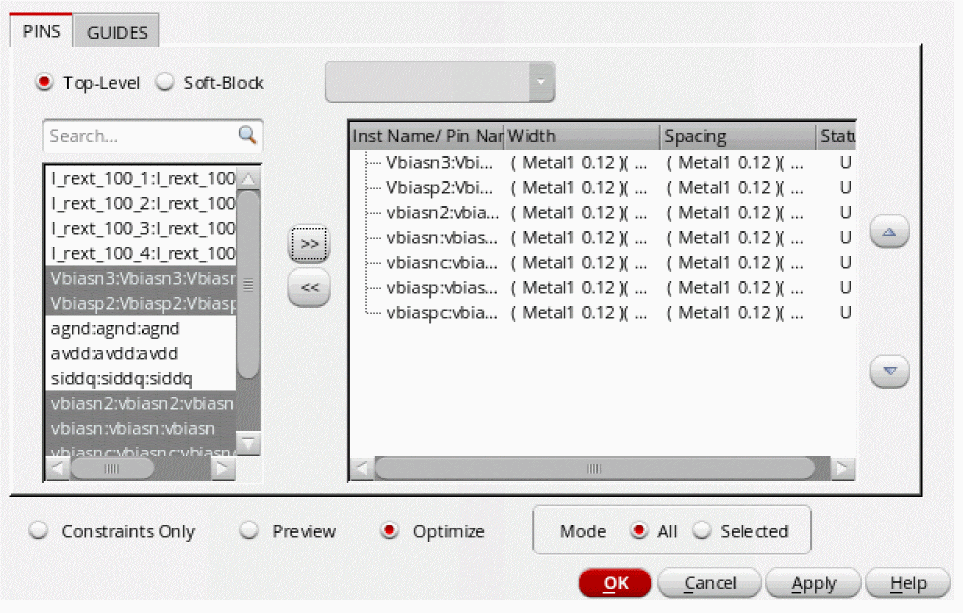
- Draw the pin group guide on the layout canvas using the options on the GUIDES tab.
- Select Constraint Only to update only the pin group guide constraint.
- Select Preview to provides a visualization of the placement of the pins on the pin group guides.
- Select Optimize (default) to update the pin group guide constraint and place pins on the guide. The pins are optimized to obtain the shortest possible net length.
-
Choose a Mode. This option is only applicable to the Pin Optimizer.
The Mode is set to All or Selected depending on whether all or some of the pins are selected. - Click Refresh to discard the changes made to the form at any point before creating the pin group guides.
- Click OK or Apply to create the pin group guide.
Related Topics
Interactive Guide Creation for a Pin Group Guide
Return to top