
Creating Pin Templates in the Pin Tool
(Virtuoso Layout Suite EXL) At advanced nodes, the Create Pin Template tool provides a pin position–driven flow for standard cell-based designs. Typically, pin positions are encoded in either the symbol or the schematic views. The Create Pin Template tool considers the symbol (or schematic) view as the source and the layout view as the target.
The tool reads pin positions and pin constraints from the source view and checks for the presence of corresponding pins in the target view and then synchronizes them. The Create Pin Template tool creates missing pins and renames, repositions, and constrains existing pins in the layout view as per the source view. Power and ground pins and rails are generated and the Pin Optimizer is run, thus making the design ready for further placement and routing.
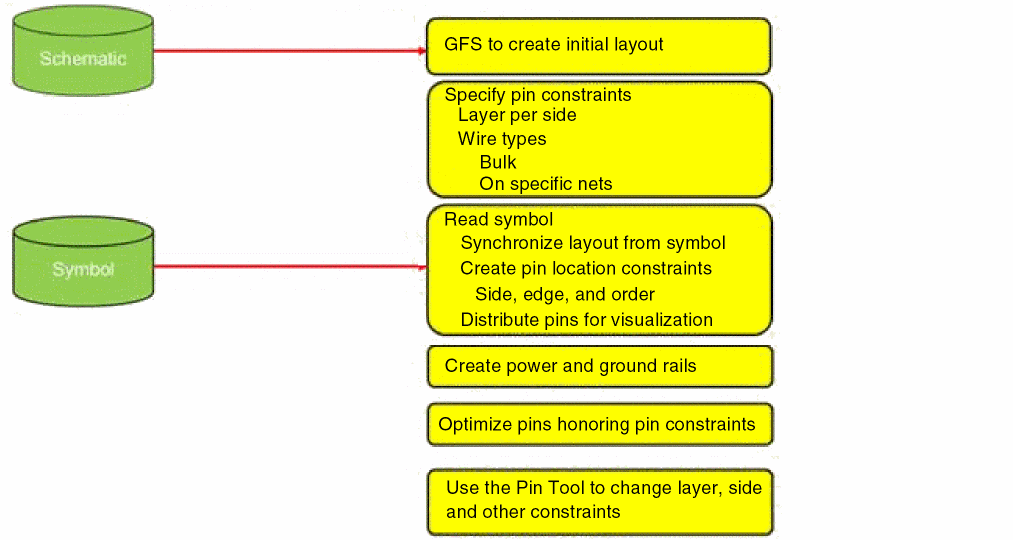
The following figure depicts the flow of the Create Pin Template tool with both schematic view and symbol view as the source.
To run the Create Pin Template tool:
- Choose Plan – Pin Planning – Pin Tool. The Pin Browser is displayed.
-
Choose Create – Create Pin Template. The Create Pin Template form appears.
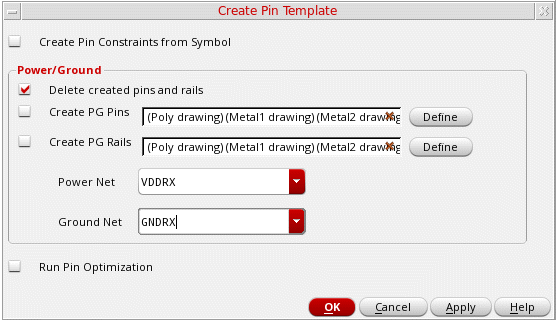
- Select Create Pin Constraints from Symbol to create pin alignment constraints, which are the order and edge constraints, on pins in the layout based on their positions in the source symbol or schematic.
- In the Power/Ground section, new power and ground pins are created if the corresponding options are selected. If not selected, then all power and ground pins in the layout are deleted.
- Select Delete created pins and rails to delete all pins that were previously created by the Create Pin Template form.
- Select Create PG Pins to create power and ground pins in the layout.
- Use the LPP Selection field to specify the layers in which the power and ground pins are to be created. You can either type the LPPs or click Define to select them from a list.
- Select Create PG Rails to create power and ground rails.
- Use the LPP Selection field to specify the layers in which the rails are to be created. You can either type the LPPs or click Define to select from a list.
-
Select a value from the Power Net list to specify the net on which pins with signal type set to
Powerare to be created. The list is auto-populated with existing power net names. -
Select a value from the Ground Net list to specify the net on which pins with signal type set to
Groundare to be created. The list is auto-populated with existing ground net names. - Select Run Pin Optimization to run Pin Optimizer in All mode.
- Click OK.
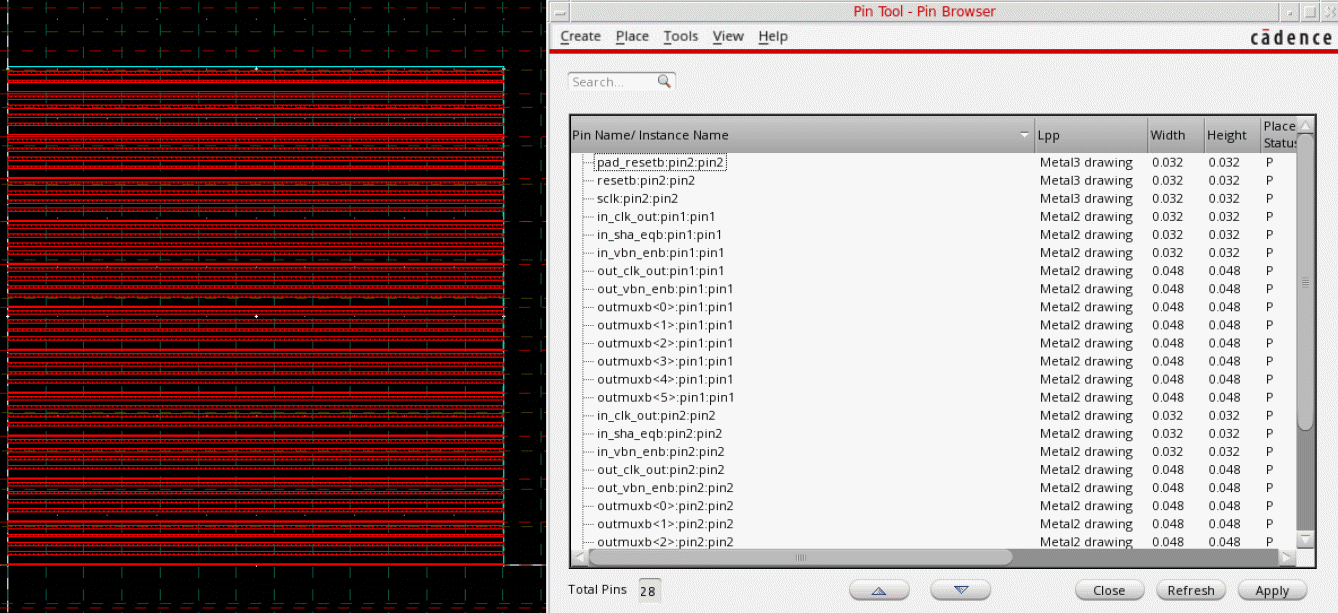
Pins are generated in the layout canvas as per the above settings. You can use the Pin Tool to make any further changes to the layer, side, or other constraints, as per your requirement.
The following image shows a source symbol and the corresponding pins listed in the Pin Tool.
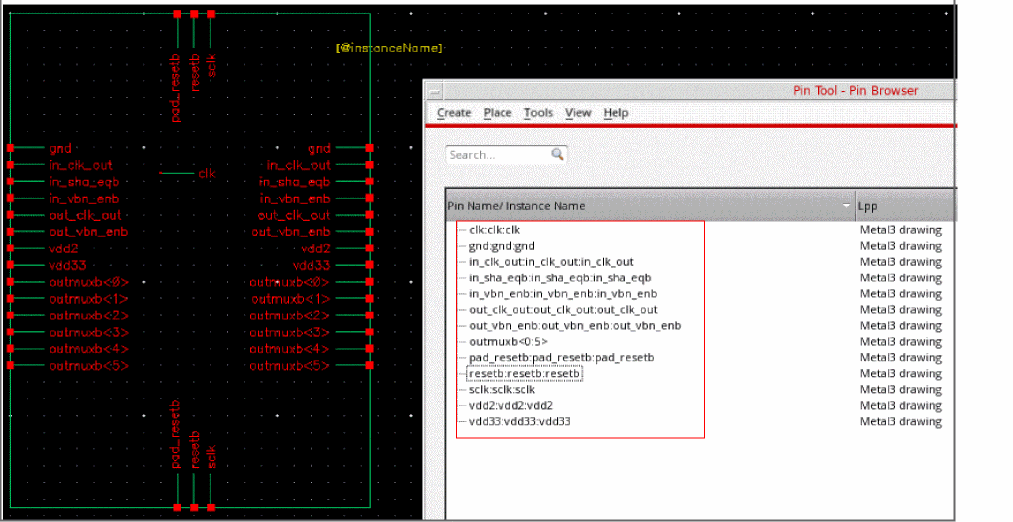
The Create Pin Template command is run on the above design.
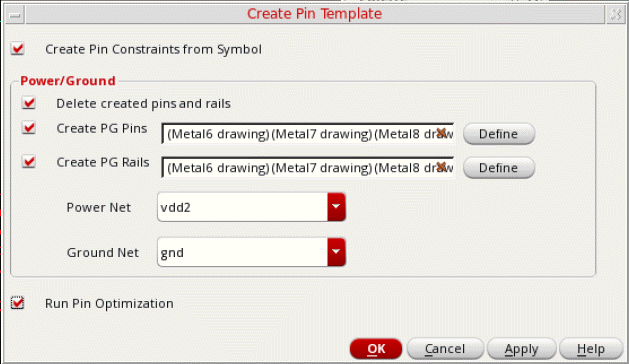
The following image shows the new pins and rails that are generated in the layout design and are listed in the Pin Tool. The newly created pin and rail names are appended with _<pin_number> suffix. The pins are placed in the same sequence as in the symbol view.
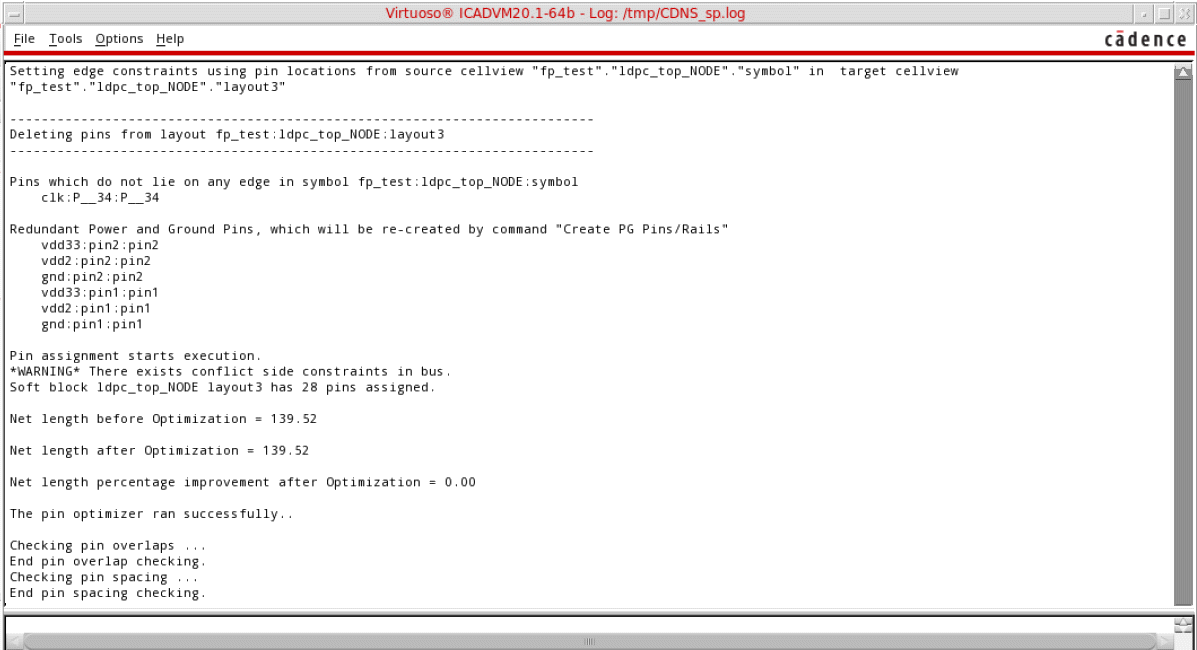
A report is generated in the CIW listing the pins that have been deleted and the pins and rails that have been created. The report also shows pin optimization results.
Related Topics
Return to top