
Placing Ordered Pins on a Boundary Edge
To place a group of pins in a specific order along a boundary edge:
-
From the layout window menu bar, choose Floorplan – Pin Planner.
The Pin Placement form is displayed. -
Select one or more pins from the pin table.
Change the order of the pins by selecting a pin in the list and clicking on of the arrows that surround the Move pins label. The up and left arrows move items up in the list; the down and right arrows move items down. - Use the Swap order option to swap the position of two selected pins.
- Choose the edge you want from the Edge drop-down list.
-
Type a number in the Order field.
You can type any number into the field; the selected pins are assigned an integer based on the order in which they are listed in the pin table.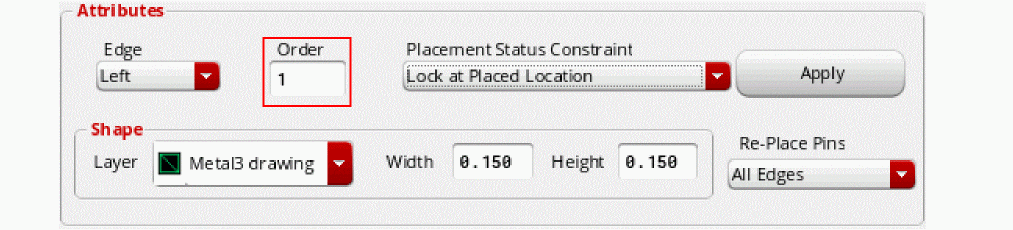
When an Order is specified, the Width and wire Type values are ignored. Pins are placed in adjacent tracks following the specified order. Set the enableTrackSkipping environment variable totto honor the pin order along with the width and wire type values. If the adjacent track does not meet the required wire type or width requirements, then tracks are skipped until a suitable track is found.By default, enableTrackSkipping is set tonil. Therefore, pins with order constraint are placed in continuous adjacent tracks meeting the order constraint. The wire type and width requirements are ignored. -
Click Apply to apply each pin assignment.If required, use the Re-Place Pins pull-down to limit the pins that can be moved by the placer when you click Apply.The pins are aligned to the specified boundary edge in the layout in the order you specified.
Related Topics
Planning Placement of Top-Level and Level-1 Pins
Return to top