
1
Job Monitor
The Cadence® Job Monitor lets you run and query the status of Cadence software jobs. You can also use Job Monitor to view the jobs in a queue; run jobs immediately or at a later time; display output and error log files; suspend, resume, and terminate jobs; customize the appearance of the Jobs table view; and search for jobs that match specific criteria.
Job Monitor uses Load Balancing System (LBS), a Cadence proprietary load-sharing system, to distribute jobs across a network of workstations. LBS refers to the API that applications use to launch jobs and the back-end load-sharing system. This API works with the Cadence proprietary LBS called cdsqmgr and third-party systems such as Load Sharing Facility (LSF), Sun Grid Engine (SGE), and OpenLava (OLV).
cdsqmgr is the default load balancing system. To specify a different system, set the LBS_BASE_SYSTEM shell environment variable to one of the following:
To use LSF, SGE, or OLV, you must have it installed at your site. For more information, contact the respective vendor.
Starting Job Monitor
cdsJobMonitor \
[{-32 | -64 | -32only | -64only | -3264 | -6432}] [-quiet3264] \
[-debug3264] [-plat <platform>] [-v3264] [-help3264] \
<application-specific-options>...
The Job Monitor window appears. The Jobs table view displays the jobs that have been submitted to the Job Monitor.
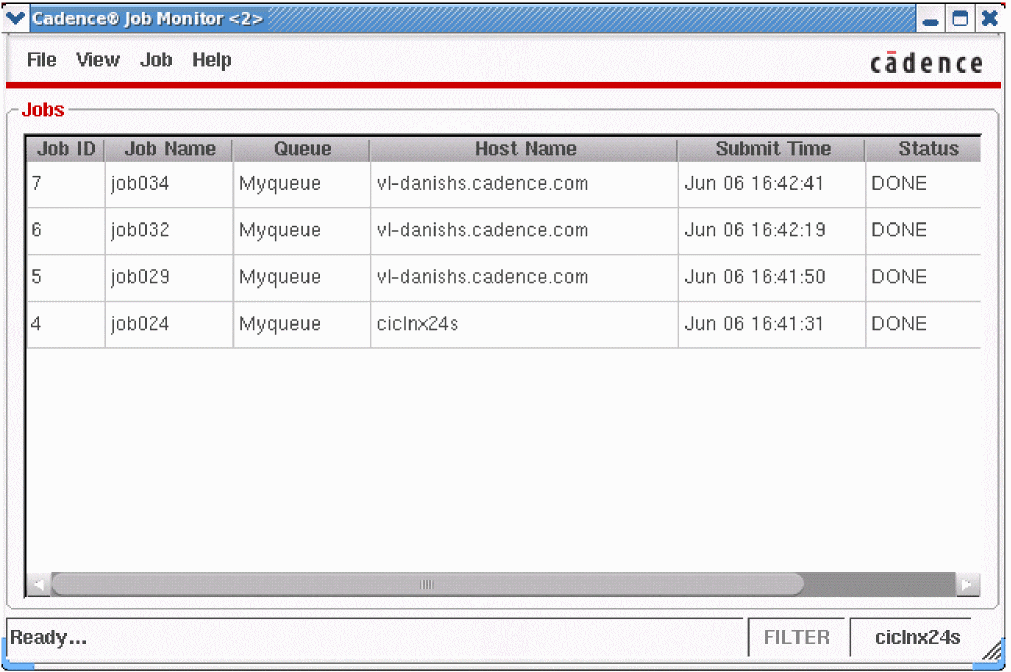
Job Monitor Menu Bar
File Menu
- Save Defaults saves the current settings of Job Monitor as the default settings. See Job Monitor Window Settings for more information.
- Exit closes the Job Monitor.
Job Monitor Window Settings
Before you start the Job Monitor, type the following to set the CDS_JOB_MONITOR_DEFAULTS environment variable to use the predefined settings.
setenv CDS_JOB_MONITOR_DEFAULTS "parameter_1=value_1 parameter_2=value_2..."
CDS_JOB_MONITOR_DEFAULTS environment variable must not contain any blank spaces or quotes.
The table below describes the parameters, data types, default values, and descriptions that are supported by the CDS_JOB_MONITOR_DEFAULTS environment variable.
| Parameter | Type | Default | Description |
|
Order of columns in the Job Monitor window. The allowed column names are JobID, JobName, Queue, HostName, SubmitTime, Status, StartTime, EndTime, Command, and Owner |
|||
|
State of the Status check box on the |
|||
|
State of the Host Name check box on the |
|||
|
State of the Owner check box on the |
|||
|
State of the Job Name check box on the |
|||
|
Status of the job on the Filters form. The allowed states are RUNNING, PENDING, SUSPENDED, and ENDED |
|||
|
Text controlled by the Host Name check box on the |
|||
|
Text controlled by the Owner check box on the |
|||
|
Text controlled by the Job Name check box on the |
|||
|
State of the Show confirmations before terminating jobs check box on the |
|||
|
State of the Send default mail on job abort check box on the |
|||
|
Position of the Rate slider on the |
|||
|
State of the Auto radio button on the |
|||
|
State of the Job Name check box on the |
|||
|
State of the Owner check box on the |
|||
|
State of the Host Name check box on the |
|||
|
State of the Status check box on the |
|||
|
State of the Submit Time check box on the |
|||
|
State of the Start Time check box on the |
|||
|
State of the End Time check box on the |
|||
|
State of the Command check box on the |
|||
|
State of the Queue check box on the |
filter_by_status, filter_by_hostname, filter_by_owner, and filter_by_jobname are set automatically if the corresponding filter string has been assigned a value. For example, setting the status_filter parameter to true will automatically set the filter_by_status parameter to true.View Menu
- Refresh reloads the Jobs table view
- Toolbar displays or hides the toolbar
- Log Files displays output and error log files
- Options lets you select the job attributes—choose column headings, set the refresh rate, show or hide the Confirm Terminate Job dialog box, and choose to send e-mail notifications when a job aborts
- Filters lets you find jobs by their status, owner, host name, job name, or queue
Job Menu
- Run lets you launch new jobs and schedule jobs to run later
- Suspend lets you defer a job to run later
- Resume lets you run a suspended job
- Terminate lets you stop a job that is running
- Properties displays information about a job
Help Menu
- Help Topics links to the online documentation library
- About Job Monitor displays information about the version of Job Monitor you are running
Job Monitor Toolbar
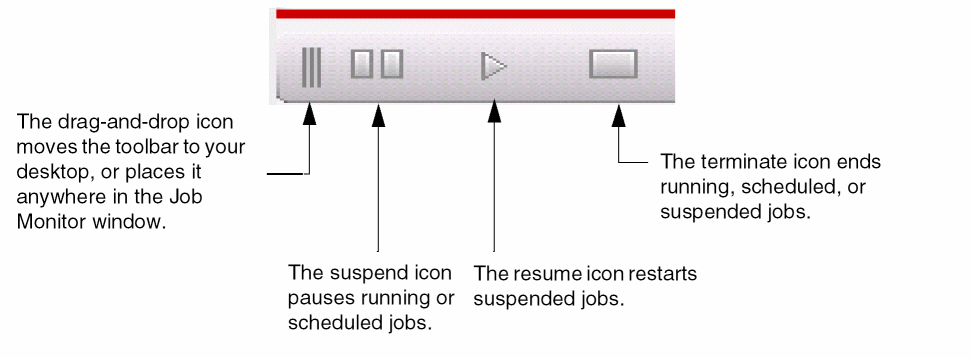
The toolbar is hidden by default.
-
From the Job Monitor window, choose View – Toolbar.
You can use the same command to hide the toolbar.
You can place the toolbar anywhere on your desktop or inside the Job Monitor window.
To return the toolbar to its original position:
If the close button is not visible, move the toolbar inside the Job Monitor window.
Job Monitor Context Menu
The context menu gives you fast access to the common commands. The commands in the menu are enabled or disabled depending on the status of the selected jobs. For example, if more than one job is selected, the Properties command is disabled.
- In the Jobs table view, select the jobs you want to suspend, resume, terminate, or for which you want to display the properties.
- Right-click to display the context menu.
-
Click the task you want to perform.
The Jobs table view displays the new status of the job.
Selecting Jobs
To select multiple adjacent jobs, do one of the following:
-
Press and hold the
Shiftkey, then click the start and end row of the set you want. - Click and drag over the jobs you want to select.
To select multiple non-adjacent jobs:
Deselecting Jobs
To deselect the selected jobs:
Closing Job Monitor
Return to top