Filter and Search Options
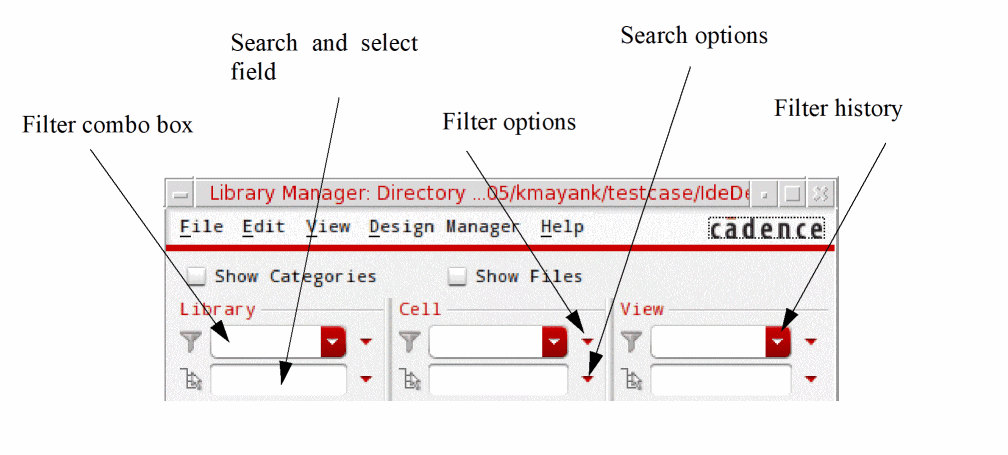
In the Library Manager window, the Filter combo box and the Select and search field are provided at the top of the Library, Cell, and View list boxes. Use the Filter combo box to specify a filter pattern and accordingly display only a subset of libraries, cells, or views. The Search and select field lets you search and select a particular library, cell, or view by specifying a search string.
Using the Filter Combo Box
The Filter combo box supports use of patterns containing wildcard characters or regular expressions in the specified input. Use of wildcard characters is the preferred and recommended mode of specifying filter patterns. It provides to you advantages that are similar to filtering a list of files from a directory. For example, if you specify *Lib*, the corresponding items, such as Lib1, Lib2, and Mylib, gets displayed.
You can use the lmgrSetLCVFilter SKILL function to filter the library, cell, and view list.
To apply filters, specify a filter pattern in the Filter combo box and press the Enter or Tab key. However, if the Wildcard option is selected, there is no need to press the Enter or Tab key. In this case, when you pause, the filter pattern is applied and the Library, Cell, or View list box is updated dynamically.
Pressing the Enter or Tab key applies the filter pattern and saves it to the Filter history list. If you press the Tab key, the cursor moves to the Search and select field below the Filter combo box.
You can set the filter criteria by selecting the required options from the filter options menu, as shown below.
|
Field
|
Description
|
|
Filter With
|
Lets you filter the instances based on one or more specified patterns.
|
|
All Of The Words
|
Sets the filters to display the items that contain all the specified words. For example, if you specify Ana* *cell (separated by space), the corresponding item such as Analog_res_cell gets displayed in the list box.
|
|
Any Of The Words
|
Sets the filters to display all items that have at least one of the specified words. For example, if you specify the filter pattern *mos*, all the corresponding items, such as nmos, pmos_hiVT, and DMOS, is displayed in the list box.
This is the default option.
|
|
None Of The Words
|
Sets the filter by specifying the filter pattern that you want to exclude from the list box. For example, if you specify mos, it excludes all the items, such as mos, Mos, and MOS; whereas, pmos does not get excluded.
|
|
Using Case
|
Lets you determine whether the filter results must be case sensitive, Sensitive Match, or any text case is acceptable, Insensitive Match.
|
|
Insensitive Match
|
Sets the filter to display a subset of items, irrespective of casing. For example, if you specify the text string *mos, all the corresponding items, such as Nmos and CMOS, gets displayed in the list box.
|
|
Sensitive Match
|
Sets the filter to display a subset of items with the exact casing. For example, if you specify the text string *mos, only the lowercase items such as, Nmos and Cmos, gets displayed in the list box.
This is the default option.
|
|
Match Syntax
|
The options under Match Syntax let you choose the syntax that is used to interpret a pattern filter.
|
|
Wildcard
|
Sets the filter by specifying an item using the following wildcard characters:
-
* : Matches zero or more characters. For example, if you specify mos*, all the corresponding items starting with mos such as, mos_t and Mos_hiVT, gets displayed in the list box. -
? : Matches any single character. For example, if you specify mos?, only the items followed by a single character such as, mos1 and Mos2, gets displayed. -
[] : Represents a set of characters enclosed within the square brackets. For example, if you want to filter the items starting with a or A and containing the substring nalog, specify [aA]nalog as a search string. It displays the matching items, such as analog and Analog. -
\ : Escapes any wildcard character. For example, if you want to filter out the results containing “*” (asterisk), you need to add “\” (backslash) before the “*” symbol. For example, if you specify my\*cell*, all corresponding items, such as my*cell and my*cellA, gets displayed in the list box.
This is the default option.
|
|
Regular Expressions
|
Sets the filter to use regular expressions to interpret the meaning of a pattern.
-
.: If you specify sa.ple, it matches a single character and the corresponding item such as sample gets displayed in the list box. -
.*: If you specify mos.*, all the corresponding items, such as mos_t, mosA, and Mos_hiVT, gets displayed in the list box. -
\ : If you want to filter out the results containing “*” (asterisk), add “\” (backslash) before the “*” symbol. For example, if you specify my\*cell*, all corresponding items, such as my*cell and my*cellA, gets displayed in the list box. -
^ : If you want to filter the items starting with cds, specify ^cds. It displays all the items, such as cdsDefTechLib, cdsDefLibTechview, and cdslibtechView. -
$: If you want to filter the items ending with Lib, specify .*Lib$. It displays all the items, such as analogLib and cdsLib, in the list box. -
[]: If you specify Lib[1-3], it displays all the corresponding items, such as Lib1, Lib2, and Lib3, in the list box. -
|: If you want to filter all the items starting with Lib or cds, specify Lib.*|cds.*. It displays all the items, such as Lib1, Lib2, and cdsLib.
[^] (caret in square brackets): If you want to filter all the items starting with Lib and want to exclude the items containing 3, specify ^Lib[^3]*. It displays all the items, such as Lib1, Lib2, and Libmgr, except Lib3.
|
|
|
Some important points to remember:
-
To record the history of previously applied filter patterns, press the Enter or Tab key after specifying the text in the Filter combo box. The history of previously filtered items is saved at the following location:
$CWD/.cadence/<userID>/libManager -
To view the history of previously applied filter patterns, click the drop-down button of the Library, Cell, or View combo box. It displays the list of filter pattern history from where you can reapply any of the filters.
-
The drop-down list maintains a list of the last 50 filtered patterns. The history is valid for all subsequent Virtuoso sessions.
|
|
By View Names
|
This section is included only in the Views filter options menu.
|
|
Filter Cells by View Names
|
Sets the filter to display only those cells that match the filtered views. It is not selected by default.
|
Using the Search Option
To search for a specific library, cell, or view, specify a text string in the respective Search and select field. To select the instance, press the Enter or Tab key.
|
Field
|
Description
|
|
Match Name
|
Allows you to search for an instance either by specifying a substring or a prefix.
|
|
Substring
|
Searches the first instance in the list box that contains the specified text string. For example, if you specify mos, the Nmos instance is selected in the list box.
|
|
Prefix
|
Searches the first instance in the list box that starts with the specified text string. For example, if you specify mos, the mosView instance is selected in the list box.
This is the default option.
|
|
Using Case
|
The options under Using Case let you determine whether search results must be case sensitive (Sensitive Match) or any text case is acceptable (Insensitive Match).
|
|
Insensitive Match
|
Searches the first instance in the list box irrespective of casing. For example, if you specify the text string mos, the Mos instance gets selected in the list box.
|
|
Sensitive Match
|
Searches the first instance with the exact casing. For example, if you specify the text string mos, only the lowercase items, such as Nmos or Cmos, gets selected in the list box and items like CMOS does not get matched.
This is the default option.
Once you set the filter in the List mode, the Tree mode only displays the items matching the filter criteria.
To view the results in the Tree mode, select View – Tree. In this mode:
-
When you choose a library, only the libraries matching your filter string appear in the expanded branch.
-
When you choose a cell, only the cells matching your filter string appear in the expanded branch.
-
When you choose a view, only the views matching your filter string appear in the expanded branch.
|
Related Topics
Library Manager Form
lmgrSetLCVFilter
Return to top