
Creating a New Cellview
-
Open the Library Manager.
-
Choose File – New – Cell View. Alternatively, you can click inside the Cell or View list box and press
Ctrl+Non the keyboard.
The New File form is displayed.
You can also type the name of the cell in the Cell field and press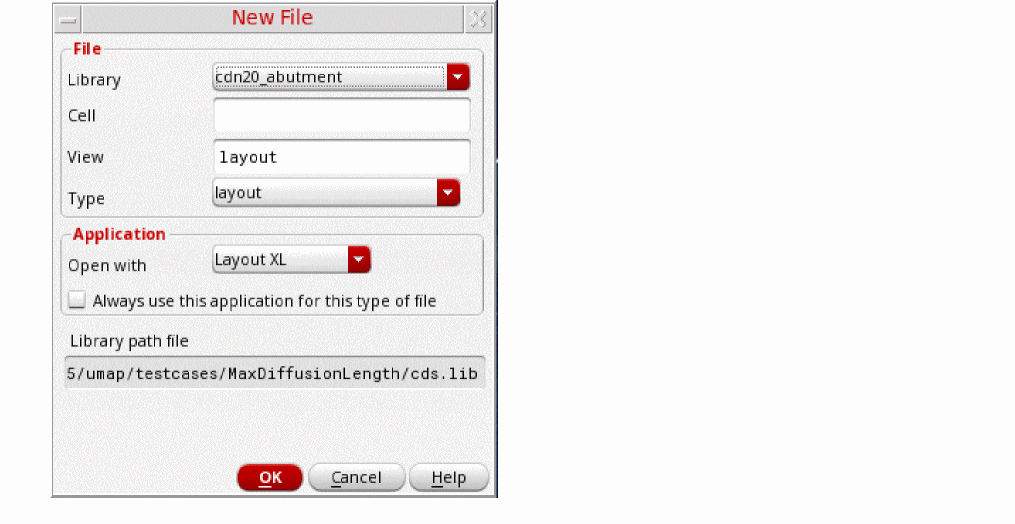
Ctrl+Nto open the New File form. In this case, the Cell field in the New File form is automatically populated with the name that you have entered in the Cell field of the Library Manager form. - In the Library drop-down list, choose the name of the library in which you want to create a new cellview.
-
In the Cell field, type a cell name for the new cellview.
You can set the maximum cell name length allowed by using theCDS_MAX_CELL_NAME_LENGTHenvironment variable. - In the View field, type a view name for the new cellview.
- In the Type drop-down list, choose the type of view to be opened.
- In the Application section, select the application that should be invoked to display this type of selected cellview.
- Click OK.
The new cellview appears in a window of the specified product.
Related Topics
Return to top